
Do you want more traffic each time you publish a new blog post, product, recipe, or any custom post type? If yes, you can use Noptin to automatically send an email to your newsletter subscribers when a post is published on your WordPress site.
New post notification emails are sent automatically the moment content is published. There’s no need to create a newsletter, copy content, or click send. Once set up, Noptin automatically emails your subscribers whenever a new post goes live.
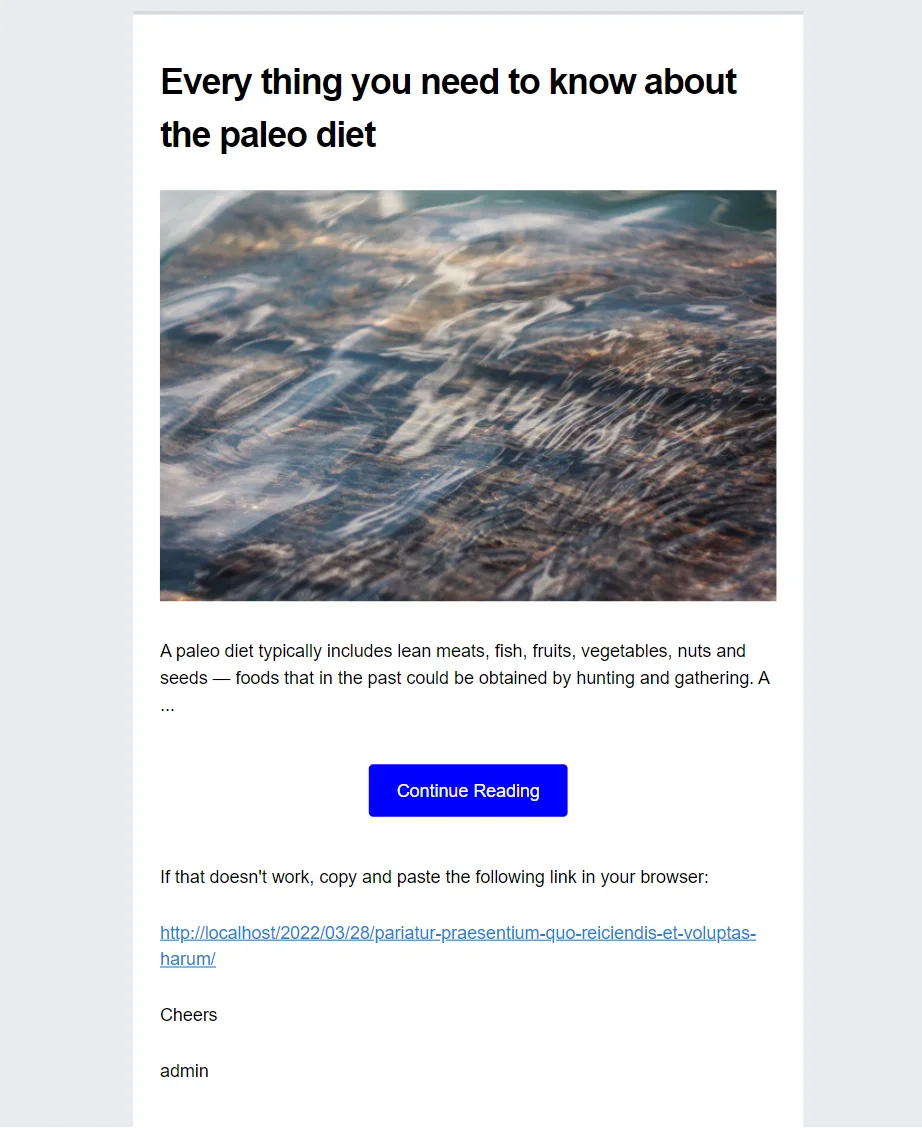
In this guide, you’ll learn how to set up automatic new post notification emails in WordPress, choose who receives them, and control exactly when and how emails are sent after a post is published.
If you’d rather send scheduled summaries instead of instant notifications, see our guide on sending post digest emails instead.
Let’s get started.
What You’ll Learn
- How to automatically send an email when a post is published in WordPress
- How to notify subscribers of new events, listings, products, or custom post types
- How to choose who receives new post notification emails (Newsletter subscribers, WordPress users, Members, or WooCommerce customers)
- How to control timing, delays, and sending conditions
- How to avoid sending unnecessary or empty notifications
Prerequisites
To follow along with this tutorial, make sure that you’ve installed the latest version of Noptin on your WordPress website.
If you plan to send new post notification emails through an external email service provider, you can also install the appropriate integration, such as Mailchimp, ActiveCampaign, etc.
What Can You Notify Users About?
New post notification emails aren’t limited to blog posts.
Noptin can automatically send emails when any new content is published across your site, including:
- Blog posts
- WooCommerce products
- Pages
- Events
- Any custom post type
You can also create separate notification emails for different audiences. For example:
- Notify WooCommerce customers when a new product is published
- Notify newsletter subscribers when a new blog post goes live
Each notification can target a specific post type and a specific group of recipients, giving you full control over who gets notified and when.
Once you know what type of content you want to notify users about, the next step is to create your first new post notification email in Noptin.
In the next section, we’ll walk through the setup step by step.
How to create a new post notification email
To do this:-
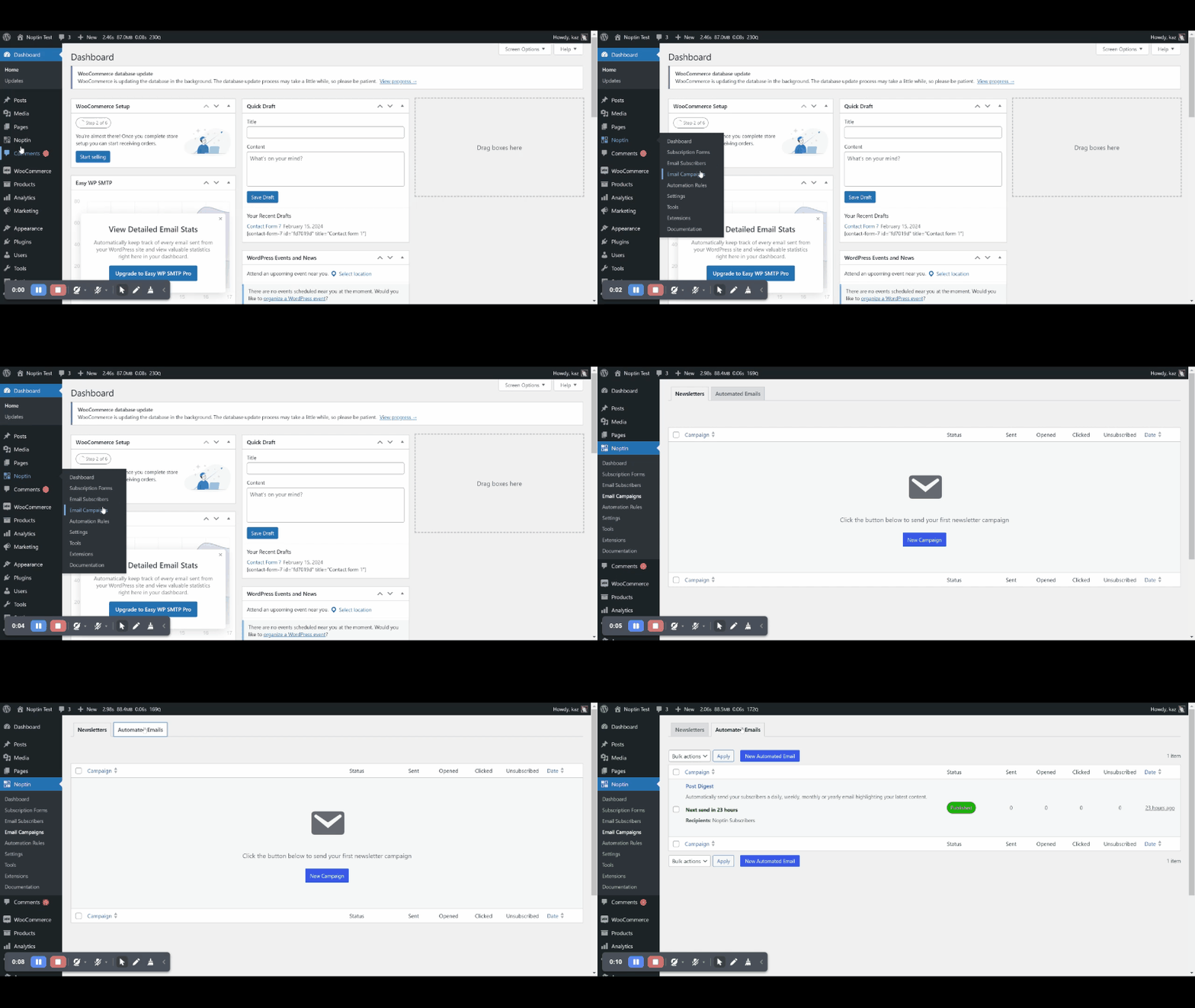
First, log in to your WordPress admin dashboard. Then, open the automated emails overview page.
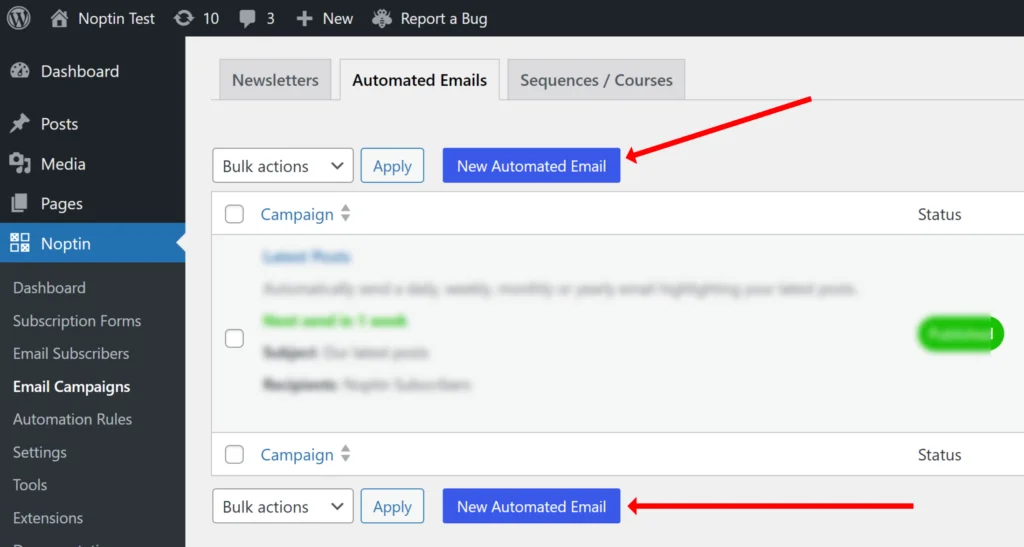
Next, click on the “New Automated Email” button to set up a new automated email.
Noptin will open a modal allowing you to select the type of automated email you want to set up.
Click on your post type from the left sidebar and then select a New Post Notification email.

Finally, choose the people who will receive the email.
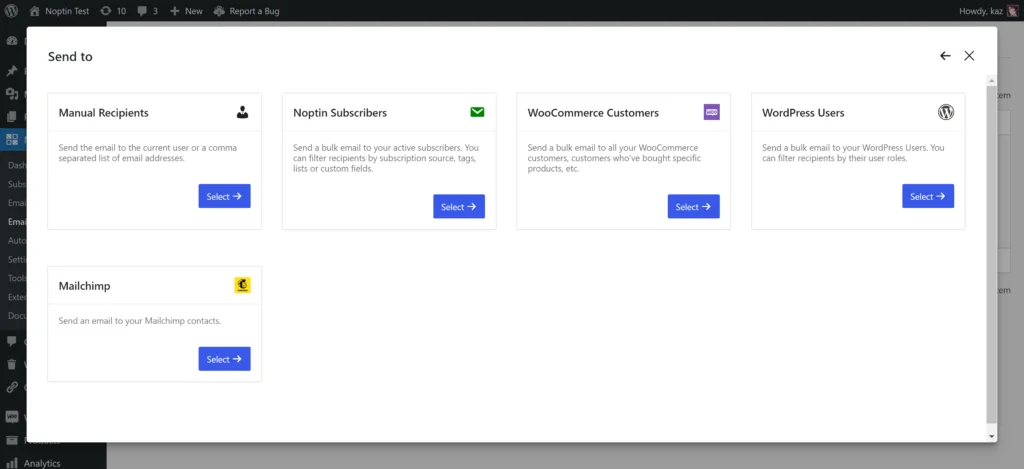
| Recipient | Description |
|---|---|
| Manual Recipients | Sends the email to the post author or a comma-separated list of email addresses. |
| Noptin Subscribers | Sends a bulk email to your active subscribers. You can filter recipients by their custom fields, tags, lists, or subscription source. |
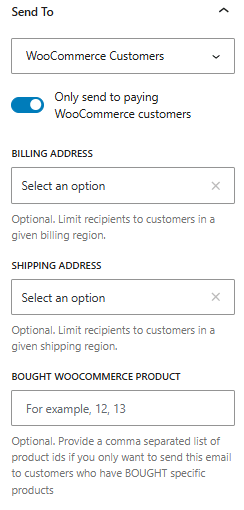
| WooCommerce Customers | Sends a bulk email to all your WooCommerce customers. You can filter recipients by the products they’ve bought, their last order dates, their lifetime spent, or their shipping and billing addresses. |
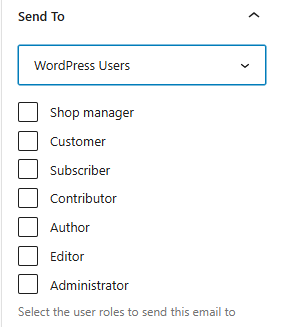
| WordPress Users | Sends a bulk email to your WordPress users. You can filter recipients by their user roles and custom fields. |
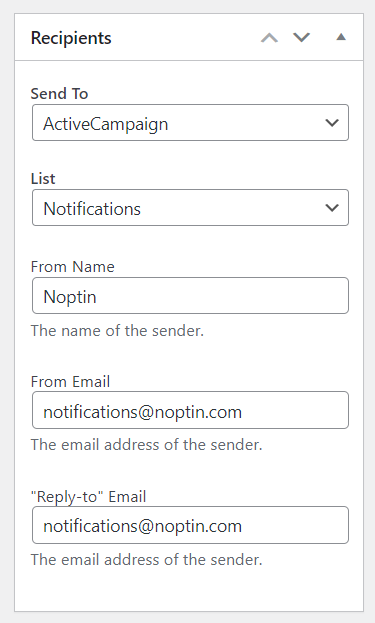
| External | If you have installed a supported integration such as Mailchimp, you can send a bulk email to the integration subscribers and filter recipients by their lists and tags. |
Noptin will then redirect you to the email campaign editor.
Editing the latest posts notification email
After you create a new post notification email, Noptin opens it in the WordPress block editor so you can customize the content before it’s sent.

The editor works just like the regular WordPress post editor, but tailored for email. You can change the subject, the message, and exactly how the latest post is displayed.
Change the Email Subject
At the top of the editor, you’ll see the Subject field. This is what your subscribers will see in their inbox.
By default, Noptin will use the post’s title as the subject, but you can set this to anything else.
To do this, click into the subject field and update it to something more descriptive, such as:
- “New post: [[post.title]]”
- “Just published: [[post.title]]”
- “Check out our latest article”

You can use dynamic merge tags (like [[post.title]]) to insert the actual post title automatically. This helps make your emails more relevant and increases open rates.
Customize the Email Body
The email body is built using blocks. In addition to the default blocks, new post notifications provide specialized blocks, including:
- Post Title
- Excerpt
- Featured Image
- Read More Button
- Categories
- Tags
- Other taxonomies
- Post and Author Meta.
By default, Noptin generates an email that includes the title, excerpt, featured image, and a read-more link for the published post.
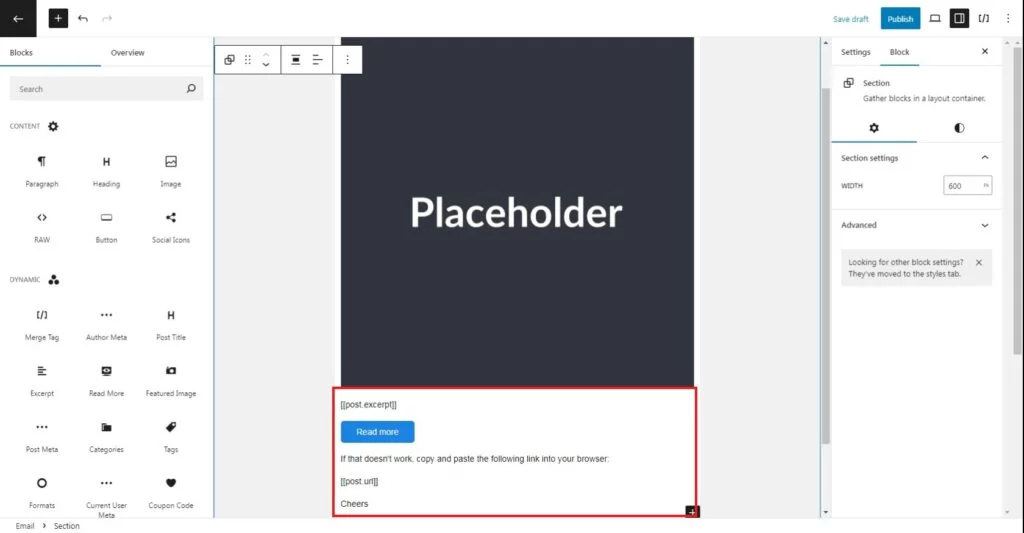
Click on any of the blocks to edit or delete them.

If you want to include more than just the latest post content, such as a greeting or footer, you can drag additional block types from the left sidebar into the email.
For example, you can easily add an image block anywhere in the email body, and set it to display your logo.
To reorder blocks:
- Hover over the block you want to move
- Use the drag handle or the up/down arrows to reposition it
This lets you tailor the message for your audience and maintain a consistent brand voice.
Test and publish
Use the Send Test Email option to send a draft to yourself.

This helps you:
- Confirm the subject line looks right
- Check images and text formatting
- Make sure dynamic placeholders (like post title) render correctly
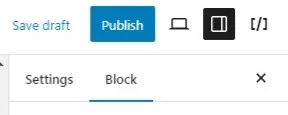
Once you are happy with your email content, click Publish in the top right corner.
TIP:
You can use any of our email merge tags in your email subject, body, and preview texts.
From now on, your email subscribers will be notified every time you publish a new blog post.
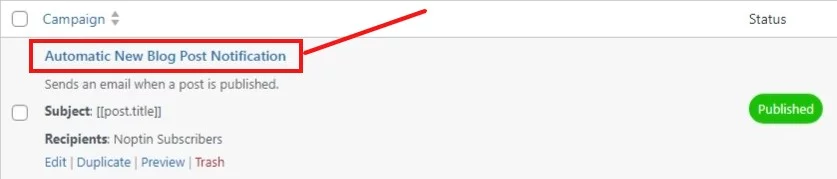
If you ever wish to return to this page and edit the automated email, you can do so by clicking on the name of the email from the automated emails overview page.
How to conditionally send new post notifications
Conditional logic gives you precise control over when a new post notification email is sent and which posts can trigger it.
Instead of notifying subscribers about every post you publish, you can apply rules that limit notifications to specific content, such as selected categories, custom fields, or other publishing conditions. This ensures subscribers only receive emails that are relevant to their interests.
Using conditional logic helps reduce unnecessary emails, improves engagement, and prevents notification fatigue.
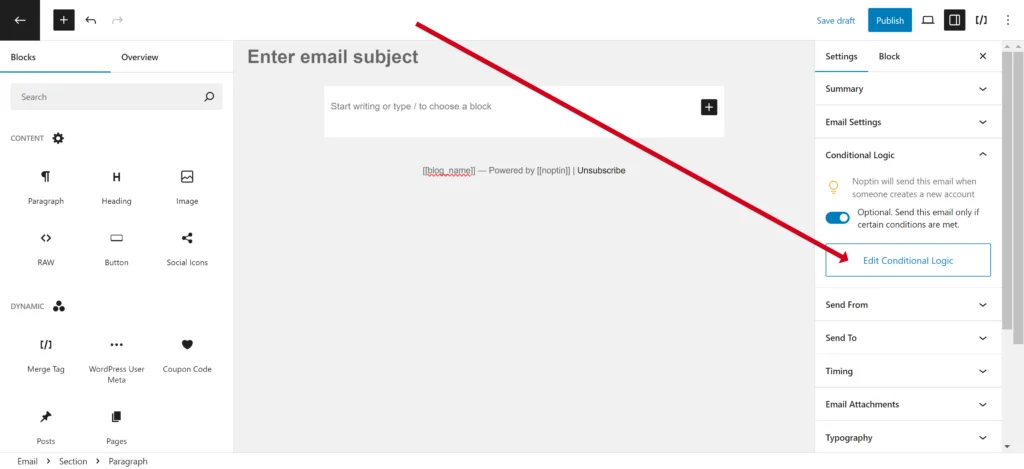
To enable conditional logic for your email campaign, open the Conditional Logic panel under the email settings tab and turn it on. Then, click the Edit Conditional Logic button to set the rules for when the email will be sent.
How to limit notifications to certain categories
By default, a new post notification email is sent for every published post. If you only want to notify subscribers about specific types of content, you can filter notifications by category.
To do this, add a new Conditional Logic rule for Post Category.
The video above demonstrates how to send a post notification only when the post is categorized as Fashion or Books, and not categorized as Sports.
Important:
When setting a category, always use its name rather than the slug or ID.
How to limit notifications to certain tags
In addition to categories, you can limit new post notifications based on post tags. This is useful when tags represent topics, features, or interests that cut across multiple categories.
To do this, add a new Conditional Logic rule for Post Tags.

You can select one or more tags that should trigger the notification. When this rule is active, the email will only be sent if the published post contains at least one of the selected tags.
Important:
When choosing tags, always use the tag name, not the slug or ID.
How to limit notifications to certain taxonomies
This section applies if you’re setting up post notifications for custom post types and need to limit notifications by their custom post types. These include:-
- Product Brand
- Event Type
- Listing condition
- Region
- Etc
Review the above two sections if you’re sending post digests for blog posts and need to limit posts by category or tag.
Categories and tags are just two types of taxonomies. If your site uses custom taxonomies, you can also limit new post notifications based on those.
To do this, add a new Conditional Logic rule for the taxonomy you want to target. Noptin automatically detects and lists all registered taxonomies for the selected post type.
You can then choose one or more taxonomy terms that should trigger the notification. When this rule is active, the email will only be sent if the published post matches at least one of the selected terms.
Important:
As with categories and tags, always use the taxonomy term name, not the slug or ID.
Common Use Cases
Filtering by taxonomy is useful if your site relies on structured content. For example:
- Notify users only when posts are published for a specific location
- Send notifications for products in certain brands or collections
- Notify subscribers when events are added under specific event types
You can also combine taxonomy rules with other conditional logic rules, such as custom fields or tags, to create very precise notification behavior.
How to filter posts by custom fields
You can also limit new post notifications based on custom field values. This is useful when important information about a post is stored in fields rather than categories or tags.
Noptin integrates with popular custom field plugins such as Advanced Custom Fields (ACF), Pods, and Toolset Types. This allows you to apply conditional logic to any field that uses predefined options created with these plugins.
To do this, add a new Conditional Logic rule for the custom field you want to use, then choose the value that should trigger the notification.
Noptin allows you to filter ter out the non-required field.
How to only send posts from certain authors
If your site has multiple authors, you may want to notify subscribers only when specific authors publish new content.
To do this, add a new Conditional Logic rule for Post Author.
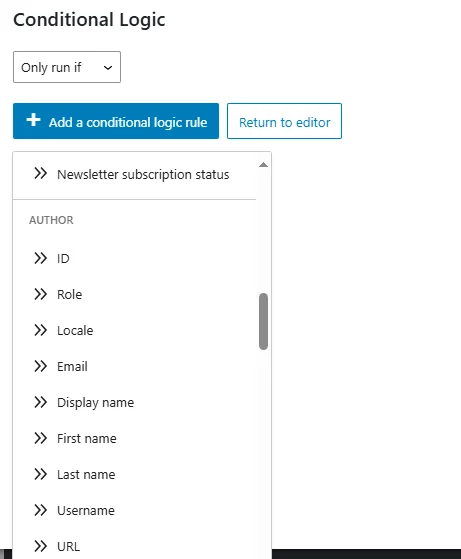
You can filter authors by their email address, user roles, locale, or ID. When this rule is enabled, the email will only be sent if the post was published by one of the matching authors.
This is useful in several situations. For example, you might want to:
- Notify subscribers only when an editor or lead writer publishes a post
- Send notifications for guest posts while ignoring internal updates
- Highlight content from subject-matter experts on multi-author sites
You can combine author-based rules with other conditions, such as categories, tags, or custom fields, to further refine when notifications are sent.
Advanced Conditional Logic
The value field of a conditional logic rule can also accept a merge tag.
This makes it possible to create advanced, personalized notifications. For example, you can configure a notification to send only when a post’s tags match a subscriber’s interests.

A common use case is:
- Store a subscriber’s interests as a custom field.
- Use a merge tag in the conditional logic rule
- Send the notification only if the post contains at least one tag that matches the subscriber’s stored value for the field
This allows you to automatically notify subscribers only about content they care about, without creating separate notification emails for each topic.
How to Limit Recipients of New Post Notification Emails
Not every subscriber needs to receive every notification.
Noptin lets you control exactly who receives each new post notification email. This allows you to send different notifications to different audiences, even when the same post is published.
You can limit recipients based on subscriber type, lists, tags, or custom field values. For example, you might notify newsletter subscribers about new blog posts, WooCommerce customers about new products, or only a specific segment of users about certain updates.
By targeting recipients carefully, you keep notifications relevant, reduce unsubscribes, and improve engagement.
The available settings vary depending on whom you’re sending the email to:-
Newsletter subscribers…

WordPress users…
WooCommerce customers…
External Recipients…
Available merge tags
Important:
This is a guide. Each post type includes many unique merge tags. The list below is not exhaustive.
For example, a product notification email may include merge tags for the product price and SKU. In contrast, an event notification will feature merge tags for event dates and venue.
You can use the following email tags in addition to the default email tags provided by Noptin.
- [[post.title]] – This will show the post’s title.
- [[post.excerpt]] – This will show the post’s excerpt.
- [[post.content]] – This will display the post’s content.
- [[post_author.display_name]] – This will display the author’s display name.
- [[post_author.email]] – This will display the author’s email address.
- [[post_author.login]] – This will show the author’s login name.
- [[post_author.id]] – This will display the author’s ID.
- [[post.date]] – This will show the post’s publication date.
- [[post.url]] – This will display the post’s URL.
- [[post.id]] – This will display the post’s ID.
- [[post.comment_count]] – This will show the number of comments on the post.
- [[post.meta key=”my_key”]] – Replace my_key with the meta key to show its value.
How to delay the emial
By default, new post notification emails are sent a few minutes after a post is published. In some cases, you may want to delay the email instead.
Delaying the email gives you time to:
- Fix typos or formatting issues after publishing
- Update featured images or metadata
- Avoid sending notifications for quickly updated or reverted posts
On the menu on the right, select Timing then turn it on to select the amount of time to delay sending the email
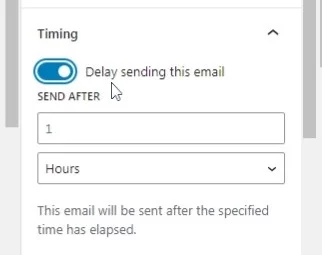
Once a delay is set, Noptin will wait for the specified amount of time after the post is published before sending the email.
If the post is updated during the delay period, the notification will still use the latest version of the content at the time the email is sent.
You can combine delays with conditional logic and recipient filtering to fully control both when and to whom new post notifications are sent.
How to manually resend new post notifications
In some cases, you may want to resend a new post notification manually. For example, if the original email failed to send, you made important updates to the post, or you want to notify subscribers again at a later time.
In your WordPress admin dashboard, go to Noptin > Tools > New Post Automation > Trigger. Enter the post ID of the post you want to resend, then click Trigger.

How to check the ID of a Post.
- Edit the post you’re interested in.
- Look at the URL in your browser’s address bar.
- You’ll see something like “post.php?post=X&action=edit” where X is the ID of the post.

How to view campaign stats
Noptin allows you to see which of your subscribers opened your new post notification emails, and which of them clicked on links in the emails.
To do this:-
First, open the email campaigns page by clicking on the Noptin > Email Campaigns link in your WordPress admin dashboard…
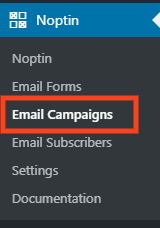
… then locate your new post notification email in the newsletter campaigns overview page.

Here you can:-
- Preview the notification email.
- Duplicate the email as a normal Noptin newsletter campaign.
- Delete the notification email.
- Stop the sending queue (in case the notification email is still sending).
- View how many subscribers received your new post notification email.
- Check how many subscribers opened your new post notification email.
- View how many subscribers clicked on your new post notification email.
- Check the date Noptin sent the new post notification email.
Leave a Reply