
We recommend that you export your subscribers before installing a major update.

This way, you can always re-import the subscribers if anything goes wrong.

This tutorial shows you a workaround you can use to import your subscribers in case you forgot to export your subscribers.

This will only work if you backed up your database via cPanel.

Step 1: Access cPanel and Open phpMyAdmin

  1. Log in to your cPanel account.
  2. Navigate to the Databases section and click on phpMyAdmin.
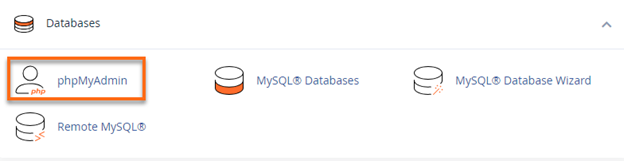
Open PHPMyAdmin on cpanel

Step 2: Locate the Backup and Extract the SQL File

  1. Download the backup file from your cPanel to your local machine if you haven’t already.
  2. Extract the backup file using a file extraction tool like 7-Zip or WinRAR.
  3. Inside the extracted files, locate the SQL dump of your database. This file usually ends with .sql.
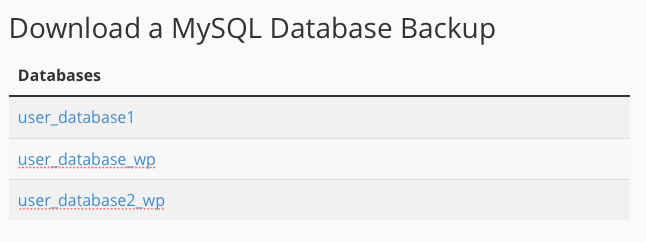
Download MySQL database backup in cPanel

Step 3: Open and Read the SQL File

  1. Open the SQL file in a text editor (e.g., Notepad++, VS Code).
  2. Find the SQL commands for the wp_noptin_subscribers table. Look for the section that begins with CREATE TABLE followed by wp_noptin_subscribers and the subsequent INSERT INTO statements. If you’re using a different database prefix then look for “${your_prefix}_noptin_subscribers“.
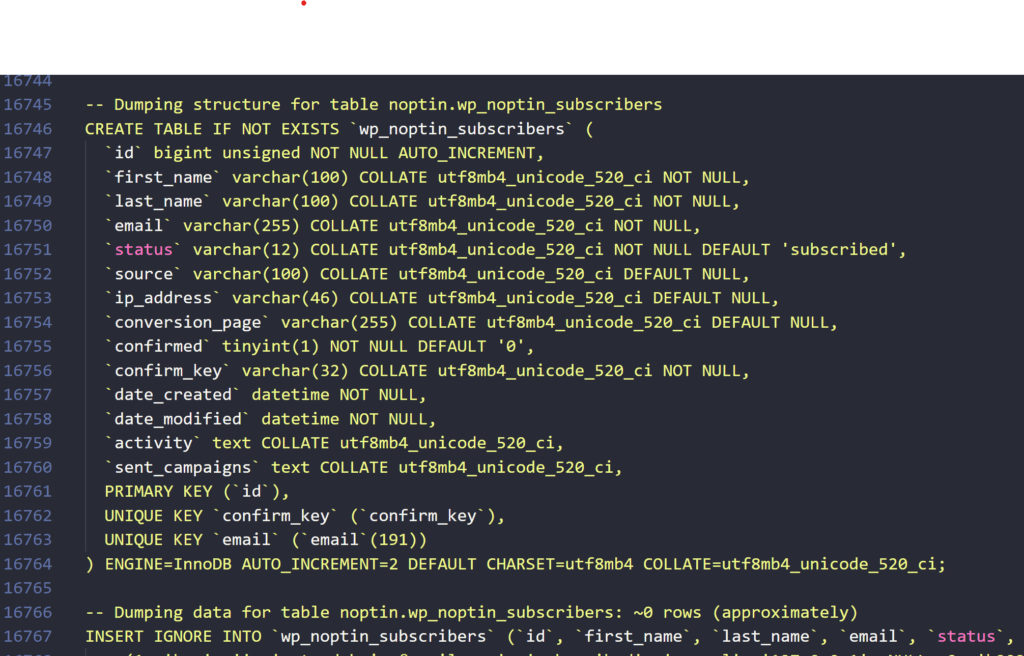
Noptin subscribers dump

Step 4: Copy the SQL Commands

  1. Copy the SQL commands related to the wp_noptin_subscribers table. Ensure you include both the CREATE TABLE statement and all INSERT INTO statements.

Step 5: Prepare to Import the Table

  1. Go back to phpMyAdmin in your cPanel.
  2. Select the database where you want to restore the table.

Step 6: Import the Table

  1. Click on the Import tab in phpMyAdmin.
  2. Create a new SQL file on your computer and paste the copied SQL commands into this file. For example, “noptin-import.sql“.
  3. In phpMyAdmin, click on Choose File and select the newly created SQL file.
  4. Click Go to import the table into the selected database.

Related Guides

  • Add a Subscriber Manually

    Add one subscriber manually in Noptin, choose their status and segmentation values, and understand what happens when the email already exists.

    Read More

  • Bounce Handling

    How to automatically delete subscribers who bounce or report your emails as SPAM

    Read More

  • Sync Subscribers

    Have you ever wished you had several newsletter sign-up forms on different websites that all collected subscribers into a single newsletter list? This guide shows you how to do that. Step 1: Create a listener on the master site. Open one of the sites and then create an automation rule that listens to incoming webhooks…

    Read More

  • Custom Fields

    Create and edit subscriber custom fields in Noptin, and choose when to use a custom segment for selectable subscriber groups.

    Read More

  • Create a Custom Subscriber Segment

    Learn how to create custom subscriber segments in Noptin, add segment choices, assign subscribers, collect preferences on signup forms, and organize your email audience.

    Read More

  • Importing Subscribers

    Learn how to import subscribers from another system into Noptin.

    Read More

  • Subscriber Lists

    Learn how to use subscriber lists to organize contacts, target specific audiences, and send more relevant email campaigns in WordPress.

    Read More

  • Tagging Subscribers

    Learn how to manually or automatically tag or untag subscribers based on how they signed-up and the actions they take on your site. You can then filter email recipients by tags

    Read More

  • Double Opt-in

    This guide shows you how to enable double opt-in and how to edit the double opt-in email. Double opt-in means that subscribers will not receive any marketing emails unless they confirm their email addresses.

    Read More

  • Unsubscribing

    To comply with the CAN-SPAM Act and other email sending requirements, Noptin automatically adds a List-Unsubscribe header to every email it sends. This header allows email clients (such as Gmail and Apple Mail) to display a one-click unsubscribe button directly in their interface, making it easy for subscribers to opt out without even opening your…

    Read More

  • How to block newsletter subscribers

    Blocked subscribers are permanently excluded from your list—they won’t receive emails, and they can’t be re-added through forms, imports, or integrations.

    Read More

  • Automatically delete non-confirmed subscribers

    If you’ve enabled double opt-in, you can set up an automation rule that automatically deletes any subscriber who does not confirm their email address after a certain period. To do this:- First, open your admin dashboard and then click on Noptin > Automation Rules to open the automation rules overview page. Next, click the “Add…

    Read More