Deleting removes subscriber records from Noptin permanently. You can delete one subscriber, selected subscribers, or every subscriber that matches the current filters.

Once a subscriber is deleted:

  • Their subscriber profile is removed from Noptin.
  • They no longer appear in subscriber searches, filters, or campaign audiences.
  • The deletion cannot be undone from the Noptin dashboard.
  • The same address can usually subscribe again later because deletion does not create a suppression record.

Subscriber deletion is permanent. Export any information you are required to retain before confirming the deletion.

When should you delete subscribers?

Delete subscribers when you no longer need their Noptin records, for example when:

  • A contact asks you to remove the data you hold about them.
  • You are removing test, invalid, or duplicate subscriber records.
  • You have identified old or unengaged contacts that should no longer remain in your list.
  • You have filtered a group, such as bounced subscribers, that should be removed together.

Delete one subscriber

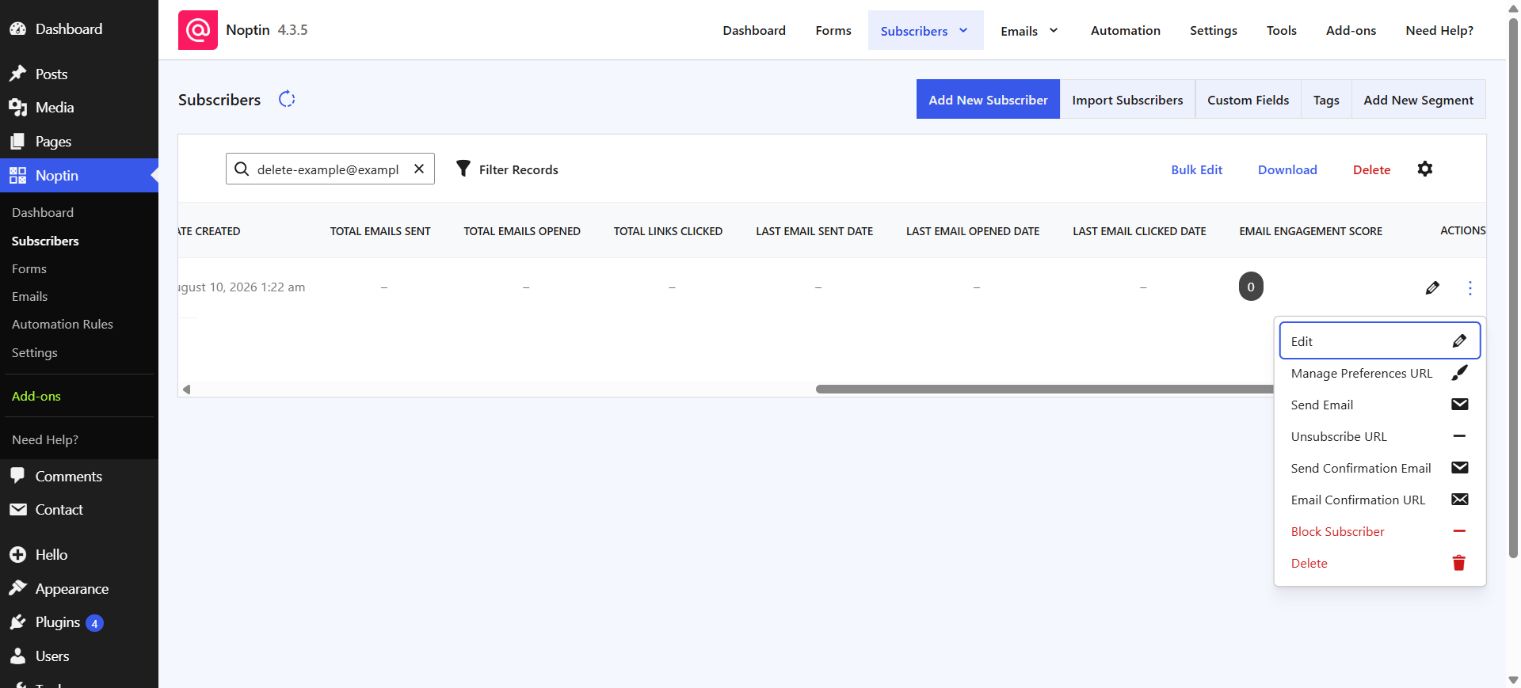
  1. Open Noptin → Subscribers.
  2. Search for the subscriber and verify the email address.
  3. Open the subscriber’s Actions menu.
  4. Click Delete.
Noptin subscriber Actions menu with the Delete action

Noptin asks you to confirm the action. Verify the selected record, then click Delete in the confirmation dialog.
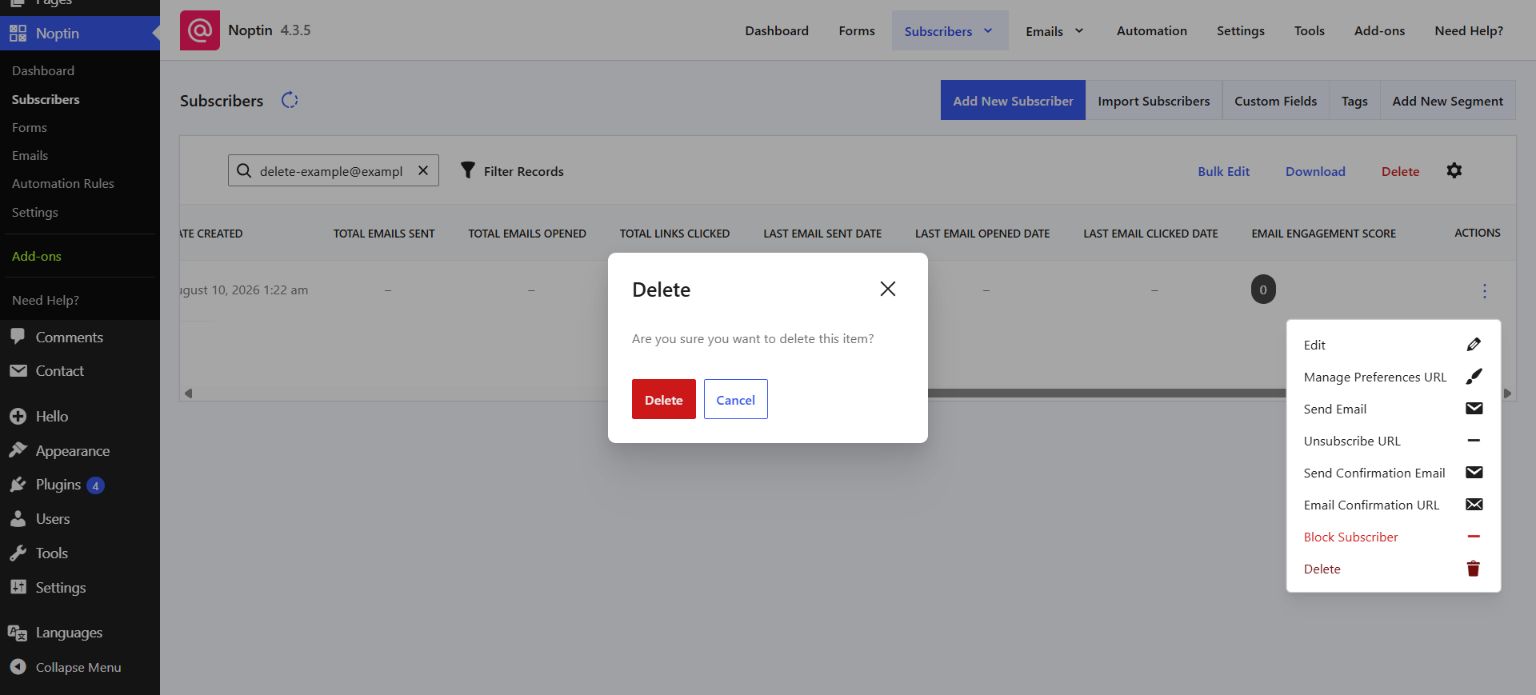
Noptin confirmation dialog shown before permanently deleting a subscriber

Delete several subscribers

  1. Open Noptin → Subscribers.
  2. Use the checkboxes to select the subscribers you want to remove.
  3. Click Delete above the subscriber table.
  4. Review the confirmation message and confirm the deletion.
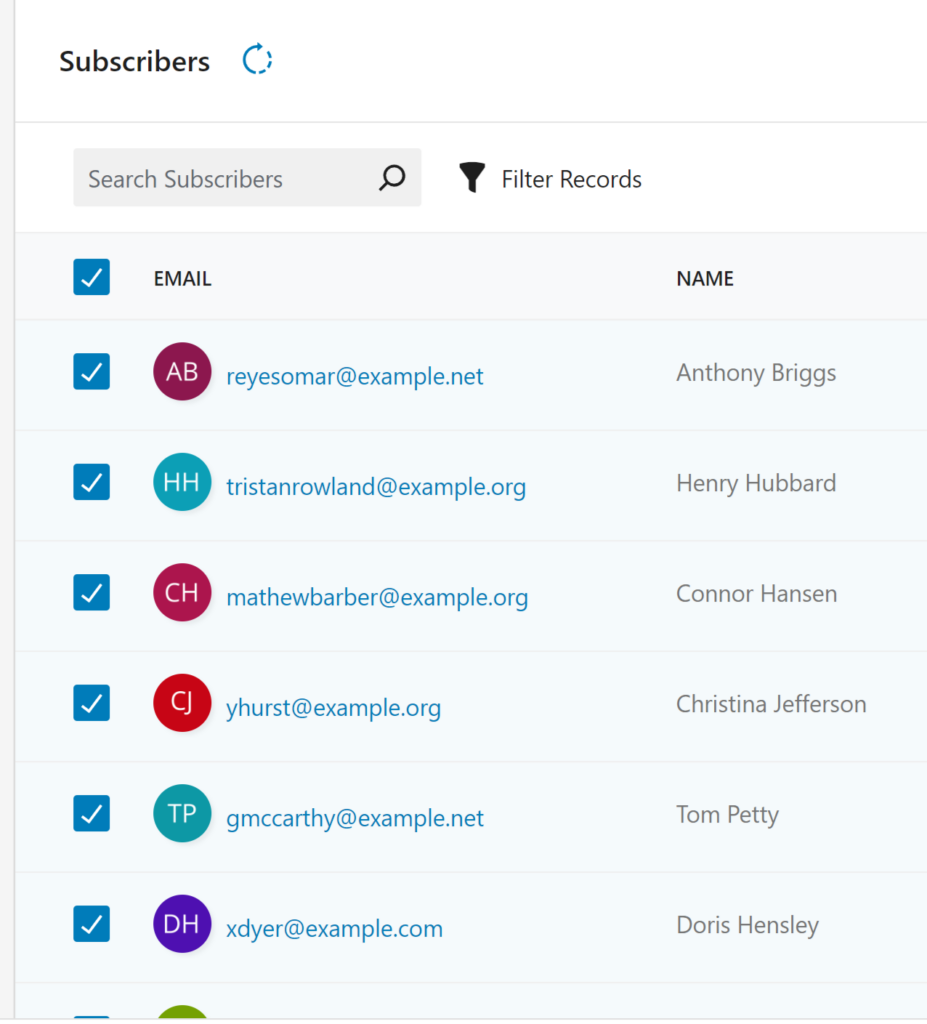
Select Noptin subscribers to delete

Delete all subscribers matching a filter

You can filter subscribers before deletion by subscription status, confirmation status, tags, email addresses, source, subscription dates, or supported custom fields.

  1. Open Noptin → Subscribers.
  2. Click Filter Records.
  3. Add the required filters and verify the matching records.
  4. Leave every subscriber checkbox unselected.
  5. Click Delete to delete all records matching the current filters.
  6. Read the confirmation carefully, then confirm the deletion.
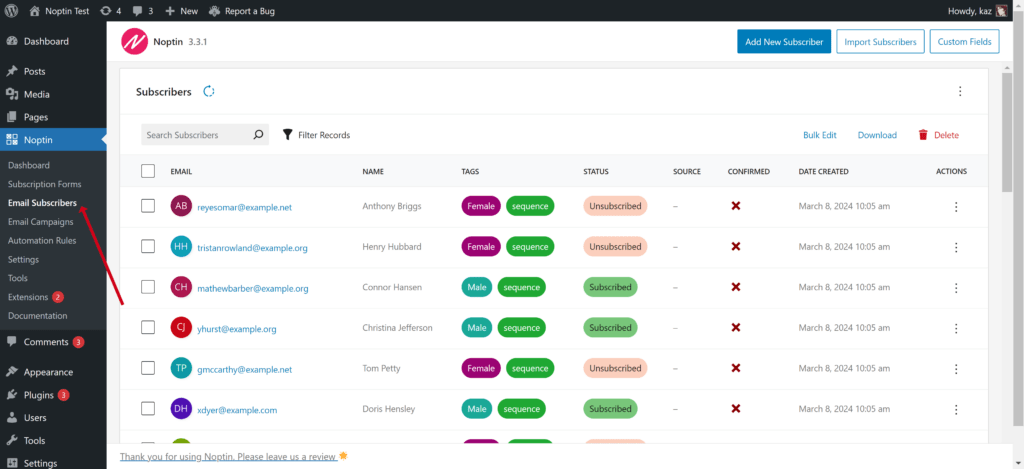
Noptin subscribers overview page with filtering and bulk actions

If no subscribers are selected, Delete applies to every record matching the current filters. If no filters are active either, the action can delete every subscriber.

Choose between deleting, unsubscribing, and blocking

ActionUse it whenIs the record retained?
DeleteThe subscriber record and its associated Noptin data should be removed.No
UnsubscribeThe person has opted out, but their subscription history should remain.Yes
BlockThe address must remain suppressed and must not be added again through forms, integrations, imports, or manual entry.Yes

Verify that subscribers were deleted

Search for an individual email address after deletion; no matching subscriber should be returned. After a filtered bulk deletion, apply the same filters again and confirm that the deleted records no longer appear.

If an address must never be added again, use Blocking Subscribers instead of deleting it.

Related Guides

  • Add a Subscriber Manually

    Add one subscriber manually in Noptin, choose their status and segmentation values, and understand what happens when the email already exists.

    Read More

  • Bounce Handling

    How to automatically delete subscribers who bounce or report your emails as SPAM

    Read More

  • Sync Subscribers

    Have you ever wished you had several newsletter sign-up forms on different websites that all collected subscribers into a single newsletter list? This guide shows you how to do that. Step 1: Create a listener on the master site. Open one of the sites and then create an automation rule that listens to incoming webhooks…

    Read More

  • Custom Fields

    One of the most powerful features of Noptin is its support for custom fields. You can use custom fields to store more information about your subscribers (such as their phone numbers and birthdays). This guide shows you how to create and edit custom fields. Creating Custom Fields To create a new custom field:- First, visit…

    Read More

  • Importing Subscribers

    Learn how to import subscribers from another system into Noptin.

    Read More

  • Subscriber Lists

    Learn how to use subscriber lists to organize contacts, target specific audiences, and send more relevant email campaigns in WordPress.

    Read More

  • Tagging Subscribers

    Learn how to manually or automatically tag or untag subscribers based on how they signed-up and the actions they take on your site. You can then filter email recipients by tags

    Read More

  • Double Opt-in

    This guide shows you how to enable double opt-in and how to edit the double opt-in email. Double opt-in means that subscribers will not receive any marketing emails unless they confirm their email addresses.

    Read More

  • Unsubscribing

    To comply with the CAN-SPAM Act and other email sending requirements, Noptin automatically adds a List-Unsubscribe header to every email it sends. This header allows email clients (such as Gmail and Apple Mail) to display a one-click unsubscribe button directly in their interface, making it easy for subscribers to opt out without even opening your…

    Read More

  • How to block newsletter subscribers

    Blocked subscribers are permanently excluded from your list—they won’t receive emails, and they can’t be re-added through forms, imports, or integrations.

    Read More

  • Automatically delete non-confirmed subscribers

    If you’ve enabled double opt-in, you can set up an automation rule that automatically deletes any subscriber who does not confirm their email address after a certain period. To do this:- First, open your admin dashboard and then click on Noptin > Automation Rules to open the automation rules overview page. Next, click the “Add…

    Read More

  • Exporting Subscribers

    How to download your subscribers or only a segment of your subscribers.

    Read More