
This is only a guide, and each email type has unique merge tags.
You can find a list of available merge tags in the email campaign editor.
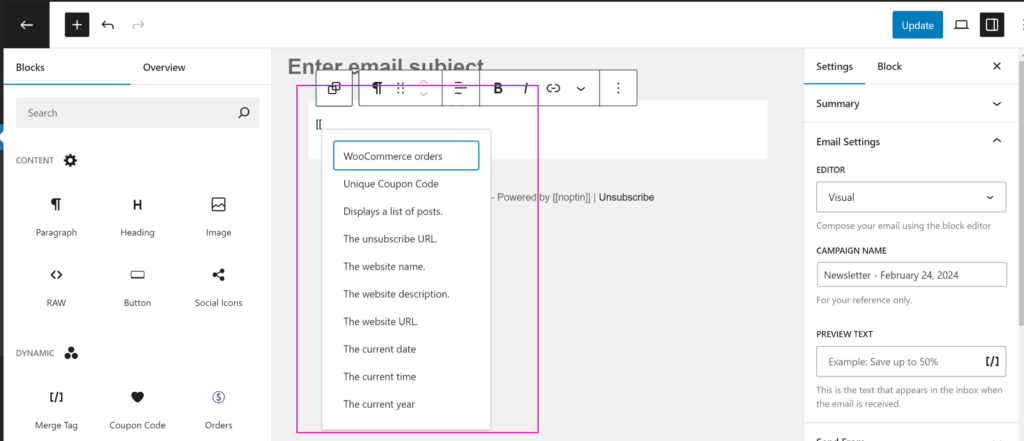
You can use email tags (also known as merge tags) to display dynamic and personalized content in your emails and success messages.
This guide shows you how to personalize your emails and success messages using merge tags.
What is a Merge Tag?
A merge tag is a placeholder that allows you to personalize email campaigns and confirmation messages. Merge tags are also known as personalization fields or personalization tags.
Noptin merge tags are usually enclosed between two opening square brackets ([[) and two closing square brackets (]]).
For example,
Each subscriber has a unique email address. When you include the [[subscriber.email]] merge tag in your email campaigns, each subscriber receives an email with the merge tag replaced by the subscriber’s actual email.
Where Can You Use Merge Tags?
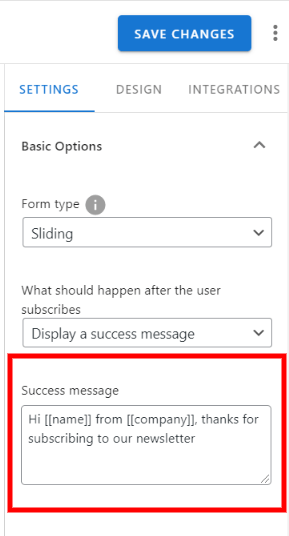
You can use merge tags in the success messages shown to users after they subscribe to your newsletter,
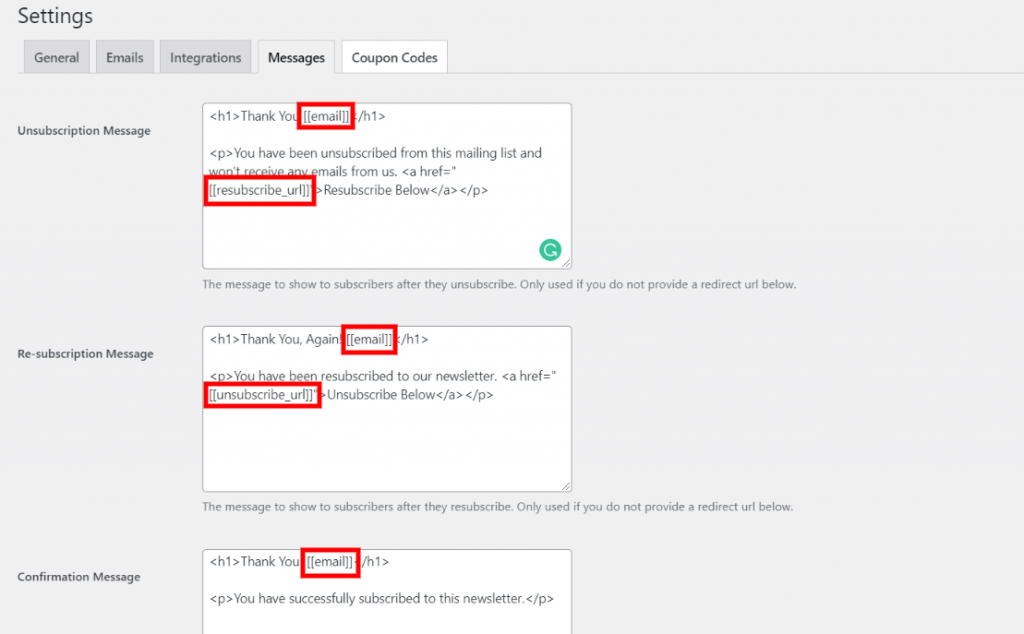
… the confirmation messages shown to subscribers who confirm their email addresses, unsubscribe from your newsletter, or re-subscribe to your newsletter,
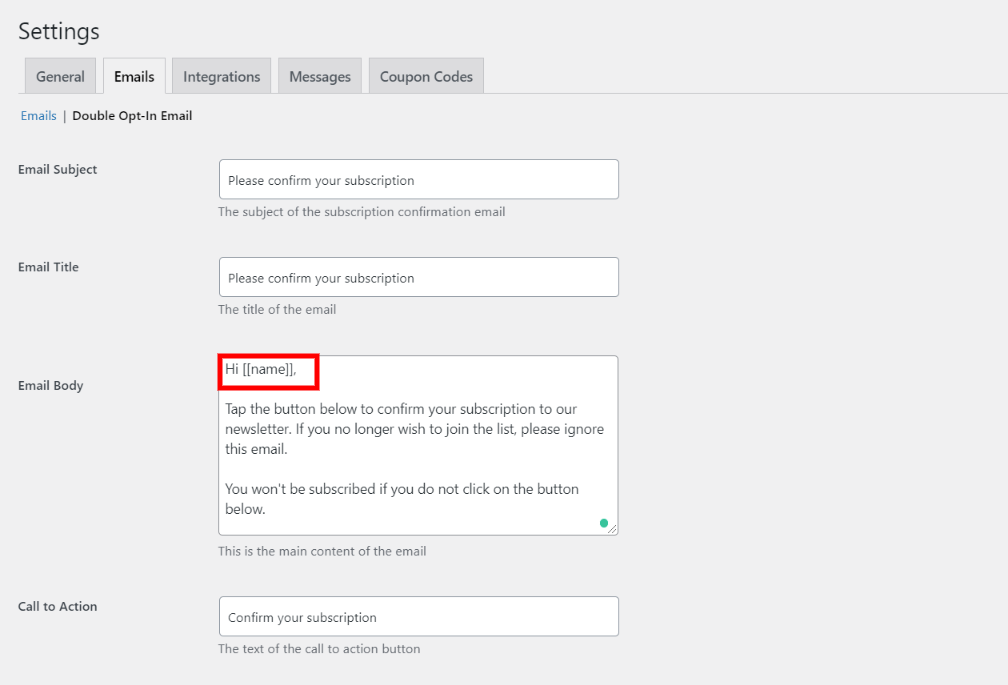
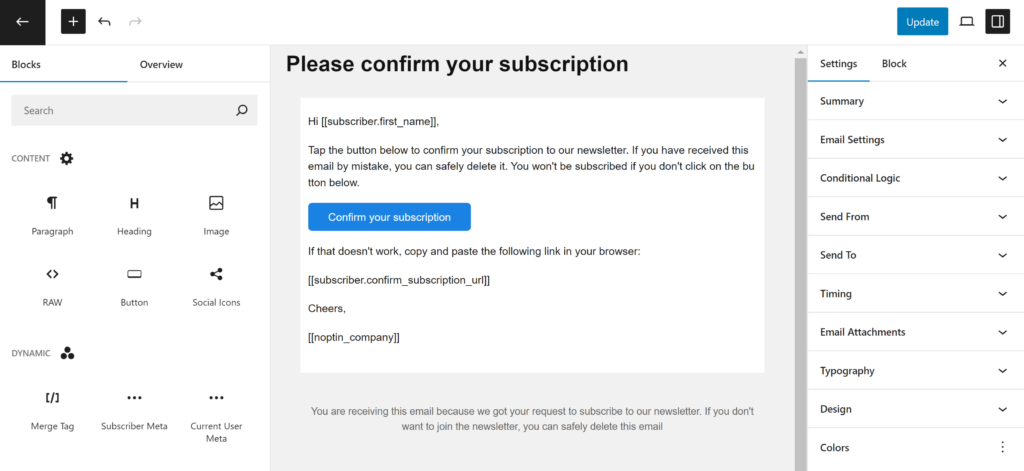
… the double opt-in confirmation email,
or normal email campaigns including the new post notifications and welcome emails.
Available Merge Tags
Below is a partial list of the available merge tags.
Warning:- Some of the merge tags below are outdated. Some are missing.
You can find the list of available merge tags in the Noptin email campaign editor.
Blog Tags
[[blog_name]]Displays the blog name.
[[blog_description]]Displays the blog description.
[[home_url]]Displays the blog’s URL.
[[noptin_company]]Displays the company name that you set in Noptin > Settings > Emails.
[[noptin]]Displays a personalized link to our website.
Dynamic dates
[[date]]Displays today’s date in the Y-m-d format. For example, 2026-06-20.
[[date localized=1]]Displays today’s date, localized and in the format set in your WordPress settings. For example, June 5, 2026.
You can also pass a custom format to both the localized and non-localized versions of the merge tag as shown in the example below:-
[[date format="c"]]This displays the current date formatted as an ISO 8601 date. For example, 2026-06-12T15:19:21+00:00.
[[date format="Y"]]Displays the current year.
Similarly, both the localized and non-localized versions of the merge tag support relative dates as shown in the example below:-
[[date relative="tomorrow"]]This displays tomorrow’s date.
[[date localized=1 format="F j, Y" relative="+14 days"]]This displays the correct date 14 days from now, in a custom format and localized to your site’s language.
Subscriber Tags
Use these tags when an email or message has a Noptin subscriber available, such as an email sent to Noptin subscribers or a subscriber-triggered automated email. A WordPress user or WooCommerce customer alone does not provide these subscriber values.
| Merge tag | What it displays |
|---|---|
[[subscriber.confirm_subscription_url]] | The subscriber’s confirmation URL. Use it in a custom confirmation email for double opt-in. |
[[subscriber.unsubscribe_url]] | The subscriber’s newsletter unsubscribe URL. |
[[subscriber.resubscribe_url]] | A URL the subscriber can use to subscribe again after unsubscribing. |
[[subscriber.manage_preferences_url]] | A link to manage subscription preferences and edit subscriber details. The link and built-in preferences form are now available in the free version of Noptin. |
[[subscriber.first_name]] | The subscriber’s first name, if collected. |
[[subscriber.last_name]] | The subscriber’s last name, if collected. |
[[subscriber.email]] | The subscriber’s email address. |
[[subscriber.avatar_url]] | The URL of the subscriber’s avatar image. |
[[subscriber.date_created format="date"]] | The date the subscriber record was created, using the site’s date settings. |
[[subscriber.id]] | The subscriber’s Noptin ID. |
Use the full subscriber. names in new content. Shorter tags such as [[email]], [[first_name]], [[unsubscribe_url]] and [[confirm_subscription_url]] remain supported for compatibility. The full names make it clear whose details you want to display.
Add a subscription confirmation link
The confirmation tag returns a URL. Paste [[subscriber.confirm_subscription_url]] into a link or button’s URL field. In an HTML email, you can use:
<a href="[[subscriber.confirm_subscription_url]]">Confirm your subscription</a>If you’re using the classic editor, you can also display it using Noptin’s button merge tag as shown in the example below:
[[button url="[[subscriber.confirm_subscription_url]]" text="Confirm your subscription"]]And if you’re using the visual editor, you can use the merge tag as the URL in the button block.
Noptin generates the confirmation URL for each subscriber. Follow the custom confirmation email instructions for more information.
Display a custom subscriber field
Each custom field has its own merge-tag key.
For example, if the field key is phone, use:
[[subscriber.phone]]Replace phone with your field’s actual key.

For example, use [[subscriber.phone_number]] if its key is phone_number.
TIP:
In the email editor, type [[ followed by subscriber. to see the available merge tags for subscribers.
To show a greeting when the subscriber has no first name, supply a fallback:
Hello [[subscriber.first_name default="there"]],The older [[confirm_key]] tag (full form: [[subscriber.confirm_key]]) returns a private subscriber key, not a confirmation URL. Use [[subscriber.confirm_subscription_url]] for confirmation links; you do not need to build a URL from the key.
Post Notifications Tags
These merge tags are only available when setting up a new-post notification campaign.
[[post_excerpt]]Displays the post’s summary.
[[post_content]]Displays the post’s entire content.
[[post_title]]Displays the post’s title.
[[featured_image]]Displays the featured image. Please note that this displays the entire featured image and not just the URL.
[[post_author]]Displays the author’s name.
[[post_author_email]]Displays the author’s email address.
[[post_author_login]]Displays the author’s login name.
[[post_author_id]]Displays the author’s id.
[[post_date]]Displays the date a post was published.
[[post_url]]Displays the post’s URL.
[[post_id]]Displays the post’s ID.
[[button url="[[post_url]]" text="Continue Reading" background='brand' color='white' rounding='4px']]Displays a button linking to the post.
[[post_meta.$key]]Replace $key with the actual meta key. Displays a post’s custom metadata.
Customer Tags
These merge tags are available when sending single or bulk emails to your WooCommerce customers.
[[customer.id]]The customer’s ID.
[[customer.details]]Displays a summary of the customer’s details.
[[customer.avatar_url]]Displays the customer’s avatar URL. You can use it as an image source to display dynamic avatars.
[[customer.order_count]]The number of orders the customer has.
[[customer.first_order_date format="date"]]The date of the customer’s first order.
[[customer.total_spent format="price"]]Displays the customer’s lifetime value.
[[customer.username]]The customer’s username
[[customer.email]]The customer’s email.
[[customer.first_name]]The customer’s first name.
[[customer.last_name]]The customer’s display name.
[[customer.display_name]]Shows the customer display name as set in his/her profile.
[[customer.locale]]The customer’s preferred locale.
[[customer.newsletter]]The customer’s newsletter subscription status. Either yes or no.
User Tags
These merge tags are available when sending an email to your WordPress users.
[[display_name]]Shows the user’s display name as set in their profile information.
[[user_registered]]This displays the date a user joined your site.
[[nickname]]Displays the user’s nickname.
[[description]]This merge tag displays the user’s description.
[[$user_meta_key]]Replace “$user_meta_key” with an actual meta key as saved in the wp_usermeta table to display the meta value associated with the user.
Misc Tags
[[rule height="3px" color="black" width="100%" margin="50px"]]Displays a horizontal rule in emails.
[[spacer height="50px"]]Adds a vertical blank space.
[[button text="Click Here" url="https://noptin.com" background='#008000' color="#ffffff" rounding="4px"]]Displays a button with a call to action.
To enable the user to view the current email in the browser
[[view_in_browser_url]]Requires the Ultimate Addons Pack. Displays an automatically generated unique coupon code.
[[noptin_coupon_code]]
Leave a Reply