
Noptin uses scheduled tasks for work that should run in the background, including queued emails and automation actions. The Scheduled Tasks screen lets administrators inspect that queue.
Open the Scheduled Tasks tool
- In the left WordPress admin menu, click Noptin, then open Dashboard.
- Click Tools in Noptin’s top navigation.
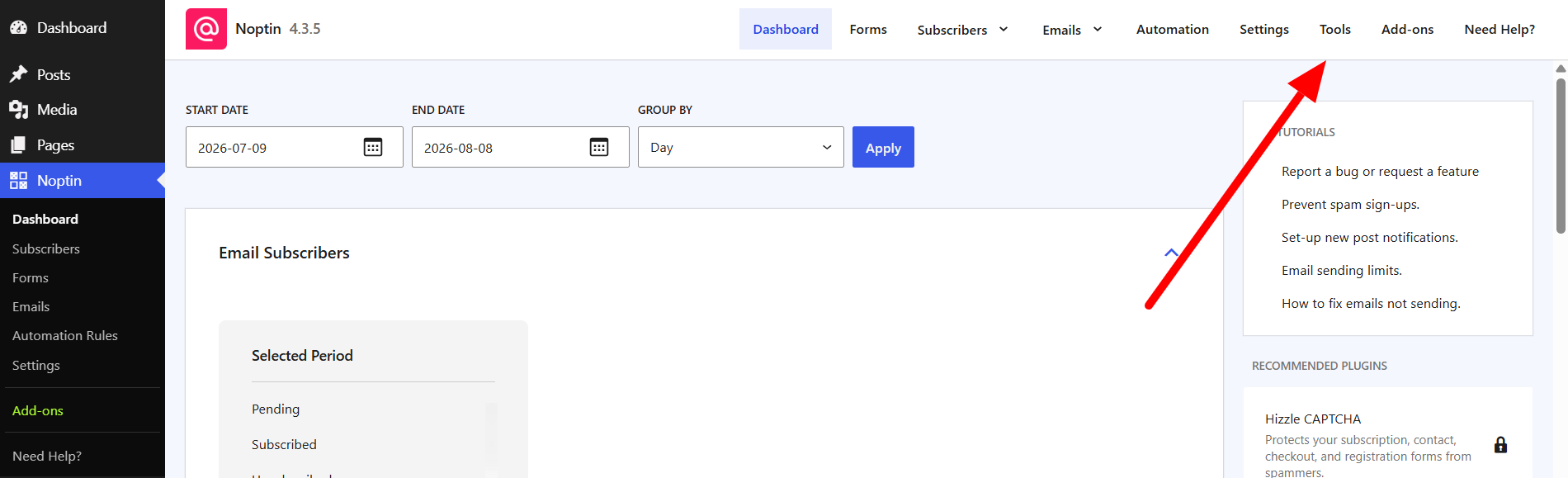
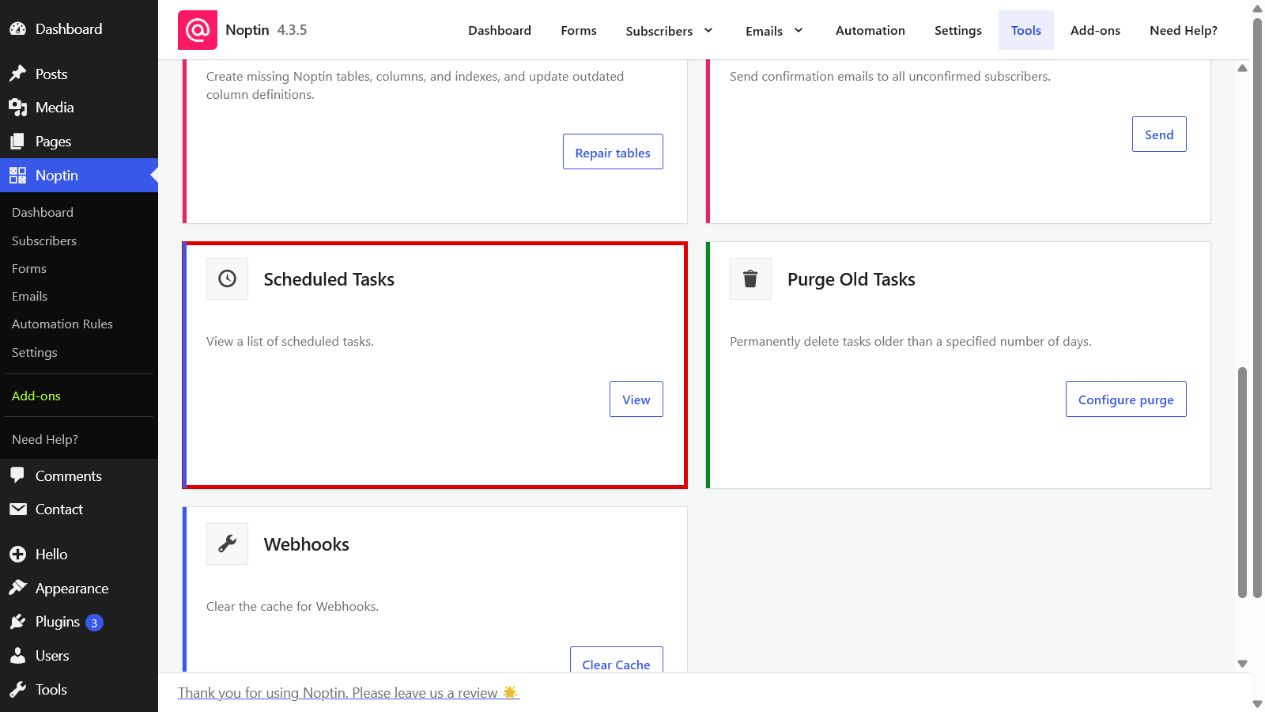
- Find Scheduled Tasks and click View.
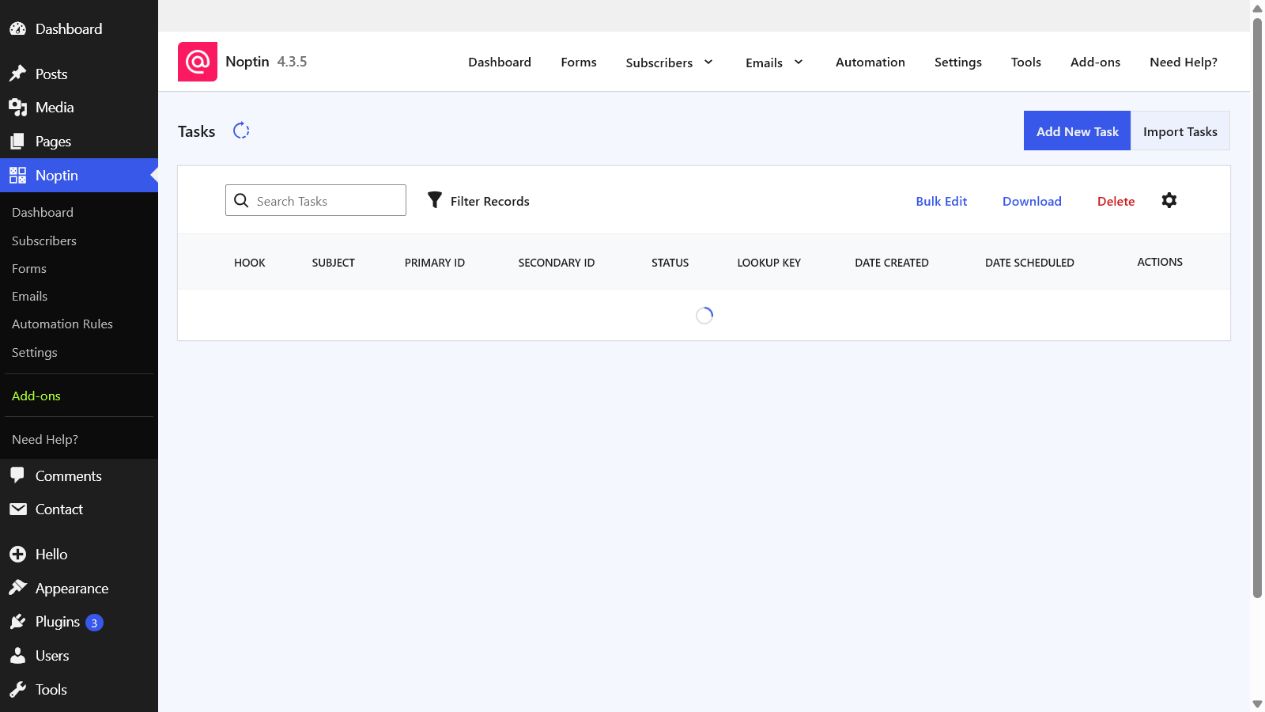
The table shows each task’s hook, subject, identifiers, status, lookup key, creation date, and scheduled date. Use search and filters to narrow the list when investigating a particular email or automation.
Task statuses
- Pending: The task is waiting to run.
- Running: The task is currently being processed.
- Manual: The task has been deferred, typically because it’s waiting for a subscriber to confirm their email address. Once the subscriber confirms, Noptin will schedule the task for execution.
- Complete: The task finished successfully.
- Failed: The task stopped because of an error.
- Canceled: The task will not run.
What to do if scheduled tasks are not running
If scheduled emails or automation actions are not running, first check whether their scheduled date has passed.
Tasks with a Pending status and a future scheduled date are waiting normally. However, if tasks remain pending after their scheduled date, your website may not be processing background tasks correctly.
1. Check WordPress cron
Noptin relies on WordPress cron (WP-Cron) to process scheduled emails and automation tasks.
By default, WP-Cron runs when someone visits your website. On websites with CDN caching or little traffic, this can cause tasks to run late.
Go to Tools → Site Health in your WordPress dashboard and check for scheduled event or loopback request errors.
If WP-Cron is disabled, make sure you have a working server cron job configured to run it.
2. Set up a real cron job
For more reliable background processing, we recommend configuring a server cron job to run every 1–5 minutes.
This ensures scheduled emails and automations can run on time, even when nobody visits your website.
Follow our guide to setting up an external cron job.
3. Check for failed tasks
If tasks have a Failed status, they may have encountered an error while running.
Use Noptin’s debug log tool to check for related errors.
If the problem persists, contact Noptin support with the affected task details and any relevant error messages.
4. Check tasks with a Manual status
A task with Manual status may be waiting for a subscriber to confirm their email address. This can happen when an automation adds a pending subscriber to a sequence or sends an automated email directly to an address that belongs to a pending subscriber.
When the subscriber confirms, Noptin moves the task to Pending and schedules it using the automation’s configured delay, if any. A task waiting for confirmation is excluded from the scheduled task runner, so this status by itself gives you no reason to troubleshoot WP-Cron.
For example, if you create an automation that sends a welcome email when someone subscribes, Noptin will defer the task until the subscriber confirms their subscription (if double opt-in is enabled).
Leave a Reply