
Reset Noptin

The Reset Noptin tool deletes Noptin subscribers, campaigns, forms, and settings, then reinstalls the plugin’s data structures. Use it only when you need to return Noptin to a fresh state.

Open the Reset Noptin tool

  1. In the left WordPress admin menu, click Noptin, then open Dashboard.
  2. Click Tools in Noptin’s top navigation.
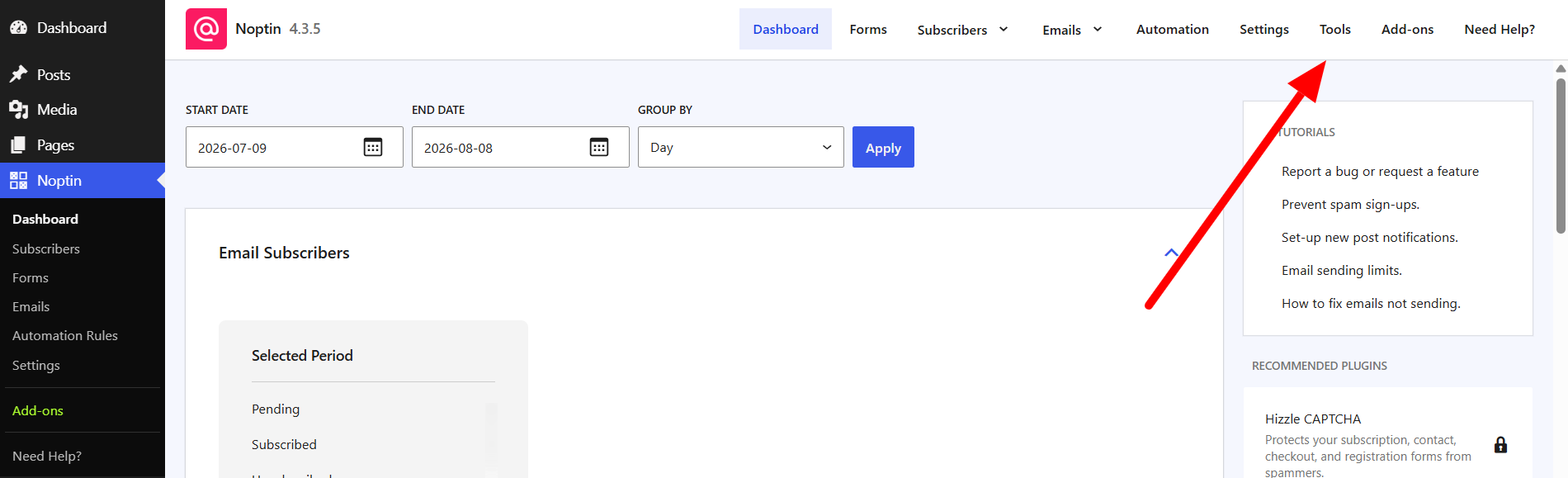
The Tools link in the top navigation of the Noptin dashboard
  1. Find Reset Noptin and click Reset Noptin.
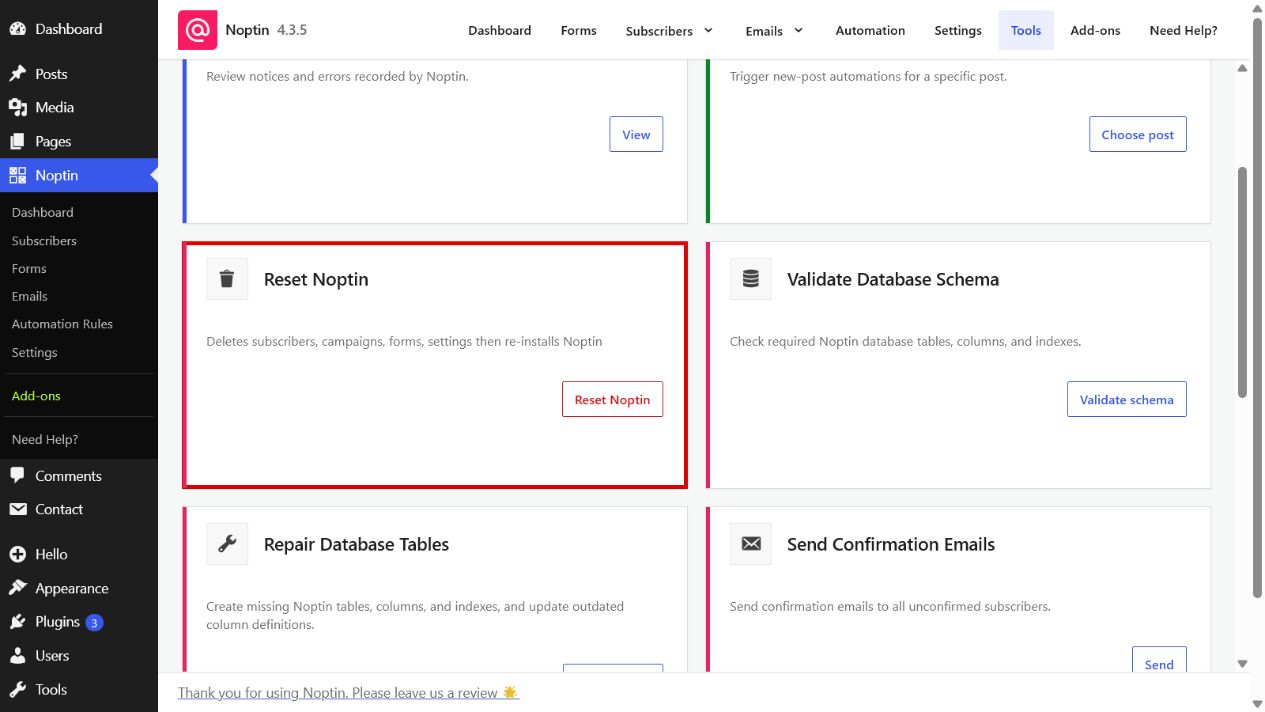
The Reset Noptin card highlighted on the Noptin Tools page

Before resetting Noptin

  • Create a current database backup.
  • Export any subscriber or configuration data you need to keep.
  • Confirm that no campaigns or background tasks are currently running.
  1. Read the confirmation prompt and confirm the reset.

This action cannot be undone from the Tools page. Restore your database backup if you reset the site by mistake.

Related Guides

  • Debug Log

    Use Noptin’s Debug Log to review recent notices and errors when troubleshooting email, automation, or background-processing problems.

    Read More

  • New Post Automation

    Manually trigger Noptin new-post automations for a specific WordPress post by entering its post ID.

    Read More

  • Validate Database Schema

    Check whether all required Noptin database tables, columns, column definitions, and indexes are present.

    Read More

  • Repair Database Tables

    Repair missing or outdated Noptin database tables, columns, and indexes, then verify the resulting schema.

    Read More

  • Send Confirmation Emails

    Schedule double opt-in confirmation emails for every Noptin subscriber who is still awaiting confirmation.

    Read More

  • Scheduled Tasks

    View and troubleshoot Noptin’s queued, running, completed, failed, canceled, and manually scheduled background tasks.

    Read More

  • Purge Old Tasks

    Permanently remove old completed, failed, or canceled Noptin tasks using a chosen retention period.

    Read More