
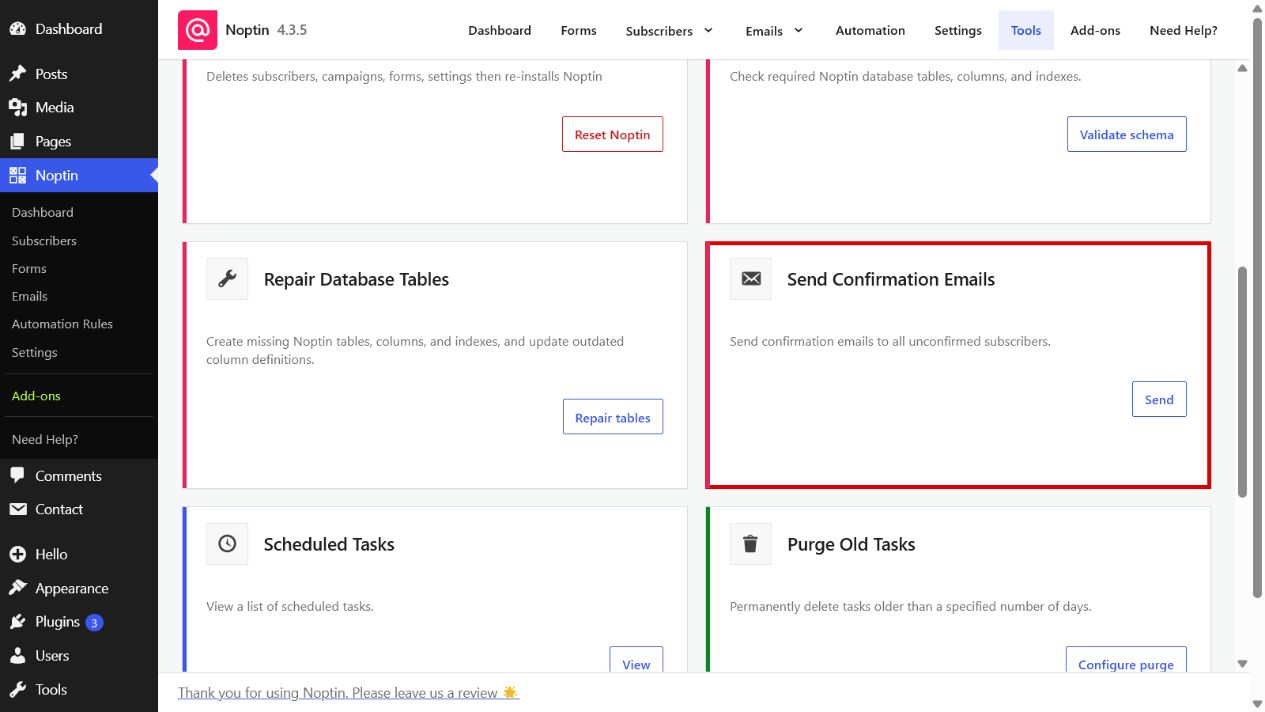
The Send Confirmation Emails tool schedules a double opt-in confirmation email for every unconfirmed subscriber.
Open the Send Confirmation Emails tool
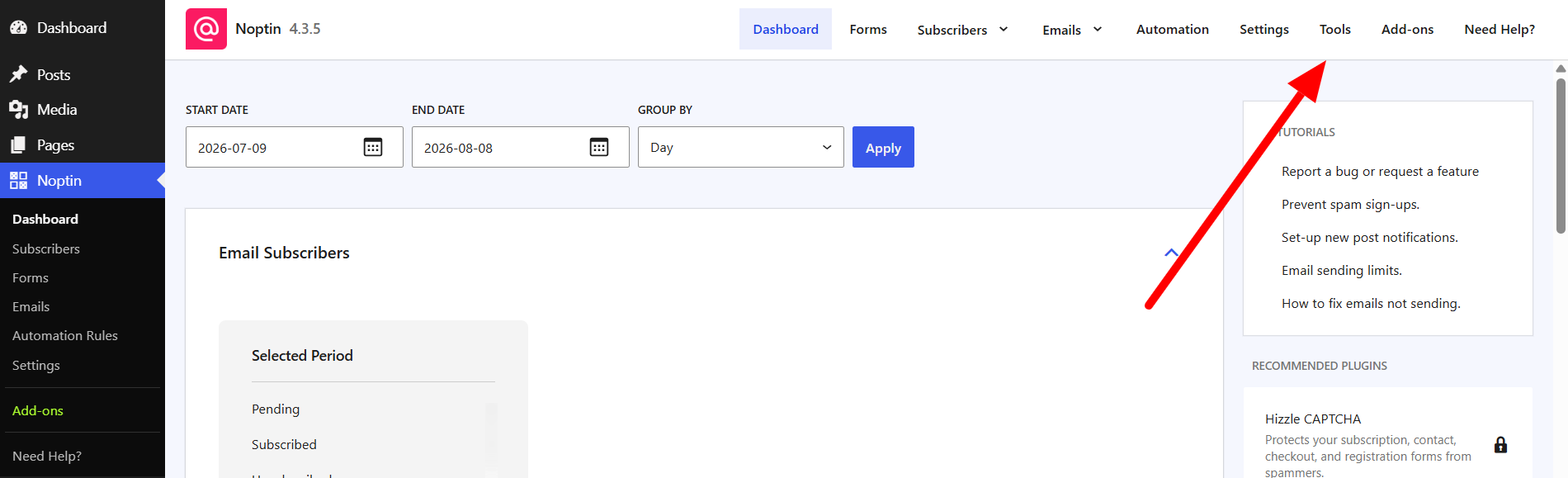
- In the left WordPress admin menu, click Noptin, then open Dashboard.
- Click Tools in Noptin’s top navigation.
- Find Send Confirmation Emails and click Send.
Before running the tool, review your confirmation email in Noptin > Settings > Emails > Double Opt-in.
- Confirm that you want to schedule the emails.
The emails are added to Noptin’s background task queue instead of being sent in one long request. The success notice reports how many messages were scheduled. If there are no unconfirmed subscribers, no tasks are created.
Avoid running the tool repeatedly, as recipients may receive more than one confirmation message.
Leave a Reply