
Validate Database Schema

The Validate Database Schema tool compares the current Noptin database structure with the schema required by the installed version of the plugin.

Open the Validate Database Schema tool

  1. In the left WordPress admin menu, click Noptin, then open Dashboard.
  2. Click Tools in Noptin’s top navigation.
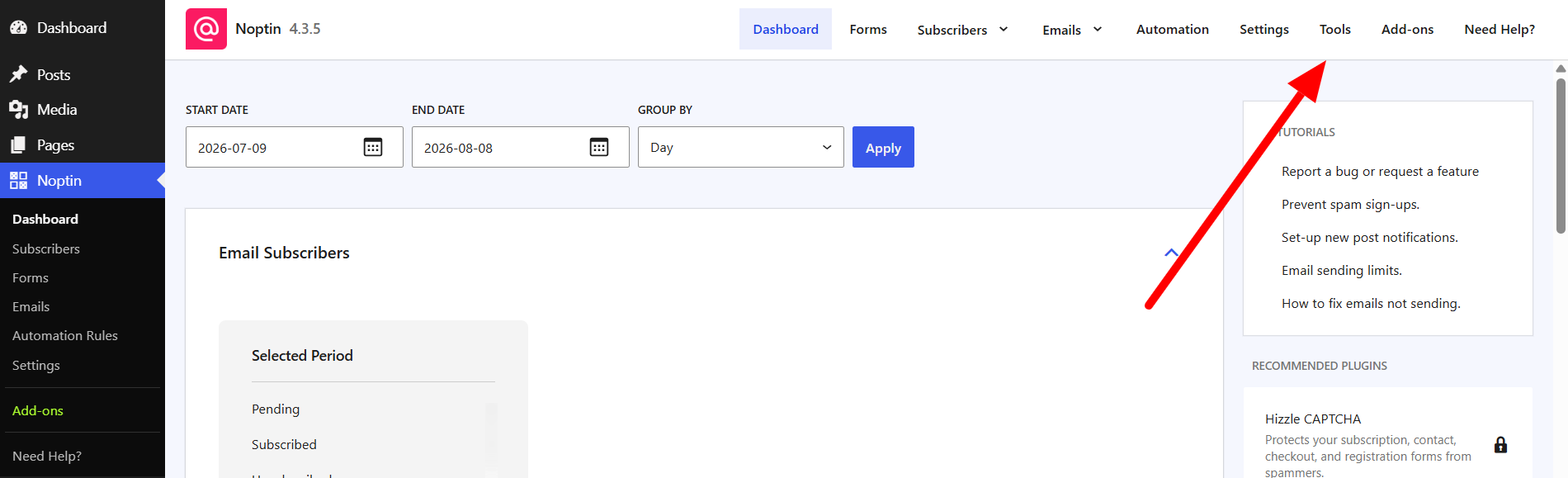
The Tools link in the top navigation of the Noptin dashboard
  1. Find Validate Database Schema and click Validate schema.
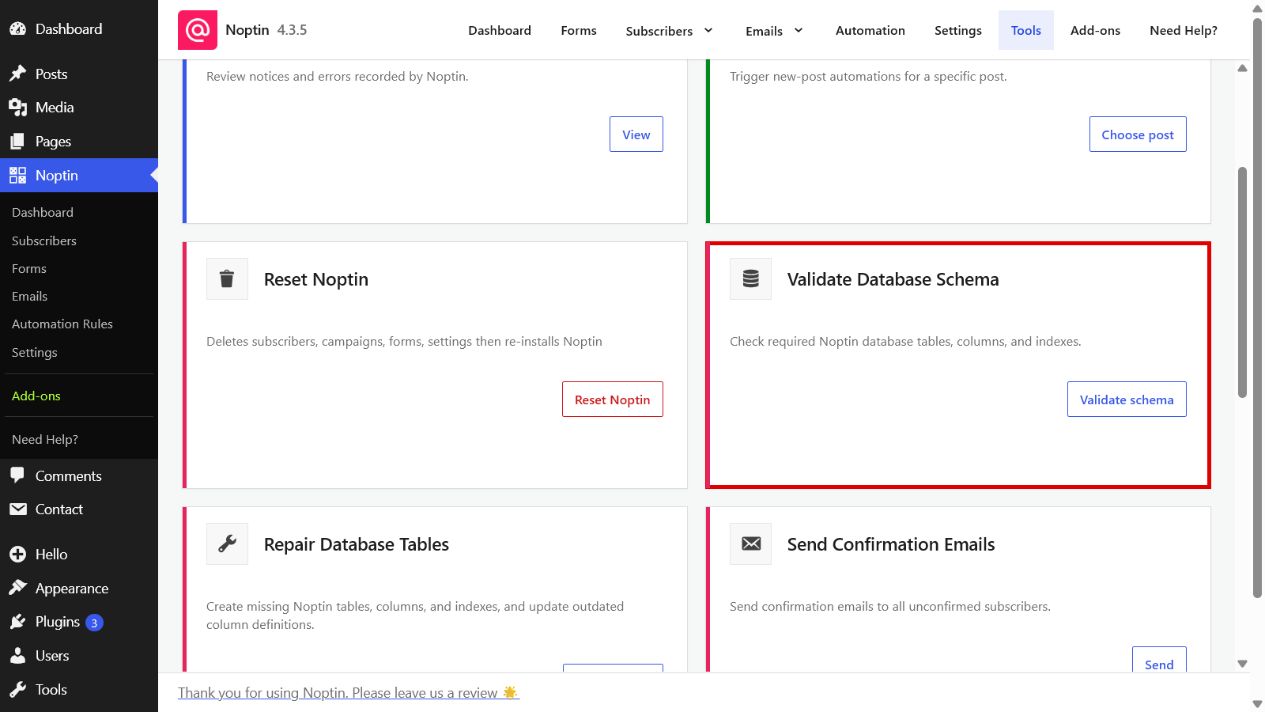
The Validate Database Schema card highlighted on the Noptin Tools page

The check looks for missing tables, missing columns, incompatible column types or defaults, and missing indexes. It does not modify the database.

Understanding the result

A success notice means the schema matches the installed plugin. If differences are found, the notice lists the affected tables, columns, or indexes. Create a backup and use the Repair Database Tables tool to attempt a repair.

Related Guides

  • Debug Log

    Use Noptin’s Debug Log to review recent notices and errors when troubleshooting email, automation, or background-processing problems.

    Read More

  • New Post Automation

    Manually trigger Noptin new-post automations for a specific WordPress post by entering its post ID.

    Read More

  • Reset Noptin

    Learn what the Reset Noptin tool removes and how to prepare before returning Noptin to a fresh installation.

    Read More

  • Repair Database Tables

    Repair missing or outdated Noptin database tables, columns, and indexes, then verify the resulting schema.

    Read More

  • Send Confirmation Emails

    Schedule double opt-in confirmation emails for every Noptin subscriber who is still awaiting confirmation.

    Read More

  • Scheduled Tasks

    View and troubleshoot Noptin’s queued, running, completed, failed, canceled, and manually scheduled background tasks.

    Read More

  • Purge Old Tasks

    Permanently remove old completed, failed, or canceled Noptin tasks using a chosen retention period.

    Read More