
Sending an automated email for every new blog post may overwhelm subscribers and reduce engagement if you publish frequently.
That’s where a latest posts digest email works better.
A latest posts digest email automatically sends a daily, weekly, or monthly summary of your recent posts. This allows subscribers to see what’s new without overwhelming their inbox. It also helps drive consistent traffic to your site.
Unlike traditional newsletters, you don’t need to manually create or send these emails.
In this guide, you’ll learn how to set up automated post digest emails in WordPress, how to choose the right schedule, and how to structure digests that actually get opened and clicked.
If you want emails to go out immediately when a post is published, see our guide on sending new post notification emails instead.
Let’s get started.
What You’ll Learn
- How to automatically send a daily, weekly, or monthly email digest of your latest content.
- How to let subscribers select the type of email notifications they would like to receive.
- Stop the email from sending if no posts were published during the previous day, week, or month.
Prerequisites
To follow along with this tutorial, make sure that you’ve installed the latest version of Noptin on your WordPress website.
You can also install the appropriate integration to send notifications to an external email service provider such as Mailchimp.
How to create a latest posts digest email
To do this:-
First, log in to your WordPress admin dashboard. Then, go to Noptin > Email Campaigns > Automated Emails to open the automated emails overview page.
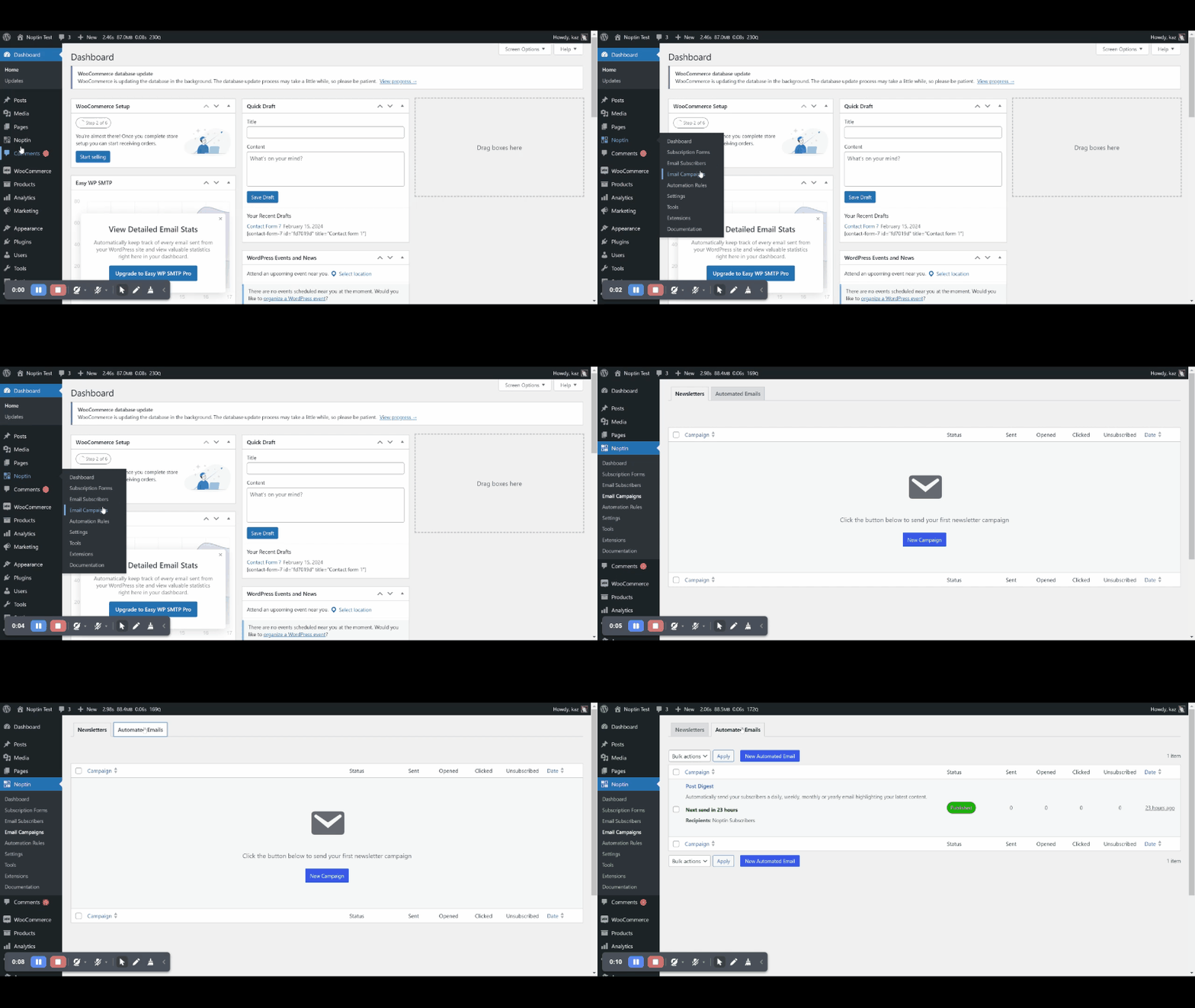
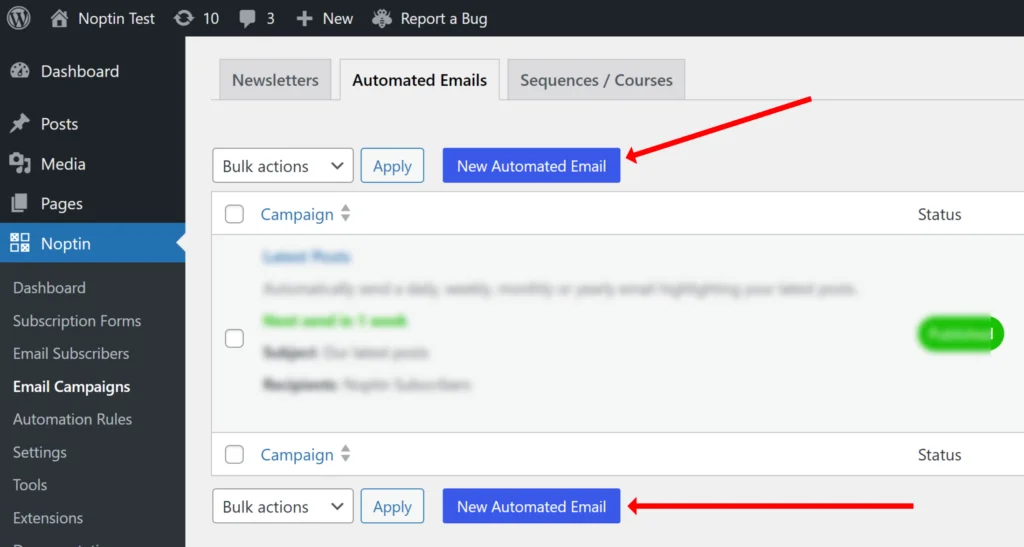
Next, click the “New Automated Email” button to set up a new automated email.
Noptin will open a modal where you can select the type of automated email you want to create.

Choose the post type to include in your digest. Noptin supports posts, pages, products, listings, events, and custom post types.
Finally, choose the recipients for the email.
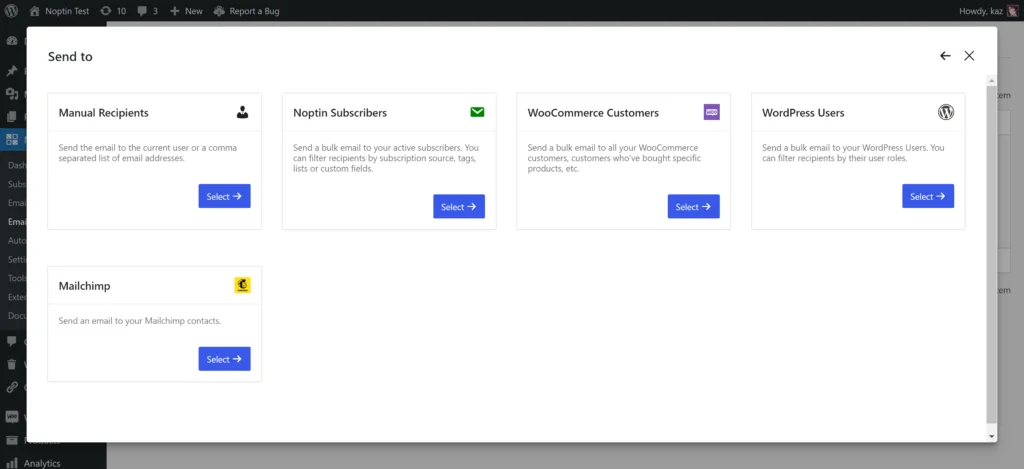
You can send the digest to the site admin, a comma-separated list of email addresses, newsletter subscribers, WooCommerce customers, or WordPress users. If you’ve installed a supported integration such as Mailchimp, you can also send digest emails to those subscribers and filter them by their lists or tags.
Editing the post digest email
After selecting the recipient, Noptin creates the post digest email and opens the email editor.

By default, the email subject is set to Latest Posts, and the email body allows you to either display a simple grid or a list of posts. This is intentional.
It gives you a working starting point that you can customize to fit your audience and brand style.
You can click on the subject field at the top of the editor to change it. For example, you might use a subject like This Week’s Updates, Your Monthly Roundup, or New Tutorials and Updates.
The email editor itself is based on the WordPress block editor. If you’ve ever edited a page or post in WordPress, you already know how to use it. You can add, remove, and rearrange blocks, change text, and control layouts visually.
TIP:
You can use any of our email merge tags in your email subject, body, and preview texts.
Understanding the Posts Block
The Posts block is what powers post digest emails.
The Posts block automatically pulls content from your site and includes it in the email. By default, it shows a list of recent posts with the title, publish date, excerpt, and a read-more button.
You can use merge tags and dynamic blocks to display categories, tags, authors, post meta, etc.

Click the Posts block to open its settings in the sidebar. If you don’t see post options, click the Filter Posts button to display them.

From there, you can:
- Change how many posts appear in the digest
- Choose the order of posts, such as newest to oldest or by title.
- Decide whether the email should be skipped if no posts are found
This makes it easy to control both the size and timing of your digest emails.
NOTE:
You can display up to 500 posts in one email. However, including fewer posts can make the email shorter and easier to read.
The latest post notification email will only display posts published in the preceding period.
For example,
If you set a limit of 8 and publish only 4 blog posts, the notification email will show 4 blog posts.
Filtering Which Posts Appear in the Post Digest email
Most sites publish various types of content, such as tutorials, updates, announcements, and blog posts. A good digest email does not include everything. Instead, it features the most relevant content.
In the Posts block settings, you can filter posts by:
- Categories
- Tags
- Formats
- Authors
- Date ranges
By default, only a few filters are visible. Click the three dots next to the Filters label to reveal additional filter options that you can enable as needed.

Each post type has its own set of filters. The following filters apply to post digests.
| Filter | What it Does | When to Use It |
|---|---|---|
| Since Last Send | Only shows posts created after the last time this email was sent | Perfect for digest emails so the same post isn’t emailed twice |
| Categories | Includes only posts from specific categories | Use this to create category-based sections like Tutorials or News |
| Categories – Exclude | Excludes posts from selected categories | Helpful if you want to omit certain content types |
| Tags | Includes only posts with specific tags | Useful for topic-focused digests |
| Tags – Exclude | Excludes posts with specific tags | Keeps unwanted tagged content out of the digest |
| Formats | Filters posts by post format (e.g., Standard, Video, Gallery) | Useful if your site uses post formats |
| Formats – Exclude | Excludes specific post formats | Helps refine which post styles appear |
| Date After | Only shows posts published after a specific date | Useful for fixed-date campaigns or one-off digests |
| Date Before | Only shows posts published before a specific date | Helpful for historical or archive-style emails |
| Posts | Select specific posts to include | Use this when you want full control over what appears |
| Author | Shows posts written by specific authors | Useful for multi-author sites or guest posts |
You can combine several filters within a single Posts block. For example, you might show only posts from a specific category published since the last send that do not have a certain tag.
This makes it easy to build smart, automated digest emails that adapt to your content without manual editing.
Grouping Content with Sections
You’re not limited to a single list of posts.
Noptin lets you add multiple Posts blocks in the same email. Each block can then show different content.
To keep things organized, it’s best to place each Posts block inside separate Section blocks. A section acts as a container. It can include headings, text, buttons, and one or more Posts blocks.
Here’s a practical example.
You might create a section with the heading New Tutorials. Inside that section, you add a Posts block and filter it to only show posts from the Tutorials category.

In the block settings, enable Hide parent section if no posts are found.
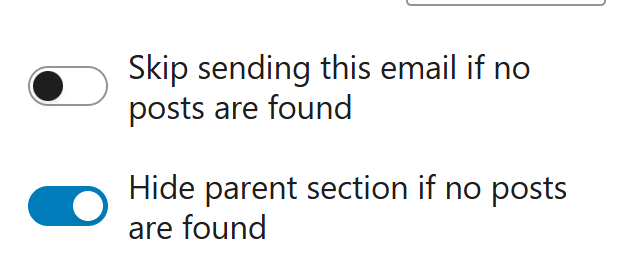
If no tutorials were published during the selected period, the entire section will be hidden automatically. This keeps your emails clean and avoids empty headings.
You can repeat this pattern for other types of content, such as updates, news, or announcements.
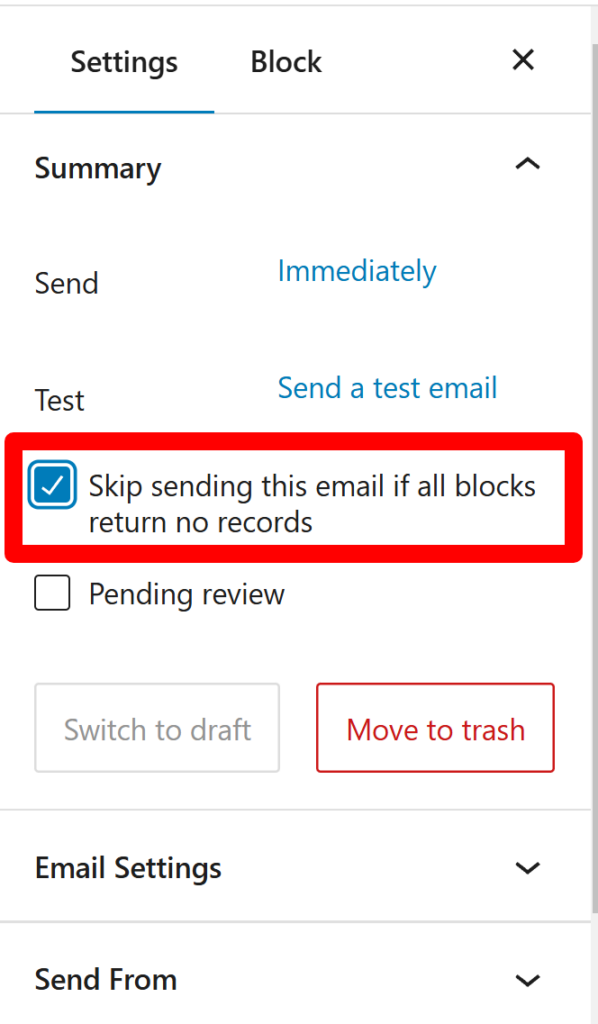
When doing this, you might want to disable email sending if none of the sections have new posts.
Mixing Different Content Types in One Email
Post digest emails don’t have to be limited to blog posts.
Similar to how we did in the previous section, you can insert multiple blocks in your email body for different post types.
For example:
- One section showing recent blog posts
- Another section showing WooCommerce products
- A third section showing events or custom post types
Each block works independently, with its own filters and settings.
This makes it possible to create a single digest email that highlights everything new on your site in a structured, readable way.
What if no posts are found?
You can either hide the entire section or skip sending the email.
When combining different content types in one email, hide only the parent section of each block if it has no posts.
You can then set the email to not send if none of the blocks contain new posts. This means that if a block has no matching posts, only its parent section is hidden, and if all blocks are empty, the email is not sent.
How to Set the Sending Frequency
After creating your post digest email, you’ll need to choose how often it should be sent.
To do this, open the email editor and go to Settings → Email Settings. From there, you can select the sending frequency and fine-tune when the email is delivered.

Noptin supports several frequency options, depending on how you want your digest emails to behave.
Choosing the Right Digest Frequency
The best digest frequency depends on how often you publish and how your audience prefers to receive updates. There’s no one-size-fits-all option, but the guidelines below make the choice easier.
Daily Post Digests
A daily digest sends a summary of posts published in the last 24 hours. You can choose the time of day the email should be sent and select skip days, such as weekends.

This works best if:
- You publish new content almost every day
- Your site is news-driven or frequently updated
- Subscribers expect regular updates
Daily digests keep content timely while still avoiding multiple emails per day.
Weekly Post Digests
A weekly digest sends a summary of posts published during the past week. In addition to setting the time and skip days, you can also choose the specific day of the week the email should be sent.

This is the most popular option and works well if:
- You publish a few posts per week
- Your content is educational or evergreen
- You want consistent traffic without frequent emails
Weekly digests strike a good balance between visibility and inbox friendliness.
Monthly Post Digests
A monthly digest sends a summary of posts published during the past month. In addition to setting the time and skip days, you can also choose the specific day of the month the email should be sent.

This is a good choice if:
- You publish content less frequently
- Your audience prefers fewer emails
- You want a high-level recap rather than regular updates
Monthly digests work well for company blogs, changelogs, and long-form content.
Yearly Post Digests
Yearly post digests are best used for special occasions, such as a “Year in Review” email or an annual summary of major updates. In addition to setting the time and skip days, you can also choose the specific day of the year the email should be sent.

In most cases, these are better sent as one-off campaigns rather than ongoing automated digests. That way, you can hand-pick the content and tailor the message to the occasion.
Every X Days
The Every X days option gives you full control over the interval between emails.
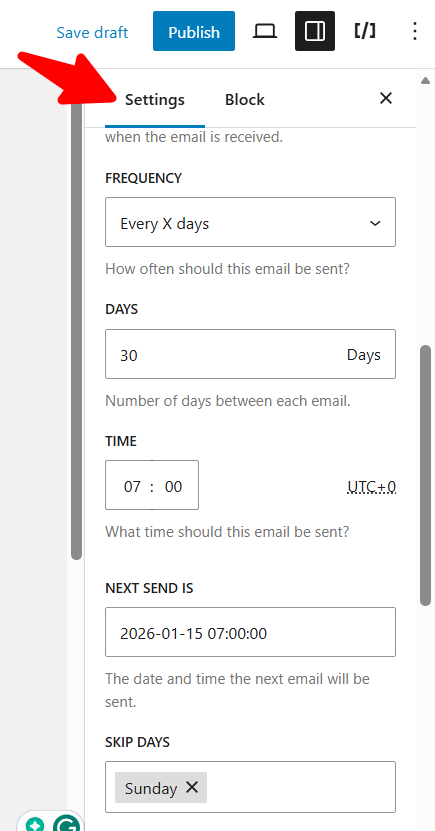
With this frequency, you can:
- Set the number of days between each email
- Choose the exact time the email should be sent
- Select the next date the email will be sent
- Configure skip days
This option is useful if you want a custom schedule that doesn’t fit neatly into daily, weekly, or monthly intervals.
Send Manually
The Send Manually frequency disables automatic sending.
There are no scheduling options for this mode. When you choose it, the email will only be sent when you manually click the send button.

This is useful for one-off digests, special announcements, or end-of-year summaries where you want full control over when the email goes out.
| Frequency | Best For | Email Volume |
|---|---|---|
| Daily | High-volume or news sites | Higher |
| Weekly | Most blogs and content sites | Balanced |
| Monthly | Low-frequency publishing | Low |
| Yearly | Personal blogs or low-volume sites that publish very infrequently | Very Low |
| Every X Days | If you want a custom schedule that doesn’t fit neatly into daily, weekly, or monthly intervals | Depends |
| Send Manually | Where you want full control over when the email goes out | Depends |
You can always change the frequency later. Once the frequency is set, Noptin automatically handles scheduling and delivery.
Combined with post filters and skip rules, this ensures your digest emails are sent at the right time, only when there’s relevant content to share.
Let Subscribers Choose the Type of Emails They Receive
Not all subscribers want the same content. Some may only care about tutorials, while others want product updates, news, or announcements.
Instead of sending one generic digest to everyone, Noptin lets you give subscribers more control over what they receive.
How This Works
You can create multiple post digest emails, each focused on a specific type of content.
For example:
- One digest for tutorials
- Another for product updates
- Another for news or announcements
Each digest can include only the posts you want, based on categories, tags, or ACF custom fields.
At the same time, you can control who receives each digest by filtering recipients using subscriber custom fields.
Step 1: Store Subscriber Preferences
In your WordPress admin dashboard, head over to Noptin > Settings > Custom fields then create a new custom field. This can either be a checkbox, dropdown, or multi-checkbox field.
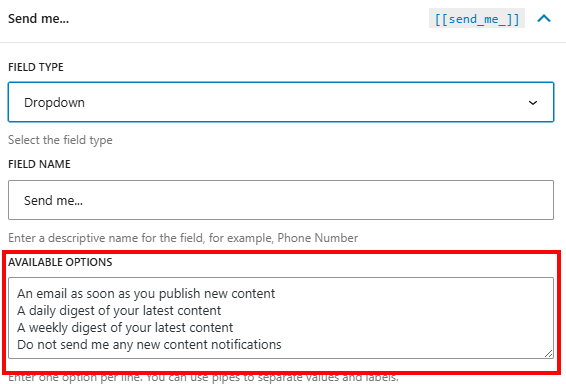
You can skip this step if you prefer to use subscriber tags or filter recipients using the subscription form they used.
Step 2: Create Separate Digest Emails
Next, create a separate post digest email for each content type or sending frequency.
For example,
You can decide to only include posts categorized as Tutorials or Updates, or set the email to send daily, weekly, or yearly.
Step 3: Filter Recipients by Custom Fields
For each post digest email, click on Settings > Send to to filter recipients based on their preferences.
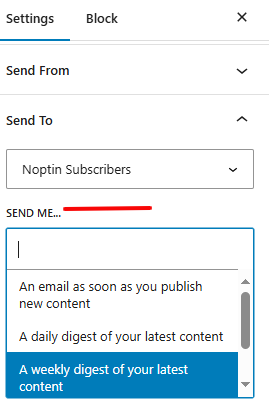
Once set up, Noptin handles the filtering and delivery automatically, even as new posts and new subscribers are added. This way, subscribers only receive the content they care about, and everything remains fully automated.
When Should You Use Post Digest Emails?
Post digest emails work best when you want to keep subscribers informed without sending an email for every single post.
Use post digest emails if:
- You publish multiple posts per week and want to avoid overwhelming subscribers
- Your content is educational, news-based, or evergreen and doesn’t need immediate attention
- You want to send a consistent summary, such as a weekly or monthly roundup
- Your audience prefers fewer, more curated emails
- You want an automated way to drive repeat traffic without manual newsletters
Post digests are especially useful for blogs, membership sites, documentation sites, and content-heavy WordPress websites.
If your content is time-sensitive, promotional, or needs immediate visibility, post-digest emails may not be the best choice.
In that case, sending an email as soon as a post is published is often a better option. You can learn how to do that in our guide on sending new post notification emails.
Best Practices for Post Digest Emails
Post digest emails work best when they are clear, concise, and easy to scan. Keep the focus on helping subscribers decide what to read next.
Follow these best practices:
- Keep digests short and scannable. Avoid adding too many posts in a single email.
- Use short excerpts instead of full post content to encourage clicks back to your site.
- Group related content using clear section headings, especially when mixing categories or post types.
- Use descriptive subject lines that set expectations, such as weekly or monthly summaries.
- Skip sending the email when no new content is available to avoid sending empty or irrelevant messages.
- Test your digest layout on both desktop and mobile to ensure it remains readable.
A well-structured digest feels helpful, not promotional, and gives subscribers a reason to return to your site regularly.
Frequently Asked Questions
No. Noptin creates post digests directly from the content published on your WordPress website.
Its Posts block automatically retrieves your latest posts and adds them to the digest email. You can filter the posts by category, tags, author, or other supported fields.
You don’t need a separate RSS-to-email service.
Yes. You can create separate Noptin automated emails for immediate post notifications and scheduled post digests.
For example, you could email breaking news immediately while sending a weekly roundup of tutorials every Friday.
If both campaigns cover the same content, consider targeting different subscriber lists or preferences so readers don’t receive duplicate updates unnecessarily.
First, make sure the digest email is published and that you’ve configured its sending frequency.
Next, check whether any posts match the digest’s content filters. If you’ve enabled the option to skip emails when no posts are found, Noptin won’t send an empty digest.
If qualifying posts exist but the email still isn’t sent, check your WordPress Cron configuration and email delivery settings.
Final Thoughts
Post digest emails are a simple way to keep subscribers engaged without sending an email for every post you publish.
Once set up, Noptin automatically builds and sends each digest based on your schedule and filters. There’s no manual work, no copying content, and no risk of sending empty emails.
You can start with a simple weekly digest and refine it over time by adjusting filters, grouping content into sections, or mixing different post types in a single email.
If you need emails to go out immediately when a post is published, you can also set up instant new post notification emails instead.
Either way, the goal is the same: keep subscribers informed and bring them back to your site consistently, without extra effort.
You can also compare Noptin to other WordPress post notification plugins.
Leave a Reply