
Conditional logic controls whether an automation action (step) runs when a workflow reaches it. Use it when a step should run only for records whose available merge-tag data matches specific rules.
Conditional logic does not change the trigger that starts the automation. Noptin evaluates it only after the workflow reaches the configured step.
Example: Delete subscribers who remain unconfirmed
To automatically delete subscribers who do not confirm their email address, create an automation with Subscriber > Created as the trigger and add a delayed Subscriber > Delete step. Add conditional logic to the delete step so it runs only if the subscriber status is still Pending. When the delay ends, Noptin deletes subscribers who remain pending and skips the delete step for subscribers who have confirmed.
Add conditional logic to a step
- Open Noptin → Automation Rules.
- Open an existing automation, or create a new automation and add its trigger and first action.
- In the visual editor, click the step whose execution you want to control.
- Open Conditional Logic, then enable the conditional logic switch.
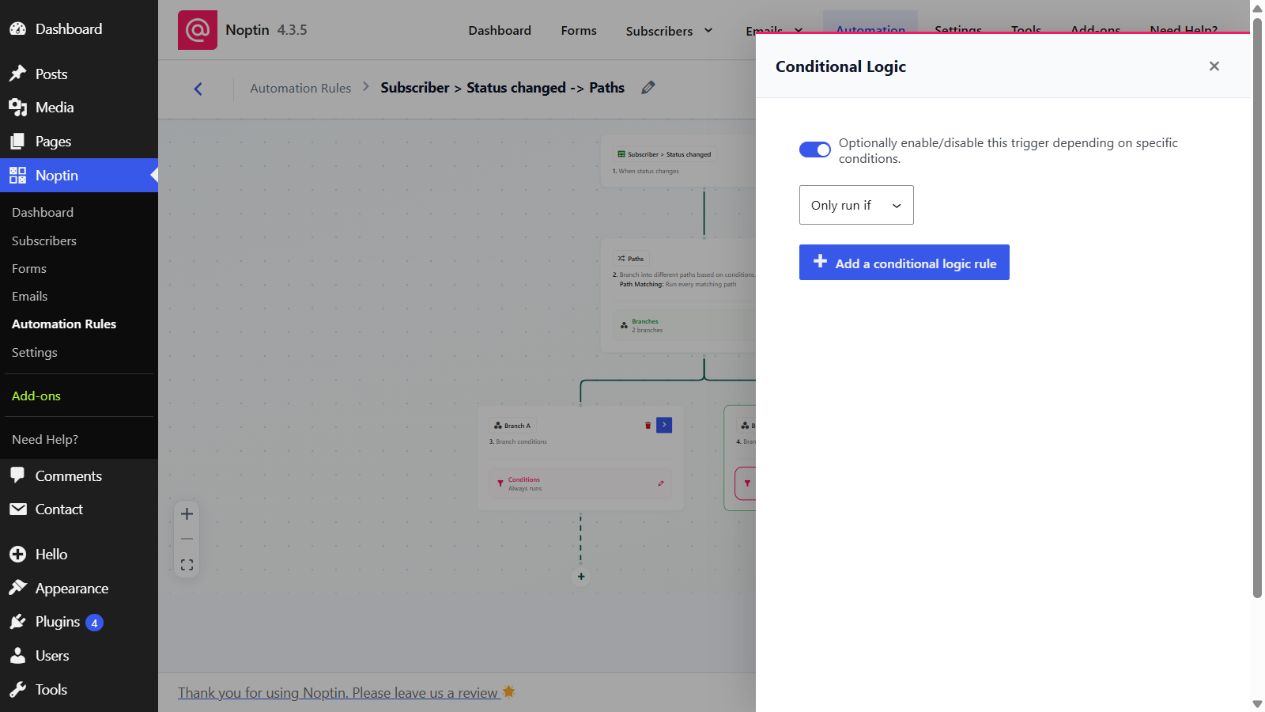
Choose what happens when the conditions match
Use the If selector to choose what Noptin does when the rules match:
- Only run if – runs the step when the conditional rules match.
- Do not run if – skips the step when the conditional rules match.
Important: If a step is skipped, all steps nested inside it are also skipped.
Place a condition on a parent step only when its entire child branch should stop when the condition fails.
Create a conditional rule
- Click Add a conditional logic rule.
- Select the merge tag that contains the value Noptin should evaluate. A merge tag represents data available to this automation, such as a subscriber‘s email address, an order total, or the title of a newly published post.
- Choose a Comparison. Noptin displays only the comparisons supported by the selected merge tag’s data type.
- Select or enter the comparison Value. Follow the formats in the comparison table below.
- To evaluate more data, click Add another rule. When two or more rules exist, choose all when every rule must match, or any when at least one rule must match.
- Close the panel, then click Save.
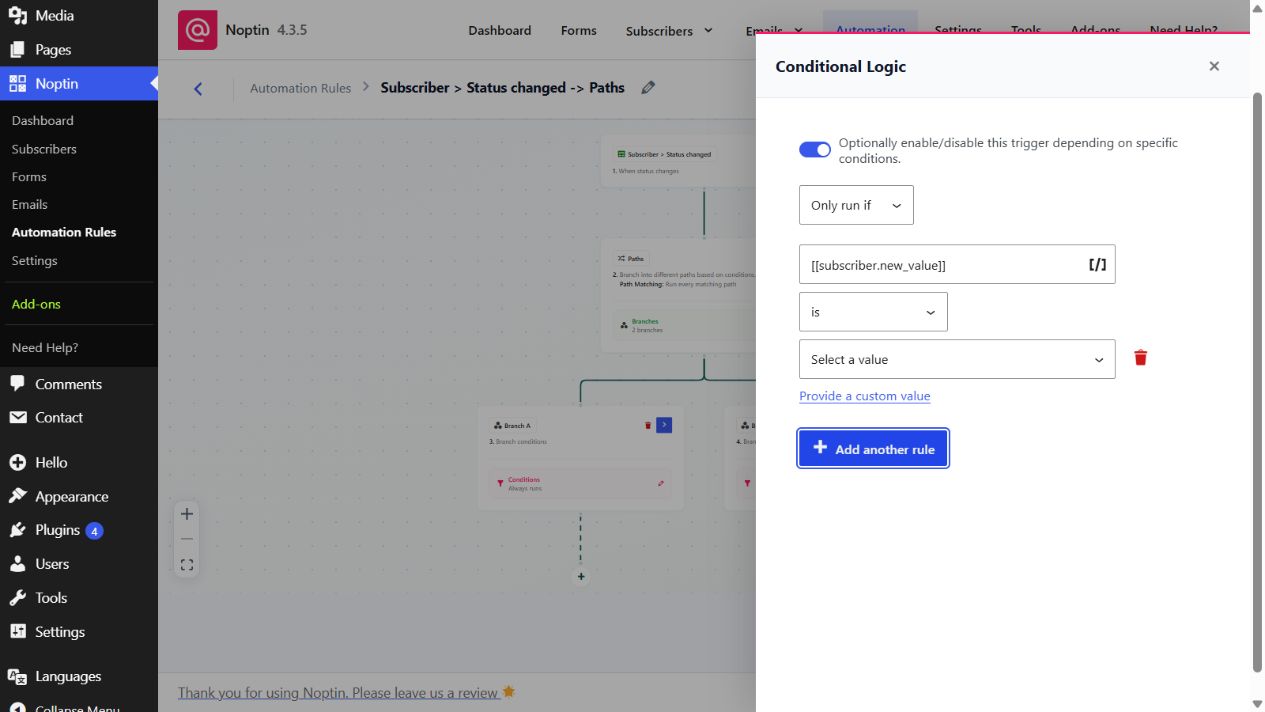
Choose from the merge tags shown in the selector. If a subscriber, current-user, or other merge tag is not listed, that data is not available to this automation. Use an available merge tag or adjust the automation so that it supplies the data you need.
Conditional-logic comparisons and value formats
Text comparisons are case-insensitive. Leading and trailing spaces are ignored. The comparison menu changes according to whether the selected merge tag contains text, a number, a date, or another supported value.
| Comparison | Available for | Value format and use |
|---|---|---|
| is | Any value | Enter the complete expected value. For a multi-value field, this requires the complete set to match, so it is usually too strict for categories, tags, or lists. |
| is not | Any value | Enter the complete value that must not match. |
| contains | Text | Enter the text or individual list item to find. Prefer this for categories, tags, lists, and similar fields that can contain more than one value. |
| does not contain | Text | Enter the text or list item that must be absent. |
| begins with | Text | Enter the characters that must appear at the start of the value. |
| ends with | Text | Enter the characters that must appear at the end of the value. |
| is empty | Any value | No comparison value is required. Matches when the merge tag resolves to an empty value. |
| is not empty | Any value | No comparison value is required. Matches when the merge tag resolves to a value. |
| is greater than | Number | Enter one number, without descriptive text; for example, 100. |
| is less than | Number | Enter one number, without descriptive text; for example, 100. |
| is between | Number | Enter the lower and upper limits separated by a comma or space; for example, 10, 20. Both limits are included. |
| is before | Date | Enter a date. Use the unambiguous YYYY-MM-DD format; for example, 2026-08-09. |
| is after | Date | Enter a date in YYYY-MM-DD format. |
| is between | Date | Enter the start and end dates separated by a comma or space; for example, 2026-08-01, 2026-08-31. Both dates are included. |
When a merge tag offers predefined choices, select the value from the dropdown. This avoids comparing against a display label when Noptin expects the option’s stored value.
Example: match one item in a multi-value field
Suppose a record belongs to both the Customers and Newsletter lists. A rule using is Customers can fail because the field contains more than one list. Use contains Customers when the step should run as long as that one list is present.
Expected result
When the workflow reaches the configured step, Noptin evaluates the saved rules. It runs or skips that step according to the selected Only run if or Do not run if behavior. If the step is skipped, its child steps are skipped as well.
Leave a Reply