
You can edit an existing automation rule to change its name, trigger configuration, actions, delays, or conditional logic. The automation can also be made inactive when new runs should be stopped without deleting the workflow.
Open and edit an automation
- Open Noptin → Automation Rules.
- Click the automation’s name or its Edit action.
- Click the trigger or an action card to configure it.
- Use Change only when the current trigger or action should be replaced.
- Use Add Step to extend the workflow. Configure delays or conditional logic on the relevant action step.
- Click Save.
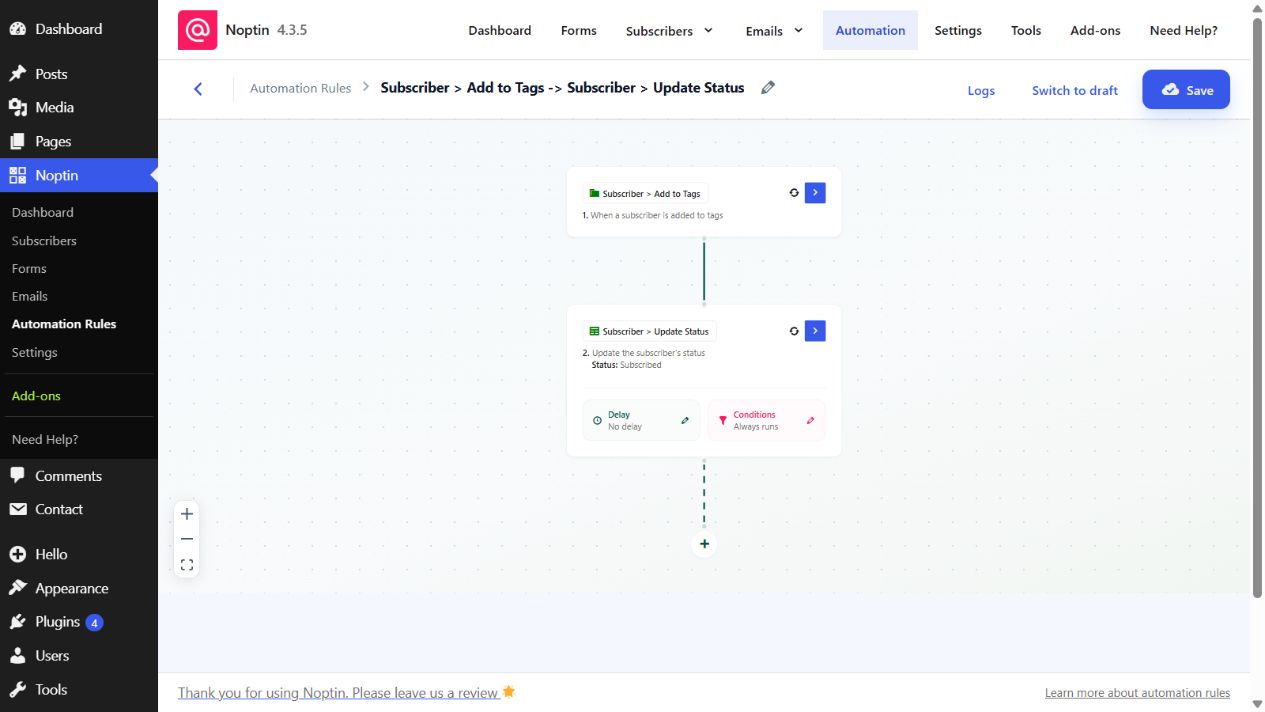
Replacing a trigger or action can discard settings that belong to the current selection. Record any values that must be recreated before clicking Change.
Enable or disable an automation
On the Automation Rules overview, use the status toggle for the required workflow. Active allows matching trigger events to start new runs. Inactive prevents new runs from starting. A live automation can also be made inactive from its editor by selecting Switch to draft.
| Status | New trigger events | Workflow retained? |
|---|---|---|
| Active | Matching events can start the automation. | Yes |
| Inactive or draft | New events do not start the automation. | Yes, and it can be edited or reactivated later. |
| Deleted | No events can start it. | No |
Disabling an automation stops new trigger events from starting it. Delayed work that was scheduled before the status changed might still be pending. Review Logs and Scheduled Tasks when that distinction matters.
Confirm the saved workflow
- Return to Automation Rules and confirm the displayed status.
- Reopen the workflow and verify every changed card.
- Use Logs after a local test event to confirm that the expected path ran.
For a new workflow, follow How to Create an Automation Rule.
Leave a Reply