This article will guide you on how to allow editors to access and manage Noptin
Sign in to your WordPress Dashboard, then hover over Noptin > Settings.
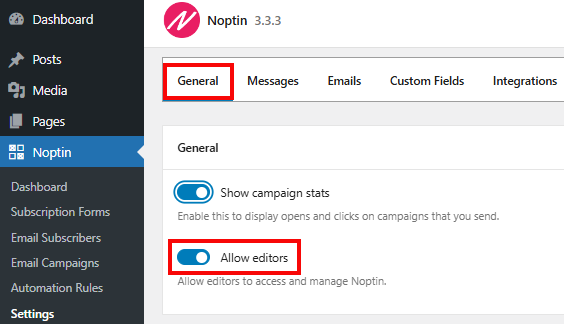
In the Settings, Select General and then Allow Editors

This article will guide you on how to allow editors to access and manage Noptin
Sign in to your WordPress Dashboard, then hover over Noptin > Settings.
In the Settings, Select General and then Allow Editors
This walk-through introduces you to Noptin and what you can do with the plugin
Check out the minimum and recommended server requirements needed to run Noptin reliably
Learn how to install Noptin on a single site or a multisite network.
Here is a list of shortcodes that you can use to display newsletter subscription forms, your subscriber count, and subscriber only content.
Learn how to translate Noptin into your language.
Complete Noptin’s setup wizard, choose a usage mode, configure sender or connection settings, and understand every wizard step.
Learn how to change the From email, sender name, and Reply-to address in Noptin. Use a business email or sending subdomain without exposing your personal address.
Use the Noptin dashboard to review subscriber growth, campaign activity, recent events, and the effect of the selected reporting period.
The article provides relevant information on how you can ensure your Noptin installation is GDPR compliant.
Hide license details, simplify the Noptin admin area, and white-label the plugin for your clients.
Leave a Reply