If you've not yet installed Noptin, you can install it as shown in the video below or follow our installation guide.
In your WordPress admin dashboard, go to Noptin → Email Campaigns → Automated Emails and
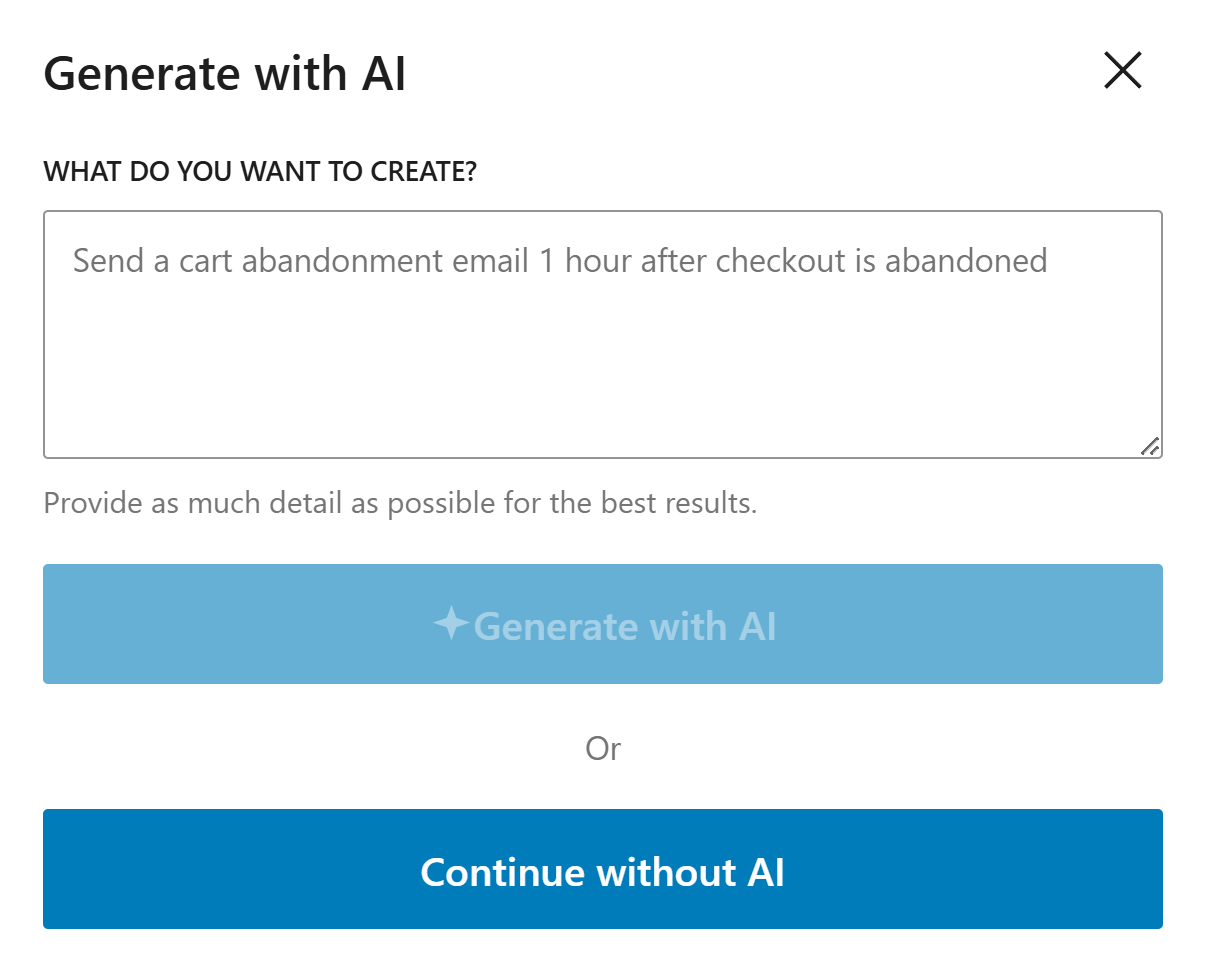
create a new automated email. You will see the option to generate the email with AI or create it manually.
If you decide to generate with AI, paste the sample prompt below, review the output, and adjust the copy to
match your brand.
AI Prompt
Write a short and friendly email for customers when their WooCommerce order is completed. Thank them, confirm the order, and include the next step plus a support contact.
Noptin will generate the email content, subject line, and layout based on the prompt, but you can edit all of
it before saving the email and activating the workflow.
If you decide to create the email manually, click on the "Continue without AI" button then follow these steps.
Create the email without AI
1
Choose the trigger
Within the Noptin automation modal, locate the woocommerce category and
toggle the
WooCommerce Order > Completed event.
Noptin will create the automated email then open the email editor so you can customize the content, design,
and subject line before activating it.
Tips for Better WooCommerce Order Completed Emails
Include the order number and product names near the top so customers can quickly confirm what they bought without digging through their inbox.
Give the customer one clear next step, such as downloading the product, setting up their account, or tracking the shipment.
Keep the message short, then place help links or setup resources lower down for people who need more detail.
WooCommerce Order Completed Email Examples
These examples make the workflow more concrete and help the page feel genuinely useful.
Send setup steps after a plugin or software purchase
When a customer buys a plugin, app, or software plan, send an email with the license details, where to log in, and the best first step. This helps them get value faster and cuts down on simple support questions.
Confirm delivery details for physical orders
If you sell physical products, use the completed-order email to confirm that the order has been processed, share delivery details, and explain what happens next. This builds trust and keeps customers informed.
Share access details for digital downloads
For digital products, include the download link, access instructions, and a short checklist. Customers can start using what they bought right away instead of waiting or getting stuck.
Frequently asked questions
What should I include in a WooCommerce order completed email?
Start with a short thank-you, then include the order number, what the customer bought, and the next step. Add a support contact if they need help.
Should this email sell more products too?
Usually no. This email works best when it stays focused on the completed order and helping the customer get started.
When should the email be sent?
Send it right after the order moves to completed so the customer gets confirmation at the exact moment they expect it.
Set up your order completed email
Use Noptin to send a clear post-purchase email every time a WooCommerce order is completed, so customers know what to do next.