
Full refund confirmation with timing details
Send a simple email that confirms the full refund, the amount, and how long it may take to show up on the customer's card or account. This helps prevent repeated status questions.
Let customers know right away when their refund has been processed.
If you've not yet installed Noptin, you can install it as shown in the video below or follow our installation guide.
In your WordPress admin dashboard, go to Noptin → Email Campaigns → Automated Emails and create a new automated email. You will see the option to generate the email with AI or create it manually.
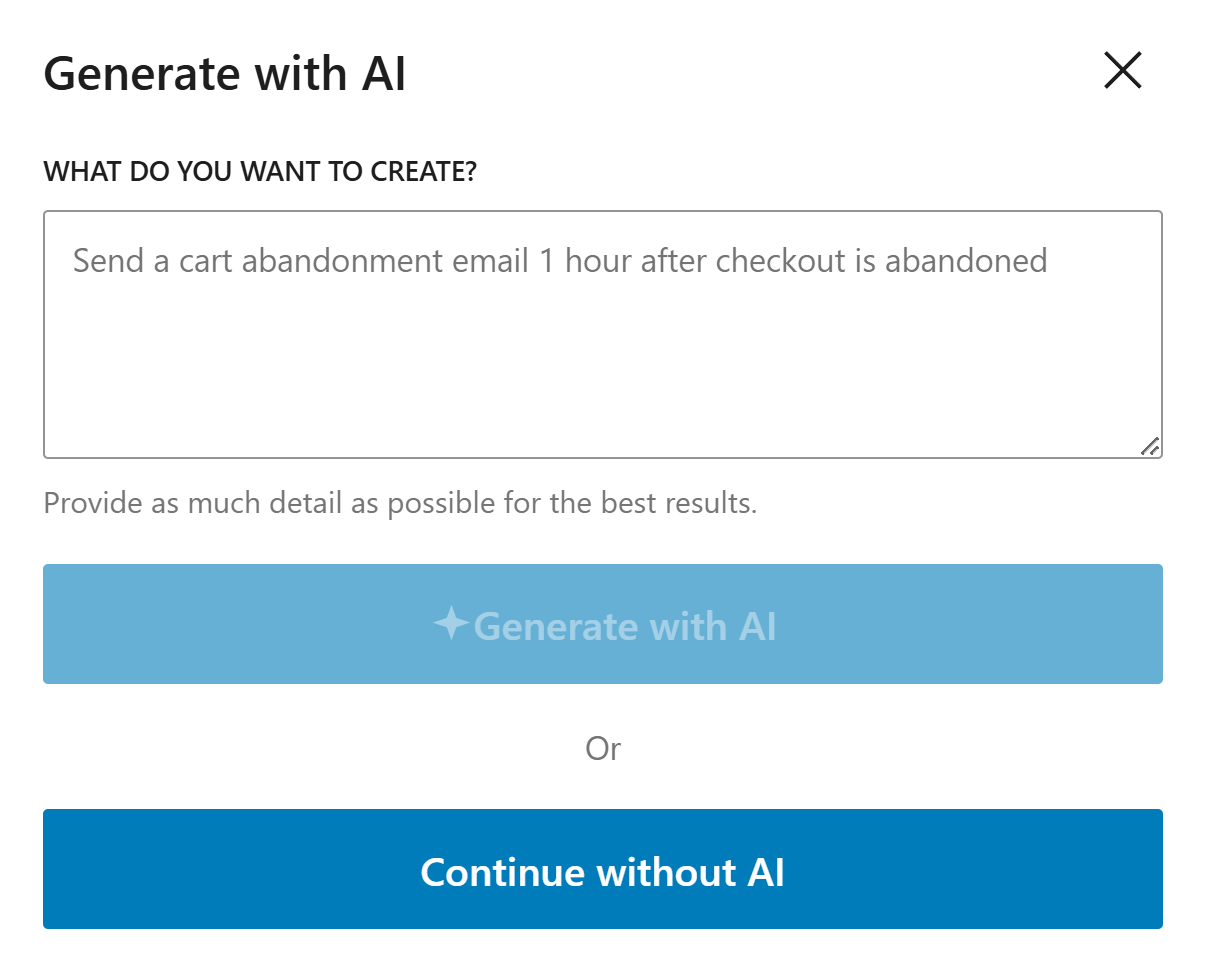
If you decide to generate with AI, paste the sample prompt below, review the output, and adjust the copy to match your brand.
Write a calm and professional refund email for a WooCommerce customer. Confirm the refund amount, mention when it should appear, and include a support contact.
Noptin will generate the email content, subject line, and layout based on the prompt, but you can edit all of it before saving the email and activating the workflow.
If you decide to create the email manually, click on the "Continue without AI" button then follow these steps.
Within the Noptin automation modal, locate the woocommerce category and toggle the WooCommerce Order > Refunded event.
Next, choose Customer as the recipient.
Finally, select the template you want to use for the email. You can customize the design and copy later, so just pick the one that's closest to what you want.
Noptin will create the automated email then open the email editor so you can customize the content, design, and subject line before activating it.
State the refund amount clearly and mention where the money is being sent so the customer does not have to ask.
Tell the customer how long the refund usually takes to appear, since payment providers and banks can take time.
If the refund is partial, explain exactly what was refunded and what remains on the order.
These examples make the workflow more concrete and help the page feel genuinely useful.
Send a simple email that confirms the full refund, the amount, and how long it may take to show up on the customer's card or account. This helps prevent repeated status questions.
When only part of an order is refunded, explain which item or fee was refunded and what is still charged. Clear breakdowns avoid confusion and reduce disputes.
Include a single support email or reply option for follow-up questions. That keeps the message helpful without turning it into a long support article.
The key details are the refund amount, where the money is going, and how long it may take to appear.
It is better not to. A refund email should stay clear, respectful, and focused on the refund.
They can share a base template, but partial refunds should explain exactly what changed so the customer is not left guessing.
Use Noptin to send clear refund emails that explain the amount, timeline, and next step without creating more questions.