
An email sequence (sometimes called a drip campaign or email course) is a series of pre-written emails that are sent to subscribers automatically over time.
Instead of sending every message manually, you set it up once, and Noptin takes care of the rest.
This makes email sequences perfect for:
- Welcoming new subscribers
- Delivering online courses or lessons over days/weeks
- Onboarding new customers
- Nurturing leads into paying customers
With Noptin, you can create as many sequences as you like, and each one runs automatically based on the rules you define.
How Sequences Work in Noptin
1
Create a Sequence
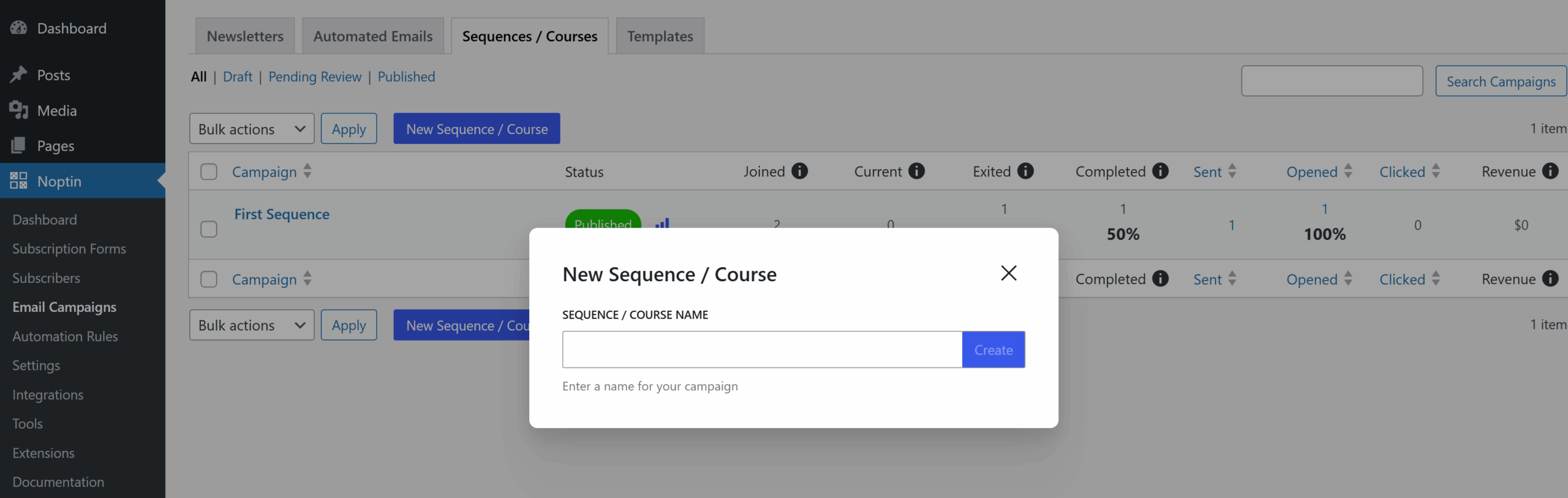
From the Sequences / Courses tab, click “New Sequence / Course” and give it a clear name (e.g., “Welcome Flow” or “Onboarding Course”).
2
Set a Trigger with Automation Rules
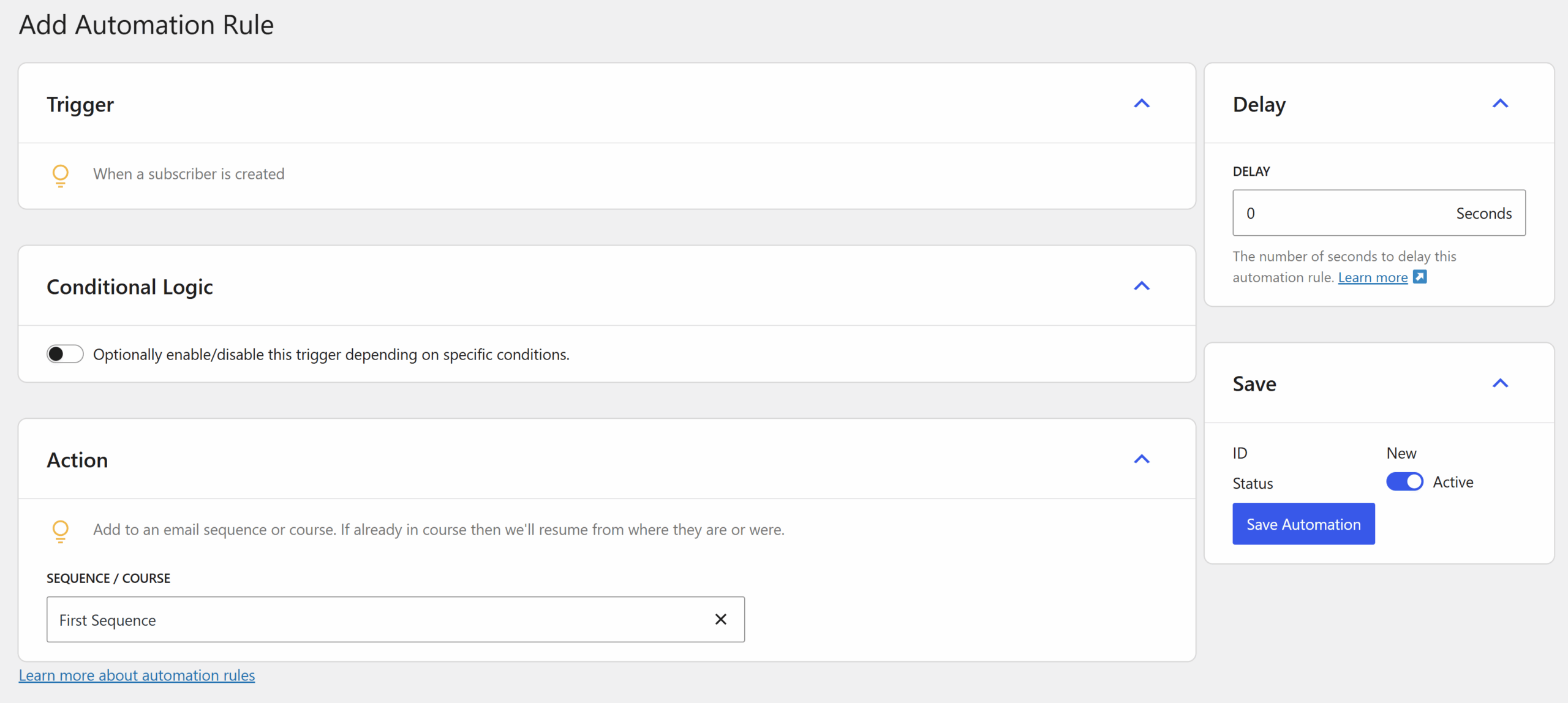
This step comes before adding emails. A sequence only becomes useful when subscribers or customers are added to it, and that happens through automation rules.
For example, you might add someone when they join your newsletter, purchase a product, or submit a form.
Defining the trigger first is important because it determines which merge tags you can use inside your emails.
For example, a purchase-triggered sequence might let you reference product details in the messages.
3
Add Emails to the Sequence
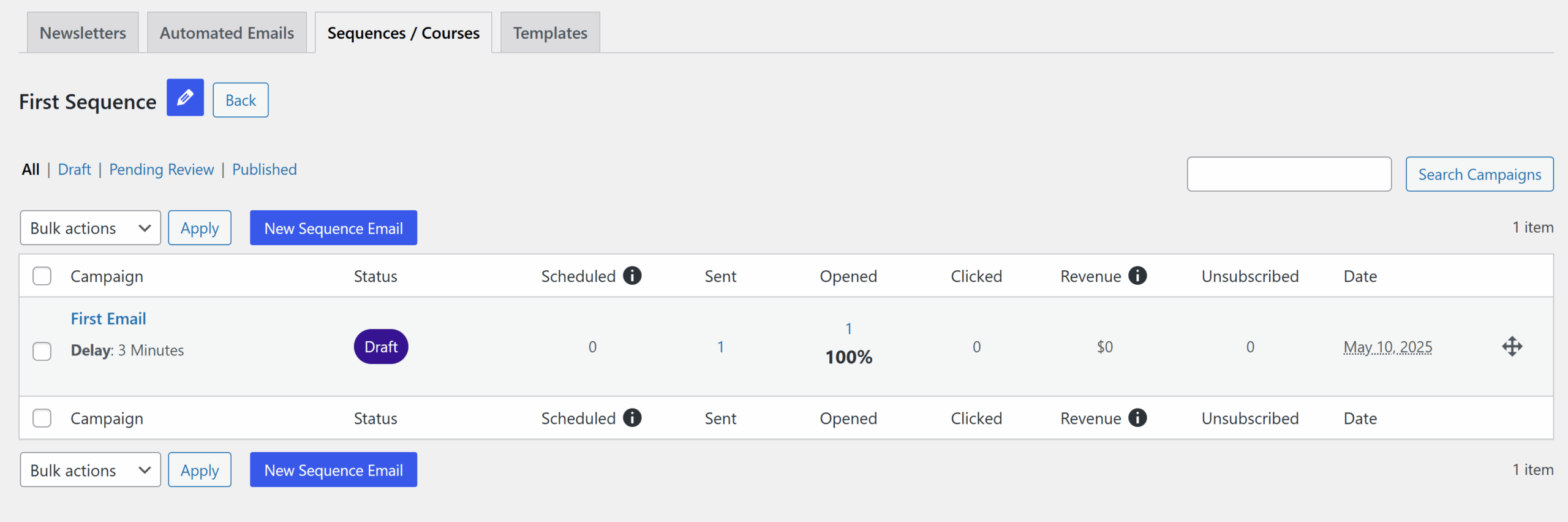
Once the trigger is in place, start adding emails.
Each email has a delay that controls when it goes out relative to the trigger or the previous email.
For example, you could send the first email immediately, the second after one day, and the third after three days.
4
Track Performance
Noptin automatically shows you key stats such as how many people joined the sequence, how many opened or clicked each email, and how many completed it.
Key Terms
- Sequence: A series of emails that run automatically.
- Automation Rule / Trigger: The condition that adds (or removes) someone from the sequence, defined in automation rules.
- Email (or Sequence Email): An individual message inside the sequence.
- Delay: The waiting period before an email is sent.
- Merge Tags: Dynamic placeholders (like subscriber name, product purchased, signup source) that are available depending on the trigger you set.
Leave a Reply