
After your included credits run out, you can keep using Noptin AI by connecting your own provider. Noptin supports Google AI Studio (Gemini), OpenAI (ChatGPT), and Anthropic (Claude).
This option is available with lifetime licenses and yearly Agency licenses. Other yearly plans require an eligible upgrade before you can use a personal provider key.
Understand which account pays
Noptin uses included AI credits first. While those credits remain, it chooses the platform provider for the task. Your selected personal provider is used after included credits run out; saving a key does not force earlier requests to use that provider.
Requests made with your key use your provider account’s API quota and billing. A chat-app subscription alone is not the same as API access. For example, ChatGPT and OpenAI API billing are separate.
Get an API key from your provider
| Choose in Noptin | Get the matching key |
|---|---|
| Google AI Studio (Gemini) | Follow Google’s Gemini API key instructions. |
| OpenAI (ChatGPT) | Create an API key in the OpenAI API platform. |
| Anthropic (Claude) | Follow the Claude API key instructions. |
Use a key from the provider you select, with access and quota for API requests. Keep the key private. Paste it only into the API Key field, not the AI prompt.
Connect the provider in Noptin
- Open Noptin → Emails → Newsletters and click New Campaign. Choose Get AI Draft in the Create with AI card. You can also open AI from a new automation rule.
- When your included credits are exhausted, an eligible license displays Connect your AI provider.
- Select the matching Provider. For a Claude API key, choose Anthropic (Claude).
- Paste the key into API Key, then click Save and continue.
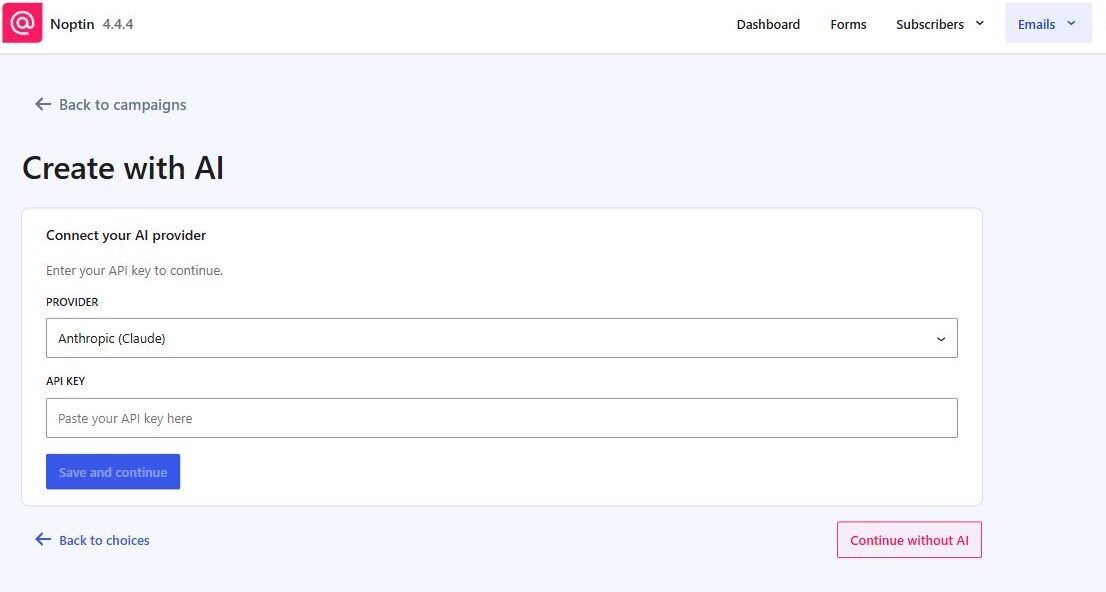
After the key is saved, the AI prompt becomes available. Generate a small draft to verify the connection. Saving a key alone does not prove that its permissions, quota, or billing are sufficient for a successful request.
Update, switch, or remove the key
Once a key is saved on an eligible license, open the AI screen and click API Settings. Select the new provider if needed, enter the replacement key, then click Save and continue.
To disconnect the provider, click Remove key. This removes Noptin’s saved connection for that website, but it does not revoke the key with the provider. You should also revoke any compromised or unused key in the provider’s account.
The saved provider connection is specific to the website using the license. Configure it separately on another website that needs it.
If you cannot find the connection form
The first-time connection form normally appears after included credits are exhausted. While credits remain and no key has been saved, the current AI screen does not offer an always-visible provider settings button. If an exhausted license shows an upgrade message instead, check its eligibility above.
For rejected keys, unavailable providers, or generation errors, follow Troubleshoot Noptin AI.
Leave a Reply