
Lead form alerts for sales teams
When someone fills in a contact or quote form, send the sales team an email with the lead's name, contact details, and request summary first. That makes quick follow-up much easier.
Send an email alert as soon as someone submits a WPForms form on your site.
If you've not yet installed Noptin, you can install it as shown in the video below or follow our installation guide.
In your WordPress admin dashboard, go to Noptin → Email Campaigns → Automated Emails and create a new automated email. You will see the option to generate the email with AI or create it manually.
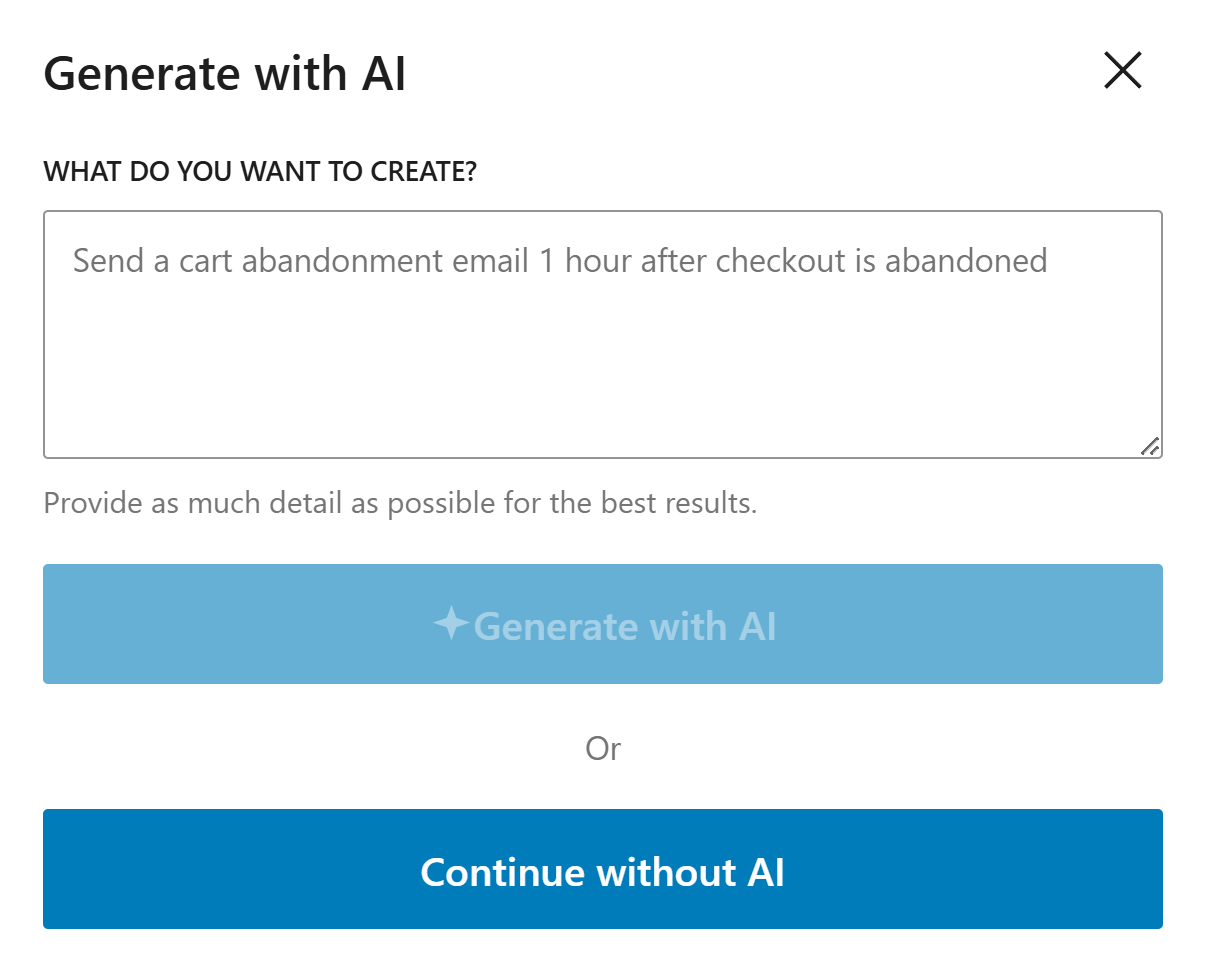
If you decide to generate with AI, paste the sample prompt below, review the output, and adjust the copy to match your brand.
Write a clear admin notification email for a new WPForms submission. Show the most important fields first, then list the full submission below.
Noptin will generate the email content, subject line, and layout based on the prompt, but you can edit all of it before saving the email and activating the workflow.
If you decide to create the email manually, click on the "Continue without AI" button then follow these steps.
Within the Noptin automation modal, locate the forms category and toggle the WPForms Form > Submitted event.
Next, choose Site Admin as the recipient.
Finally, select the template you want to use for the email. You can customize the design and copy later, so just pick the one that's closest to what you want.
Noptin will create the automated email then open the email editor so you can customize the content, design, and subject line before activating it.
Put key details like name, email, phone, and request type at the top so the team can scan the message quickly.
Use the same layout for every form alert so sales or support staff know where to look each time.
Write a clear subject line that includes the form name or submission type so the email is easy to spot in a busy inbox.
These examples make the workflow more concrete and help the page feel genuinely useful.
When someone fills in a contact or quote form, send the sales team an email with the lead's name, contact details, and request summary first. That makes quick follow-up much easier.
For support forms, show the issue type, urgency clues, and full message in a clean format. This helps the team route the request to the right person faster.
If your site collects project requests, use the email to summarize the scope, budget, and timeline near the top. The full message can sit below for extra context.
Show the important fields first, then include the full submission underneath. Keep the layout clean and consistent.
Yes. You can route emails based on the form or the values submitted so the right team gets the alert.
Use something simple and clear, such as New WPForms Lead, New Support Request, or New Contact Form Submission.
Use Noptin to send fast, structured WPForms email alerts so no lead or request sits unnoticed in your inbox.