
New candidate alert for internal HR
Send HR a clean summary with the applicant name, role applied for, and contact details at the top. That helps the team move quickly on strong candidates.
Notify your hiring team as soon as a new job application is submitted.
If you've not yet installed Noptin, you can install it as shown in the video below or follow our installation guide.
In your WordPress admin dashboard, go to Noptin → Email Campaigns → Automated Emails and create a new automated email. You will see the option to generate the email with AI or create it manually.
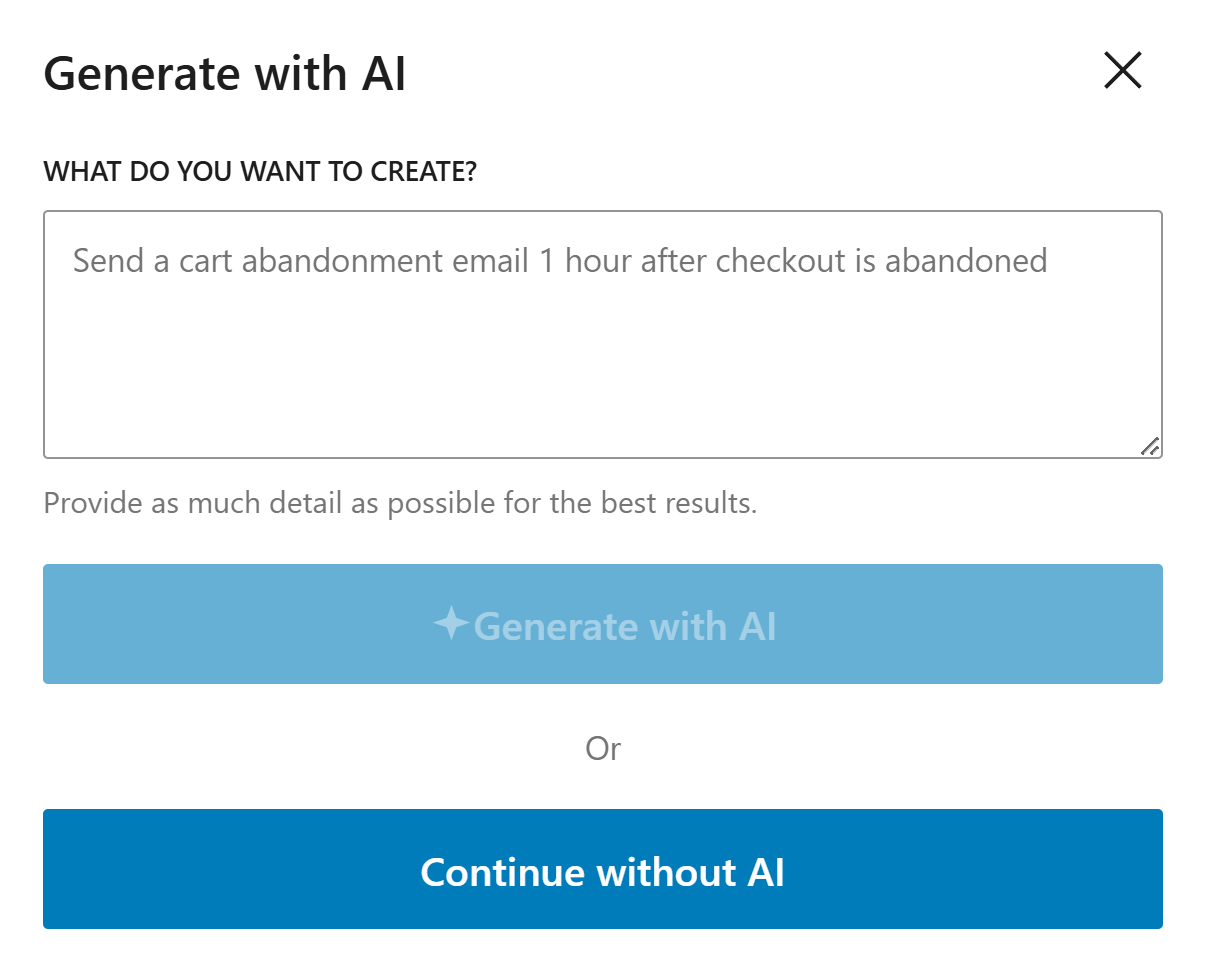
If you decide to generate with AI, paste the sample prompt below, review the output, and adjust the copy to match your brand.
Write a job application alert email for the hiring team. Show the applicant name, role, contact details, and resume link in a clear layout.
Noptin will generate the email content, subject line, and layout based on the prompt, but you can edit all of it before saving the email and activating the workflow.
If you decide to create the email manually, click on the "Continue without AI" button then follow these steps.
Within the Noptin automation modal, locate the jobs category and toggle the Job Application > Submitted event.
Next, choose Admin as the recipient.
Finally, select the template you want to use for the email. You can customize the design and copy later, so just pick the one that's closest to what you want.
Noptin will create the automated email then open the email editor so you can customize the content, design, and subject line before activating it.
Place the applicant name, job title, and contact details near the top so recruiters can scan the email fast.
Include direct links to the resume or portfolio so the team can review the application without extra clicks.
Use the same layout for every alert so the hiring process stays consistent.
These examples make the workflow more concrete and help the page feel genuinely useful.
Send HR a clean summary with the applicant name, role applied for, and contact details at the top. That helps the team move quickly on strong candidates.
For agencies or distributed teams, include the resume, portfolio, and any extra screening notes in the alert. A clear handoff saves time.
Use instant email alerts to make sure applications are reviewed while they are still fresh. This reduces the chance of good candidates being missed.
Start with the applicant name, the role they applied for, and their main contact details.
Yes. Direct access to the resume or portfolio makes the review process much faster.
Instant alerts make it easier to review applications quickly and pass them to the right person without delay.
Use Noptin to send job application email alerts the moment a candidate applies, so your team can respond faster.