
Blog update email for regular readers
When a new article goes live, send a short summary and one clear link to read it. This is a simple way to bring subscribers back to your site.
Email subscribers when you publish a new blog post.
If you've not yet installed Noptin, you can install it as shown in the video below or follow our installation guide.
In your WordPress admin dashboard, go to Noptin → Email Campaigns → Automated Emails and create a new automated email. You will see the option to generate the email with AI or create it manually.
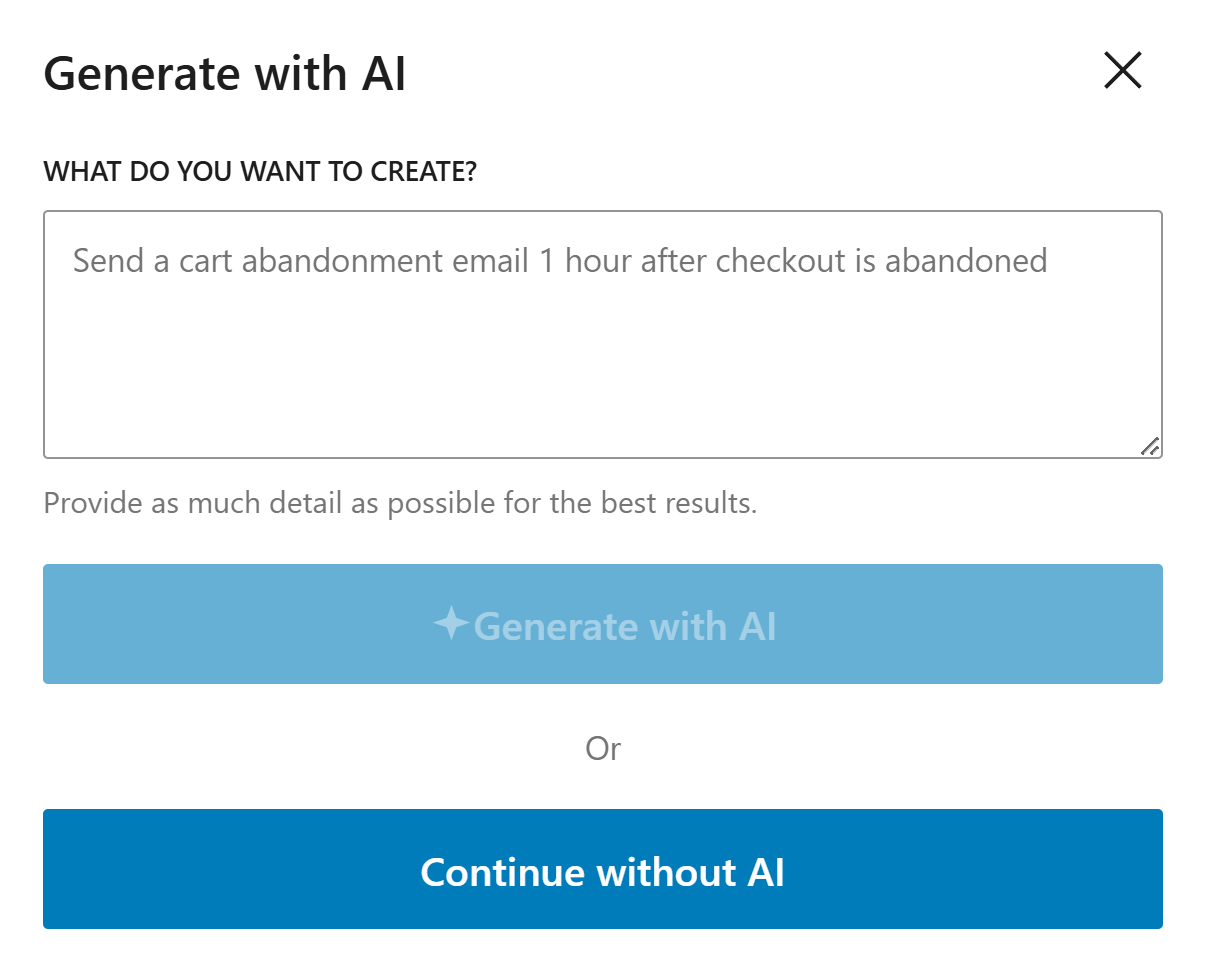
If you decide to generate with AI, paste the sample prompt below, review the output, and adjust the copy to match your brand.
Write a short email to subscribers about a newly published WordPress post. Include a simple summary, why it matters, and one clear button to read more.
Noptin will generate the email content, subject line, and layout based on the prompt, but you can edit all of it before saving the email and activating the workflow.
If you decide to create the email manually, click on the "Continue without AI" button then follow these steps.
Within the Noptin automation modal, locate the content category and toggle the Post > Published event.
Next, choose Subscribers as the recipient.
Finally, select the template you want to use for the email. You can customize the design and copy later, so just pick the one that's closest to what you want.
Noptin will create the automated email then open the email editor so you can customize the content, design, and subject line before activating it.
Use a subject line that gives readers a clear reason to open the email, not just the post title.
Keep the summary short and focused on what the reader will learn or gain from the article.
Use one clear call to action that sends people straight to the full post.
These examples make the workflow more concrete and help the page feel genuinely useful.
When a new article goes live, send a short summary and one clear link to read it. This is a simple way to bring subscribers back to your site.
If the post teaches users how to do something, explain the problem it solves and invite them to read the full guide. That usually works better than just sharing the headline.
For timely posts, send the email as soon as the article is published so readers can catch the update while it is still fresh.
Keep it short. A headline, a brief summary, and one clear link are often enough.
For breaking news or time-sensitive posts, yes. For regular content, you can also test scheduled send times.
A strong subject line, a useful summary, and one clear button or link to the article.
Use Noptin to email subscribers every time you publish a new post and turn fresh content into repeat traffic.