
If you use SMTP2GO to send Noptin emails, its webhooks can keep your subscriber list up to date after hard bounces, spam complaints, and unsubscribes. Connect SMTP2GO to Noptin’s bounce handler so Noptin stops sending future campaigns to those addresses automatically.
This works when your emails are sent through a WordPress SMTP plugin too. Adding the webhook enables bounce tracking without changing your sending settings.
Copy your SMTP2GO webhook URL
- Open Noptin > Settings in WordPress.
- Choose Emails, then find the Bounce Handling settings group.
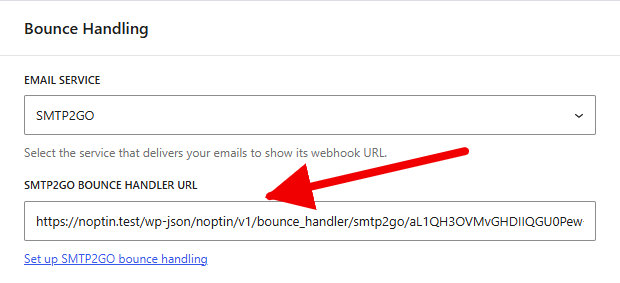
- Select SMTP2GO under Email Service.
- Copy the complete SMTP2GO Bounce Handler URL. Do not replace or remove its security code.
Configure SMTP2GO
- In SMTP2GO, open Settings > Webhooks > Manage Webhooks and click Add Webhook to open the webhook creation form.
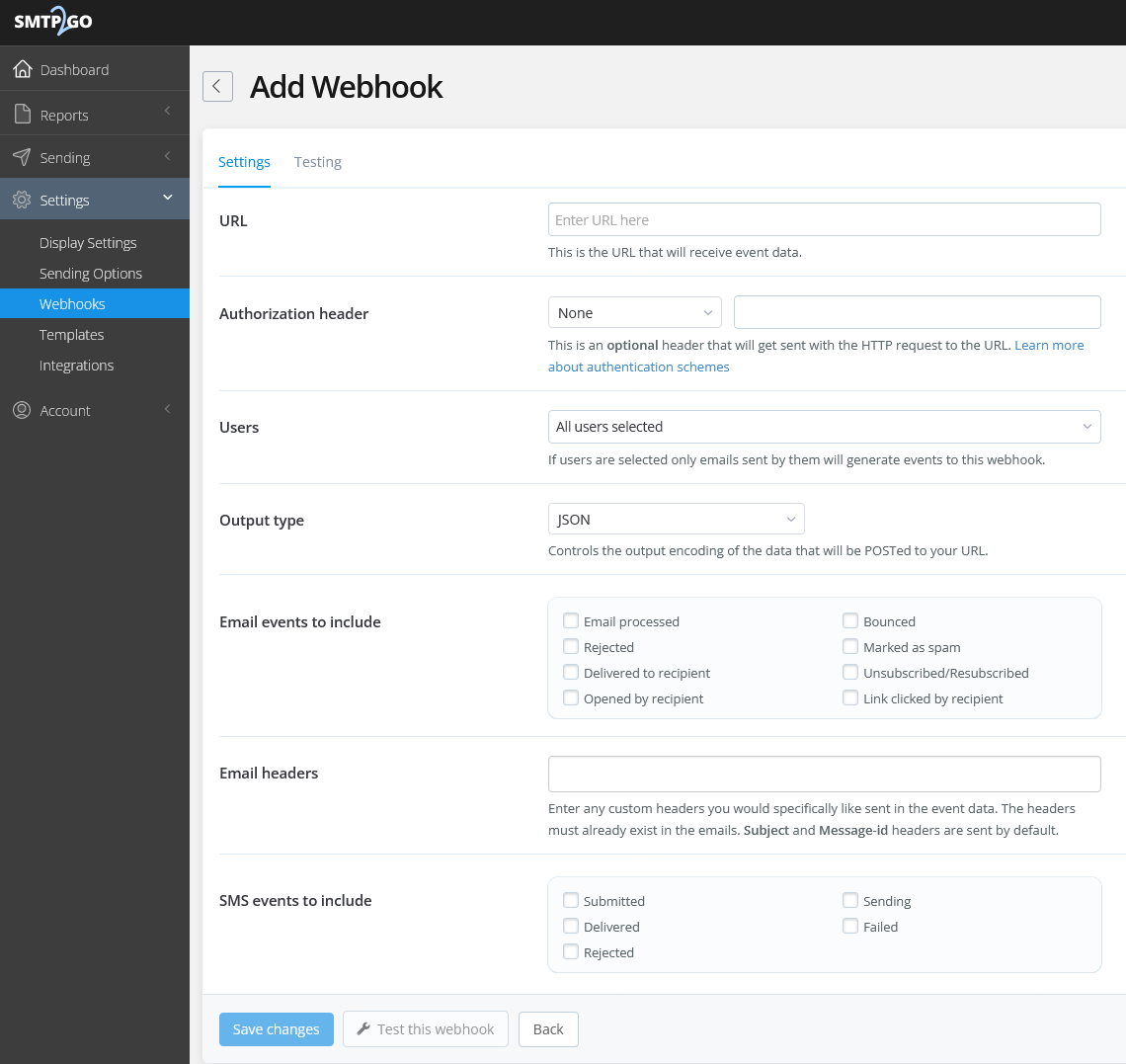
- Paste the SMTP2GO Bounce Handler URL you copied from Noptin in the first step into the URL field.
- Next, select the SMTP users or API keys that send your Noptin emails.
- Set Output type to JSON.
- Under Email events to include, select Bounced, Marked as spam, and Unsubscribed/Resubscribed. Noptin processes unsubscribe notifications and ignores resubscribe notifications.
- Click Save changes to save the webhook.
- Finally, click Test this webhook to test delivery with a test subscriber you control.
What changes in Noptin
A bounce with bounce set to hard marks the matching subscriber as Bounced. Soft or unspecified bounce types are ignored. Spam events mark subscribers as Complained, and unsubscribe events mark them as Unsubscribed.
The notification must contain an email address already in your Noptin subscriber list. These status changes retain the subscriber record and stop future Noptin campaign delivery to that address; they do not delete it.
Check the connection
Use a test subscriber you control. Check the webhook delivery result in SMTP2GO, then find the same email address in Noptin > Subscribers and check its status. SMTP2GO’s test notifications may use an email address that isn’t on your Noptin list.
Keep your bounce handler URL private. Its security code allows the holder to submit bounce and unsubscribe notifications to your site.
Leave a Reply