
If you send emails from Noptin through SparkPost, you can automatically track bounces, spam complaints, and unsubscribes by connecting SparkPost to Noptin’s bounce handler. Noptin updates the affected subscribers’ statuses so future campaigns leave out those addresses. This also works when you send through a WordPress SMTP plugin.
Copy your SparkPost webhook URL
- Open Noptin > Settings in WordPress.
- Choose Emails, then find the Bounce Handling settings group.
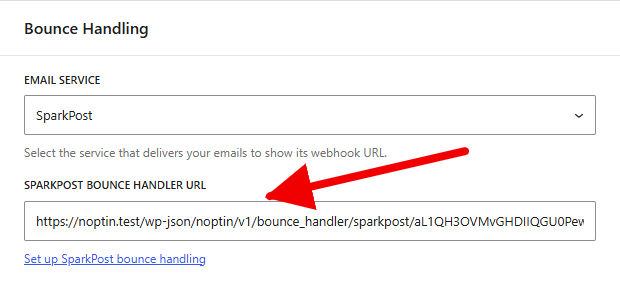
- Select SparkPost under Email Service.
- Copy the complete SparkPost Bounce Handler URL. Do not replace or remove its security code.
Configure SparkPost
- Open the webhook settings in the SparkPost account that sends your emails and create a webhook.
- Paste the SparkPost Bounce Handler URL you copied from Noptin in the first step as the webhook target. Enable bounce, out-of-band bounce, spam complaint, and unsubscribe events.
- Save and validate the webhook. SparkPost sends event batches, so keep its standard JSON format.
What changes in Noptin
Bounce and out-of-band bounce events mark matching subscribers as Bounced. Spam complaints mark them as Complained; list and link unsubscribe events mark them as Unsubscribed. Delivery and engagement events do not change subscription status.
The notification must contain an email address already in your Noptin subscriber list. These status changes retain the subscriber record and stop future Noptin campaign delivery to that address; they do not delete it.
Check the connection
Use a test subscriber you control. Check the webhook delivery result in SparkPost, then find the same email address in Noptin > Subscribers and check its status. SparkPost’s test notifications may use an email address that isn’t on your Noptin list.
Keep your bounce handler URL private. Its security code allows the holder to submit bounce and unsubscribe notifications to your site.
Leave a Reply