

Want to automatically email your WordPress users whenever you publish a new post?
You can do this using Noptin, a WordPress email marketing and automation plugin that lets you send new post notifications to all registered users or only users with specific roles.
For example, you can automatically notify:
- All registered users when a new blog post is published.
- Members when you publish new content.
- Editors and authors when a post goes live.
- Users with specific roles when new posts are published in selected categories.
You don’t need to manually create and send an email every time you publish. Once configured, Noptin handles the notifications automatically.
How to automatically email WordPress users when you publish
First, install and activate Noptin on your WordPress website.
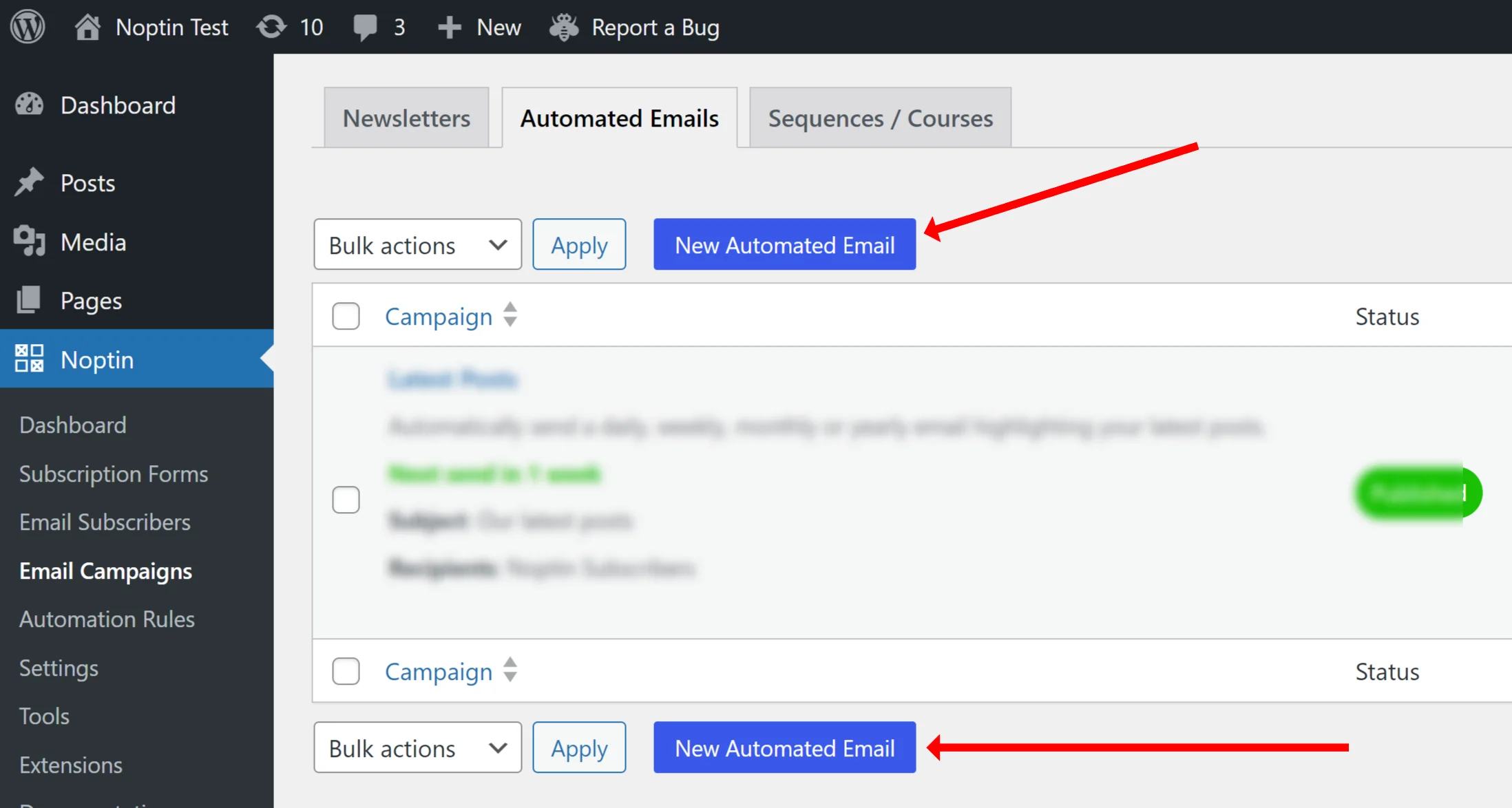
Next, go to Noptin > Emails > Automated Emails and click New Automated Email to create an automation.
Select New Post Notification as the campaign type. For a custom post type, choose the matching option, such as New Product Notification for products.

When prompted to choose recipients, select WordPress Users to notify registered users. You can also select Post Author to notify the person who wrote the post, or Site Admin to notify the site administrator.
| Recipient | Description |
|---|---|
| Post Author | Sends an email to the post’s author. |
| Site Admin | Sends an email to the site administrator. |
| WordPress Users | Sends a bulk email to your WordPress users. You can filter recipients by user role. |

Noptin will open the email editor where you can customize the email’s subject and content, send a test email, and publish the automation.

That’s it! Noptin will automatically send the email whenever a qualifying post is published.
You can include the post title, excerpt, featured image, a link to read the full article, and any other supported merge tag.
Email only users with specific WordPress roles
You don’t have to notify every registered user.
Noptin lets you filter recipients by their WordPress roles. For example, you could notify only subscribers, members, authors, or editors.

You can also filter users using custom fields created with ACF, Meta Box, Pods, Toolset Types, and similar plugins, as well as by supported membership and learning management integrations.
If you only want to send emails for certain posts, Noptin also supports filtering by category, tags, post author, and any of the other available merge tags in the next section.

Personalize your post notification emails
You can use the following merge tags to add dynamic content to your email’s subject or content. You can also use them in conditional logic.
NOTE:
This is only a guide. Available merge tags depend on the plugins installed on your site. For example, ACF and other custom field plugins may add custom fields to the WordPress user, post author, and post merge tag sections.
WordPress User
| Merge tag | Description |
|---|---|
| [[user.id]] | ID |
| [[user.role]] | Role |
| [[user.locale]] | Locale |
| [[user.email]] | |
| [[user.display_name]] | Display name |
| [[user.first_name]] | First name |
| [[user.last_name]] | Last name |
| [[user.login]] | Username |
| [[user.url]] | URL |
| [[user.description]] | Bio |
| [[user.registered]] | Registration date |
| [[user.meta key=”my_key”]] | Meta value |
| [[user.customer.order_count]] | Customer >> Number of orders |
| [[user.customer.total_spent]] | Customer >> Lifetime value |
| [[user.newsletter]] | Newsletter subscription status |
| [[user.avatar_url]] | Avatar URL |
Post Author
| Merge tag | Description |
|---|---|
| [[post_author.id]] | ID |
| [[post_author.role]] | Role |
| [[post_author.locale]] | Locale |
| [[post_author.email]] | |
| [[post_author.display_name]] | Display name |
| [[post_author.first_name]] | First name |
| [[post_author.last_name]] | Last name |
| [[post_author.login]] | Username |
| [[post_author.url]] | URL |
| [[post_author.description]] | Bio |
| [[post_author.registered]] | Registration date |
| [[post_author.meta key=”my_key”]] | Meta value |
| [[post_author.customer.order_count]] | Customer >> Number of orders |
| [[post_author.customer.total_spent]] | Customer >> Lifetime value |
| [[post_author.newsletter]] | Newsletter subscription status |
| [[post_author.avatar_url]] | Avatar URL |
Post
| Merge tag | Description |
|---|---|
| [[post.id]] | ID |
| [[post.parent]] | Parent ID |
| [[post.author]] | Author ID |
| [[post.date]] | Date |
| [[post.title]] | Title |
| [[post.excerpt]] | Excerpt |
| [[post.content]] | Content |
| [[post.status]] | Status |
| [[post.comment_status]] | Comment Status |
| [[post.url]] | URL |
| [[post.ping_status]] | Ping Status |
| [[post.slug]] | Slug |
| [[post.comment_count]] | Comment Count |
| [[post.featured_image]] | Featured Image URL |
| [[post.language]] | Language (Locale) |
| [[post.meta key=”my_key”]] | Meta Value |
| [[post.tax_category]] | Categories |
| [[post.tax_post_tag]] | Tags |
| [[post.tax_post_format]] | Formats |
General
| Merge tag | Description |
|---|---|
| [[noptin_rule_runs]] | Automation runs |
| [[date]] | The current date |
| [[year]] | The current year |
| [[month]] | The current month |
| [[day]] | The day of the month |
| [[weekday]] | The day of the weekday |
| [[time]] | The current time |
| [noptin_coupon_code] | Unique Coupon Code |
| [[unsubscribe_url]] | The unsubscribe URL. |
| [[view_in_browser_url]] | The “View in Browser” URL. |
| [[blog_name]] | The website name. |
| [[blog_description]] | The website description. |
| [[home_url]] | The website URL. |
| [noptin] | Displays a personalized link to the Noptin website. |
| [[noptin_company]] | The company name that you set in Noptin > Settings > Emails. |
| [[subscriber_count]] | Displays the total number of subscribers |
| [[rule height=’3px’ color=’black’ width=’100%’]] | Displays a horizontal rule |
| [[spacer height=’50px’]] | Adds a blank vertical space |
| [[button text=’Click Here’ url=’https://example.com’]] | Displays a button |
Do WordPress users need to subscribe to your newsletter?
You don’t need users to join a separate newsletter list to send them post notifications.
However, having a WordPress account doesn’t automatically mean someone has agreed to receive marketing emails. Only send promotional notifications to users who have given the necessary consent.
Noptin supports conditional logic, so you can restrict notifications to WordPress users who have also subscribed to your newsletter.
If you want visitors who don’t have WordPress accounts to receive notifications, you can also use Noptin to email newsletter subscribers whenever you publish new content.
More ways to customize new post notifications
Noptin also supports conditional logic, custom post types, delayed notifications, AI-assisted email creation, and delivery through services such as Mailchimp, Brevo, Klaviyo, and ActiveCampaign.
For detailed instructions, screenshots, and advanced filtering options, see our complete guide:
How to Send New Post Notification Emails in WordPress
With Noptin, you can automatically keep your WordPress users informed whenever relevant new content is published.


Leave a Reply