
When an email bounces, you should stop sending messages to that address.
This guide shows you how to automatically track email bounces from Google Workspace and update the subscriber’s status in Noptin. Since Google Workspace doesn’t natively send bounce webhooks like dedicated email services such as Amazon SES, we’ll use a third-party automation service to monitor your Gmail inbox for bounce notifications and trigger webhooks in Noptin.
This is only relevant if you’re using Google Workspace (formerly G Suite) or Gmail to send your emails.
Understanding the Challenge
Unlike dedicated email sending services (Amazon SES, Mailgun, SendGrid), Google Workspace doesn’t provide instant webhook notifications when emails bounce. Instead, Gmail sends bounce notifications as regular emails to your inbox from addresses like “[email protected]” with subjects like “Mail Delivery Subsystem” or “Undelivered Mail Returned to Sender.”
To automate bounce handling, we need a service that can:
- Monitor your Gmail inbox for bounce notifications
- Extract the bounced email address from the message
- Send a webhook to Noptin with the subscriber’s email
- Trigger Noptin to mark the subscriber as bounced
Available Solutions
There are three main services you can use to connect Gmail bounces to Noptin webhooks:
| Feature | Zapier (Premium) | Make.com (Free) | n8n (Self-Hosted) |
|---|---|---|---|
| Tier Limit | 750+ tasks/mo depending on plan | 1,000 operations/mo | Completely free (No operation limits) |
| Gmail Trigger | Instant (via push) or polling | Polling (Checks every 15 min) | Instant (via Google Pub/Sub) or Polling |
| User Experience | Very user-friendly | Visual “Scenario” builder | Open-source / Code-friendly |
| Setup Difficulty | Very Easy | Easy / Moderate | Technical (Requires VPS/Docker) |
| Bounce Handling | Can send and receive webhooks | Can filter & send webhooks | Full control / Unlimited webhooks |
This guide focuses on Make.com as it offers the best balance of features, reliability, and ease of use on a free plan.
Step 1: Set Up a Webhook Automation in Noptin
Before configuring Make.com, you need to create a webhook endpoint in Noptin that will receive bounce notifications.
To do this:-
First, log in to your WordPress admin dashboard, then go to Noptin > Extensions > Connections and install the Webhooks integration (if you haven’t yet).
Next, go to Noptin > Automation Rules and create a new automation rule.
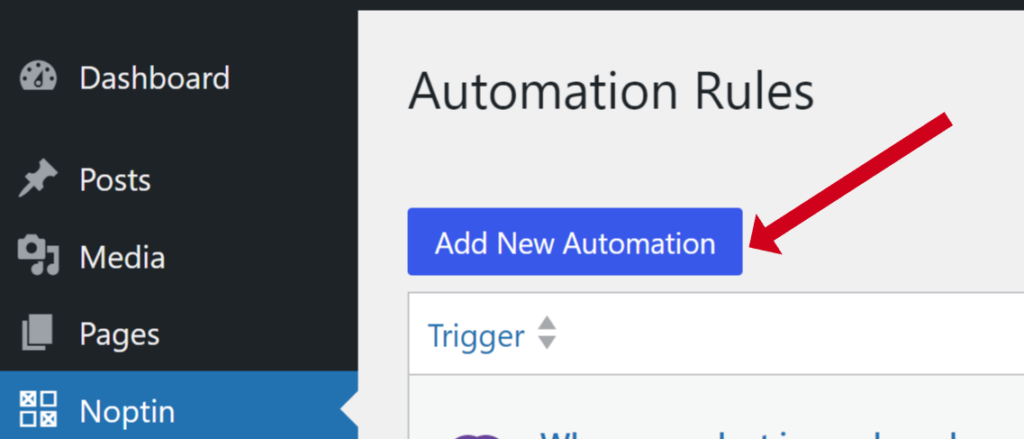
Next, select “Receive Webhook” as the trigger for your automation rule…

… and “Subscriber > Update Status” as the action.

Noptin will open the rule’s edit page. Keep all settings as they are, except change the Status to bounced as shown below.

Finally, save the automation rule to display the webhook’s URL.

Your webhook is now ready to receive bounce notifications. When Make.com sends a webhook request containing an email address, Noptin will automatically mark that subscriber as bounced.
Step 2: Configure Make.com to Monitor Bounces
Now we’ll set up Make.com to watch your Gmail inbox for bounce notifications and send webhooks to Noptin.
Create a Make.com Account
- Go to Make.com and sign up for a free account.
- After signing up, click Create a new scenario.

Add Gmail Trigger
- Select build from scratch to start building the scenario.
- Click the + button to add your first module.
- Search for “Gmail” and select it.
- Choose Watch emails as the trigger.
- Click Create a connection and authorize Make.com to access your Gmail account.

Add Filter to Identify Bounces
- Filter type: Select Gmail filter.
- Query: Set to:
is:unread from:([email protected] OR [email protected]) OR subject:("Delivery Status Notification" OR "failure notice" OR "Mail Delivery" OR "Undelivered")
- Limit: Set to 10 or 20
- Click Save.

Tip:
Copy and paste the query above into your Gmail account. If it shows false positives, you can refine it further.
You can also set Make.com to mark fetched emails as read.
Add Text Parser to Extract Email
Bounce emails contain the bounced email address in the message body. We need to extract it.
- Add a new module and search for “Text parser“.
- Select “Match pattern“.
- In the Pattern field, enter this regular expression to match the bounced email address:
(?<bounced_email>[a-zA-Z0-9._%+-]+@[a-zA-Z0-9.-]+\.[a-zA-Z]{2,})

- In the Text field, map the email body content from the Gmail module (usually HTML Body or Full text body).
- Click Save.

The text parser will extract the first email address from the bounce notification. This is usually the bounced address.
Add Webhook to Noptin
- Add a new module and search for “HTTP“.
- Select “Make a request“.
Next, you need to configure the webhook to send a request to the webhook URL you copied in the first step.
- Authentication type: Choose No authentication unless your WordPress REST API needs authentication. If it does, pick the correct authentication type.
- URL: Paste the webhook URL you copied from Noptin in Step 1.
- Method: Select
POST.

- Body content type: Select
application/x-www-form-urlencoded. - Body content: Set the field name to
emailand assign it the bounced email address from the text parser. - Click Save.

Test and Activate
Toggle the scenario to ON and set your preferred schedule (every 15 minutes recommended).

That’s all!
Whenever an email sent via Google Workspace bounces, Make.com will detect the bounce notification, extract the email address, and send a webhook to Noptin to automatically mark that subscriber as bounced.
Important Considerations
- Bounce Detection Accuracy: Since we’re identifying bounces based on email patterns (sender, subject), there’s a small chance of false positives or missed bounces. Monitor your workflow regularly to ensure accuracy.
- Soft vs Hard Bounces: Gmail bounce notifications don’t always clearly distinguish between temporary (soft) and permanent (hard) bounces. You may want to implement additional logic to categorize bounces or handle them differently.
- Gmail API Limits: The free tier of Make.com (1,000 operations/month) should be sufficient for most small to medium email lists. If you send high volumes, consider upgrading or using n8n.
- Privacy: Make.com will have access to your Gmail inbox. Ensure you’re comfortable with this and review Make.com’s privacy policy.
For more reliable bounce handling, consider using a dedicated transactional email service (Amazon SES, Mailgun, SendGrid, Postmark) instead of Google Workspace for sending marketing emails. These services provide native bounce webhooks and are specifically designed for bulk email sending.
Leave a Reply