Visual structure
Noptin reads the section order, spacing, alignment, hierarchy, colors, and borders shown in the reference.
AI email cloner for WordPress
Upload a screenshot and let Noptin AI rebuild its layout with editable email blocks—ready for your copy, images, and branding.
No design spec neededEvery block stays editable30-day money-back guarantee
Start with what works
A strong reference already answers the hard visual questions: hierarchy, spacing, section order, and emphasis. Noptin turns that reference into a working first draft, so your time goes into the copy, imagery, and details that make the email your own.
Don’t need to recreate a specific design? Start with one of the 50+ professional email templates included with Noptin instead.
How to clone an email
Go from inspiration to an editable starting point in minutes instead of rebuilding every section manually.
What to expect: Noptin AI recreates the design as closely as its email blocks support. Complex layouts may need minor adjustments in the editor.
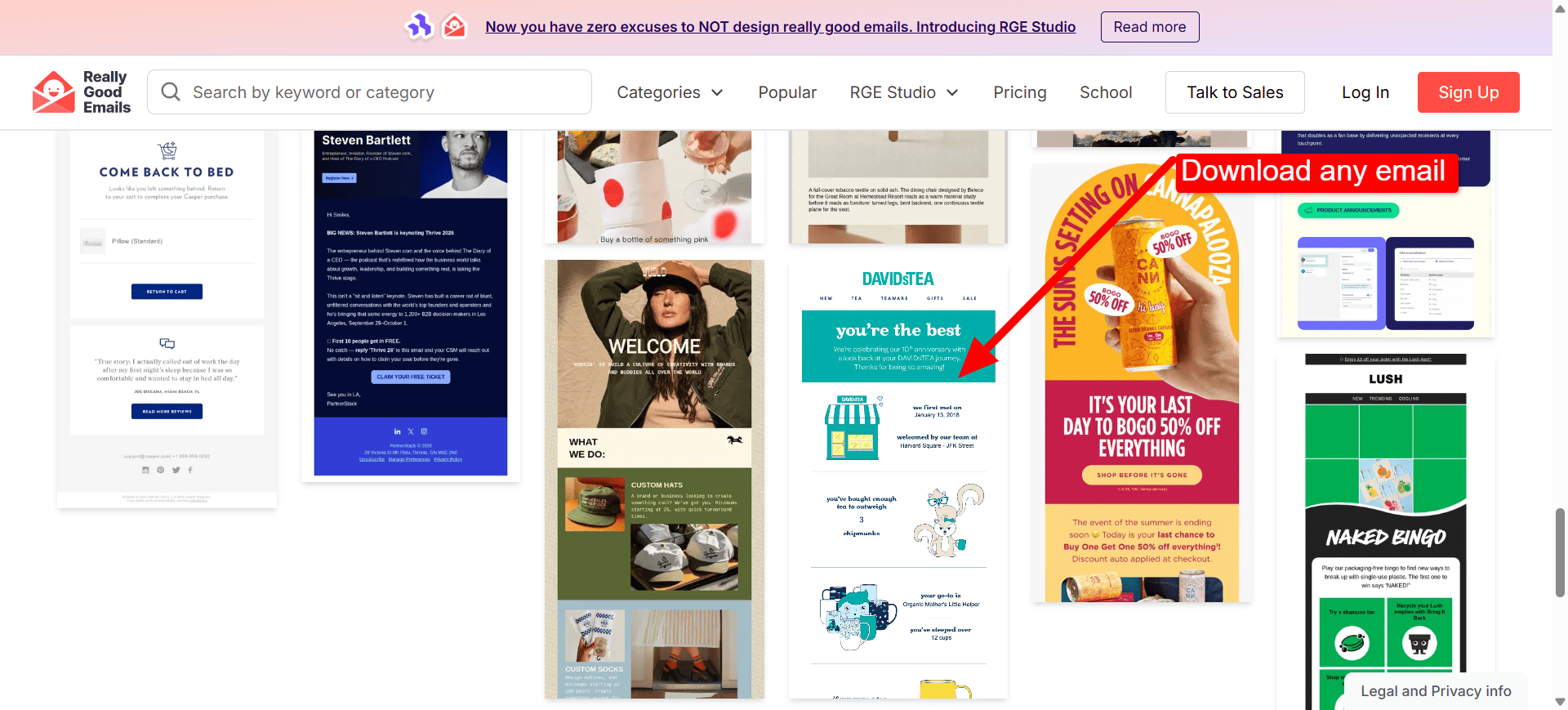
Start with an email you received, a design from your team, or an example from an inspiration gallery. For example, you can open an email on Really Good Emails, right-click the image, and select Download Image to save the full design.
Tip: A full-length, high-resolution PNG gives the AI the clearest view of the layout.
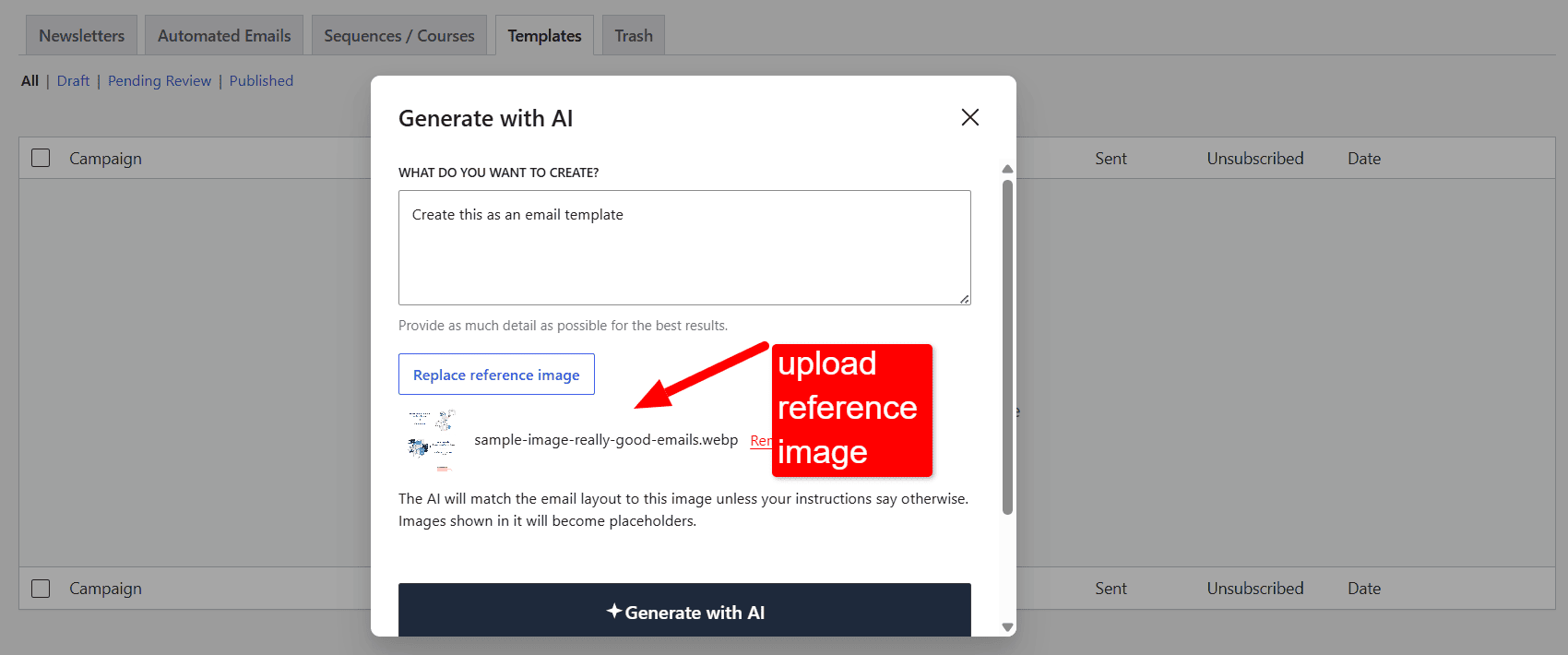
Ask Noptin AI to create an email, then attach the screenshot as the visual reference. The image alone is enough, or add instructions when you want different copy, colors, or sections.
Remember: Written instructions take priority when they differ from the screenshot.
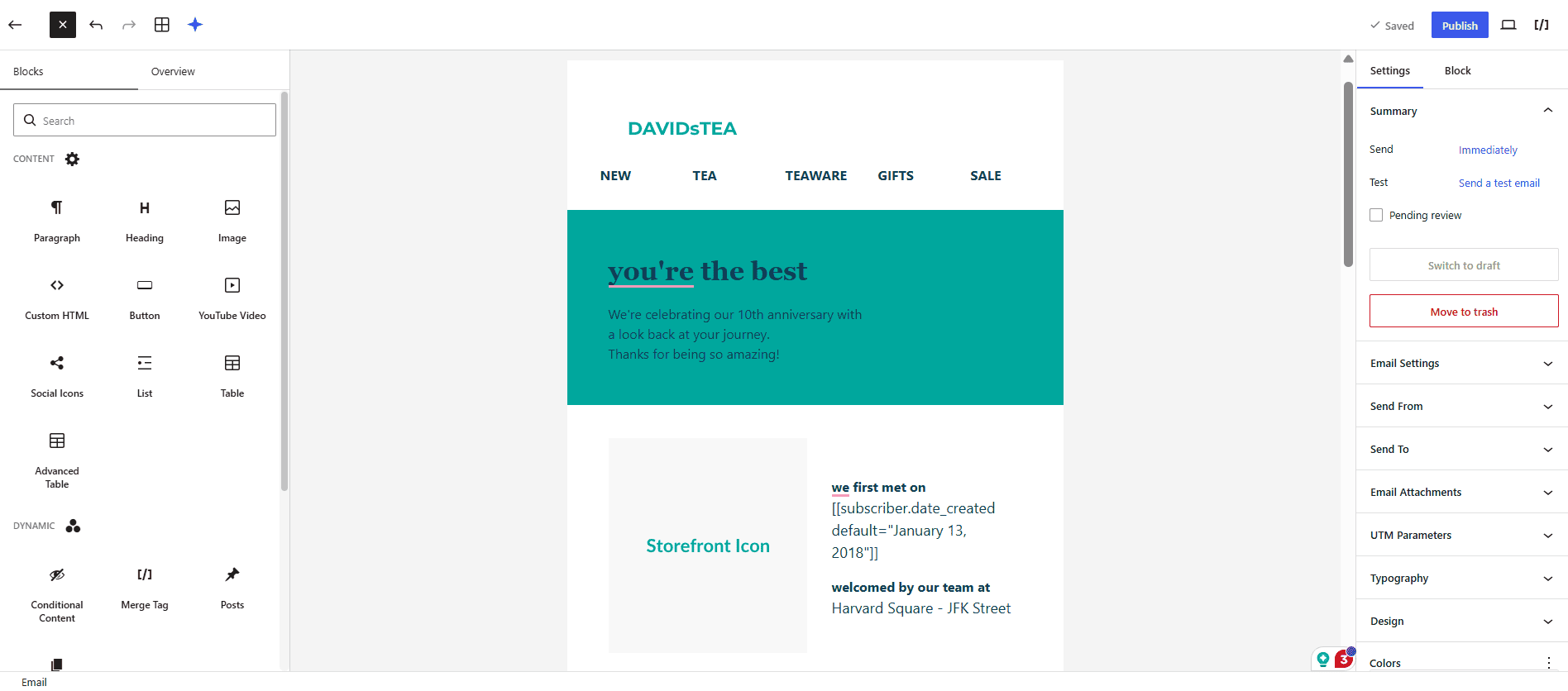
Open the generated email in Noptin’s visual email editor. Revise the text, swap every placeholder for an image you own, adjust the styling, and preview the result before sending.
Result: A real email made from editable blocks—not a flattened picture.
Built for a usable result
Noptin gives you a head start without locking the result into an image.
Noptin reads the section order, spacing, alignment, hierarchy, colors, and borders shown in the reference.
Photos, illustrations, and logos in the screenshot become replaceable placeholders instead of copied assets.
Change the wording, swap images, restyle sections, and adjust the layout in the WordPress email editor.
Questions
A clear screenshot is usually all Noptin needs to create the first draft.
An AI email cloner turns a screenshot or reference image into a new, editable email layout. Noptin reads the visual structure, recreates it with supported email blocks, and uses placeholders instead of copying the pictured image assets.
You can use a screenshot of an email you received, a design your team created, or an example from an email inspiration gallery such as Really Good Emails. Only use designs and assets you have permission to adapt.
No. Photos, illustrations, and logos shown in the reference become appropriately sized placeholder images. Replace them with your own approved assets in the email editor.
Yes. Add written instructions with the reference image when you want to change the wording, colors, sections, or any other part of the design. Your written instructions take priority.
Yes. The result is built from Noptin email blocks, so you can revise the copy, replace images, change styling, and adjust the layout before sending.
No. You can upload a reference image on its own. Add a prompt only when you want Noptin AI to depart from what it sees in the reference.
Turn the next email you admire into a draft you control.
Create emails with Noptin AI